How coaching works on JustGains
A coach runs your training, food and goals inside the app you already use. What each side sees, what is shared, and where to start.
JustGains Coaching puts a coach and a client in the same app. The client keeps the JustGains they already train, eat and log in. The coach gets a panel on top of it: assign the plan, set the targets, read the week, and step in when it slips.
This is the short version for both sides. Each section links to a guide with the steps. On the web, the Guide button in the coach panel header opens the guides in a drawer. On web and phone, a small help icon or a How it works link beside a section heading opens its guide.
Where to find it
| On | Go to |
|---|---|
| Web | Coaching in the sidebar, or justgains.com/coach |
| Phone | You, then Coaching |
What a coach can do
The panel has four parts, in the same order on the web and under You on the phone. Clients is your roster and what they logged lately. Squads are private group chats. Library holds the plans you reuse. Setup is what a new client meets first: your welcome, your questions, your forms.
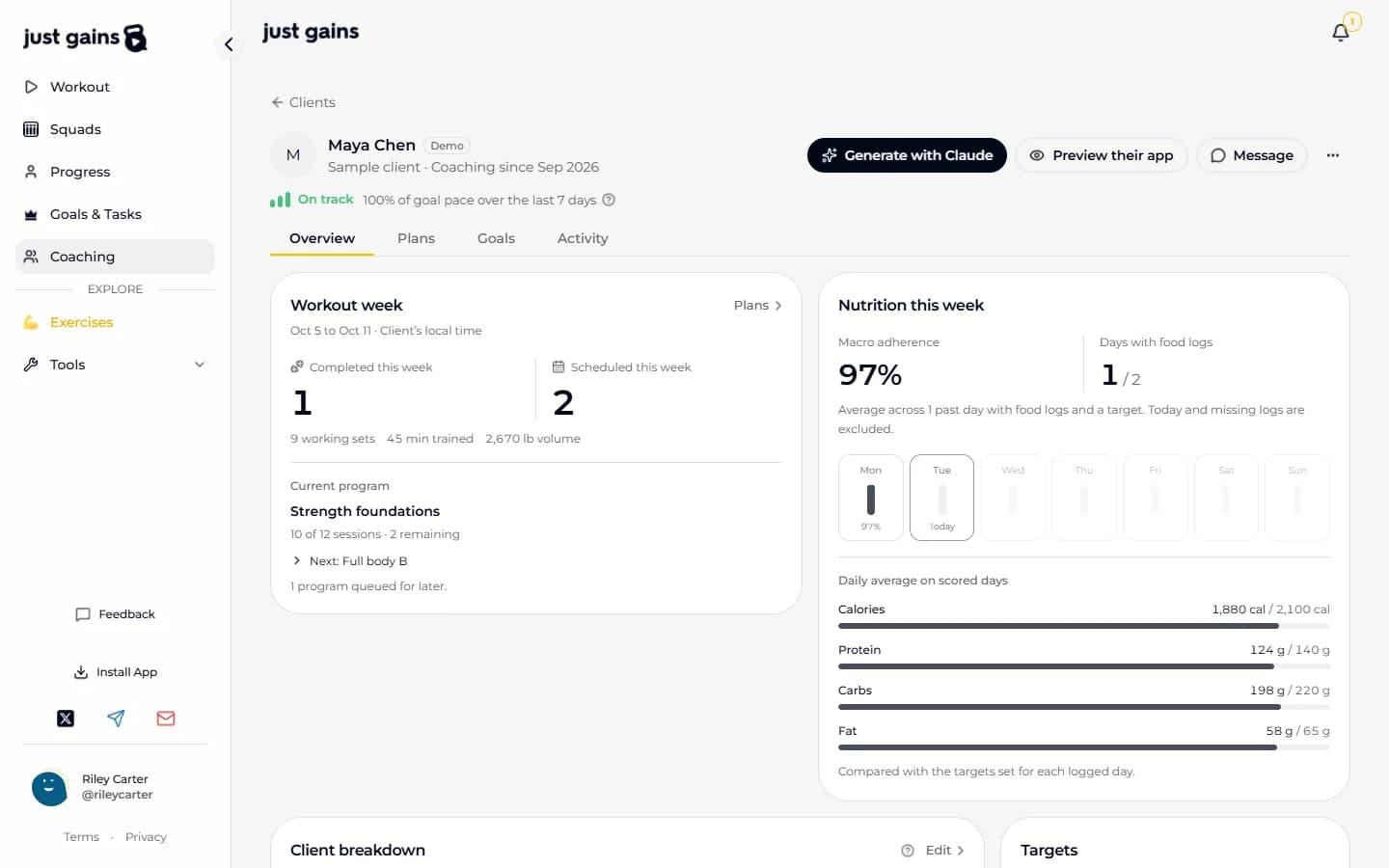
The work happens on a client. Open one and you can:
- Assign a program, a workout, a meal plan or a run plan from your library. They get their own copy, so editing your template later never changes what they already have.
- Generate a plan with Claude from what they told you: schedule, equipment, injuries, history.
- Set goals the app counts for you (training days, meals logged, distance, steps) or that they tick off themselves.
- Set calorie, macro and weight targets.
- Send a form, keep private notes, and message them or comment on a session.
- Preview their app: their screens, read-only.
How you know who needs you
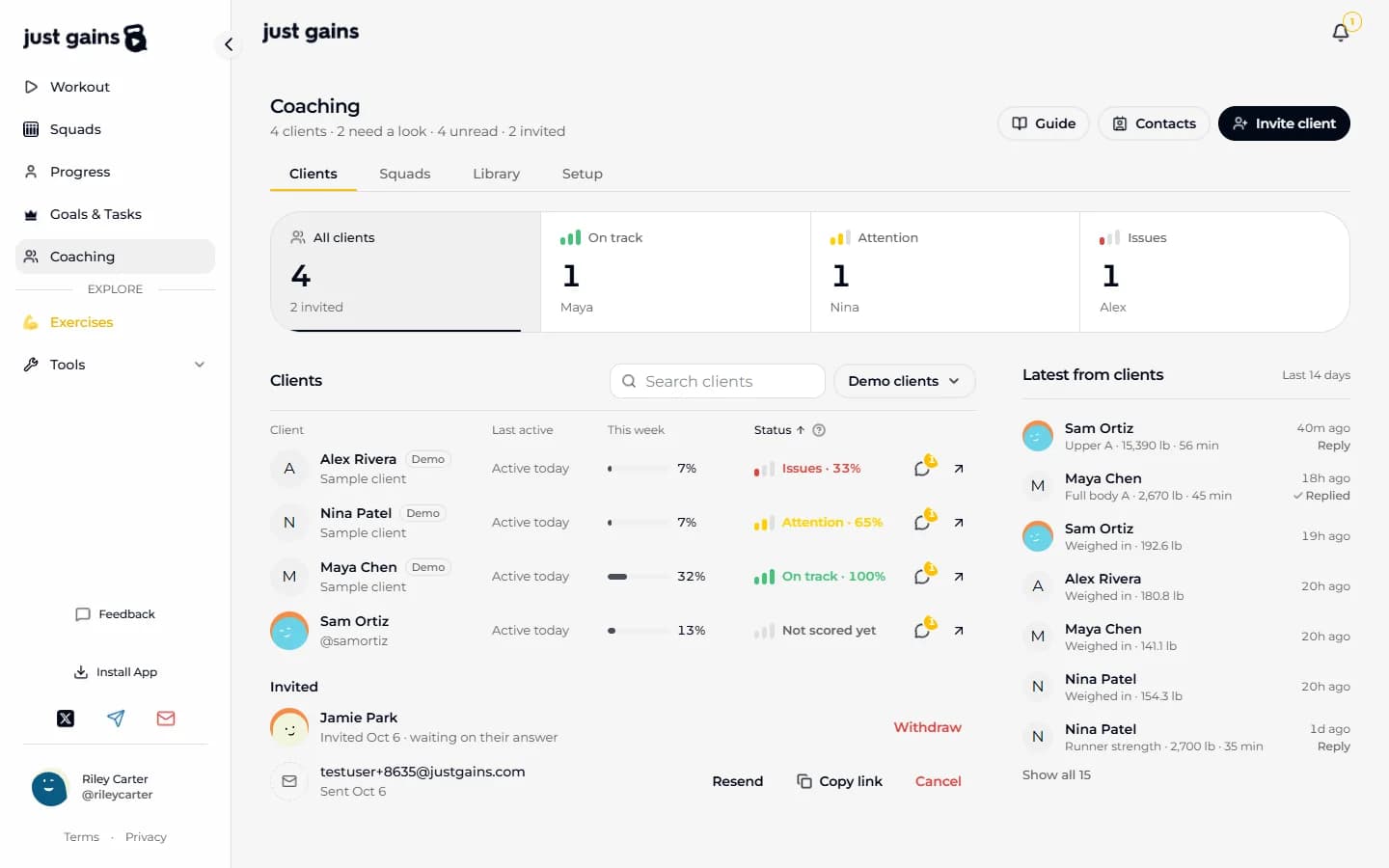
Your roster sorts itself. Each client is On track, Attention or Issues, with the pace number behind the word (Issues · 33%), scored from how their counted goals went over the last seven finished days. Today is never held against anyone, so nobody looks behind on a Monday morning.
| Status | Goal pace over the last 7 finished days |
|---|---|
| On track | 80% or more |
| Attention | 50 to 79% |
| Issues | Under 50% |
| Not scored yet | No counted goal has run a full week |
What a client gets
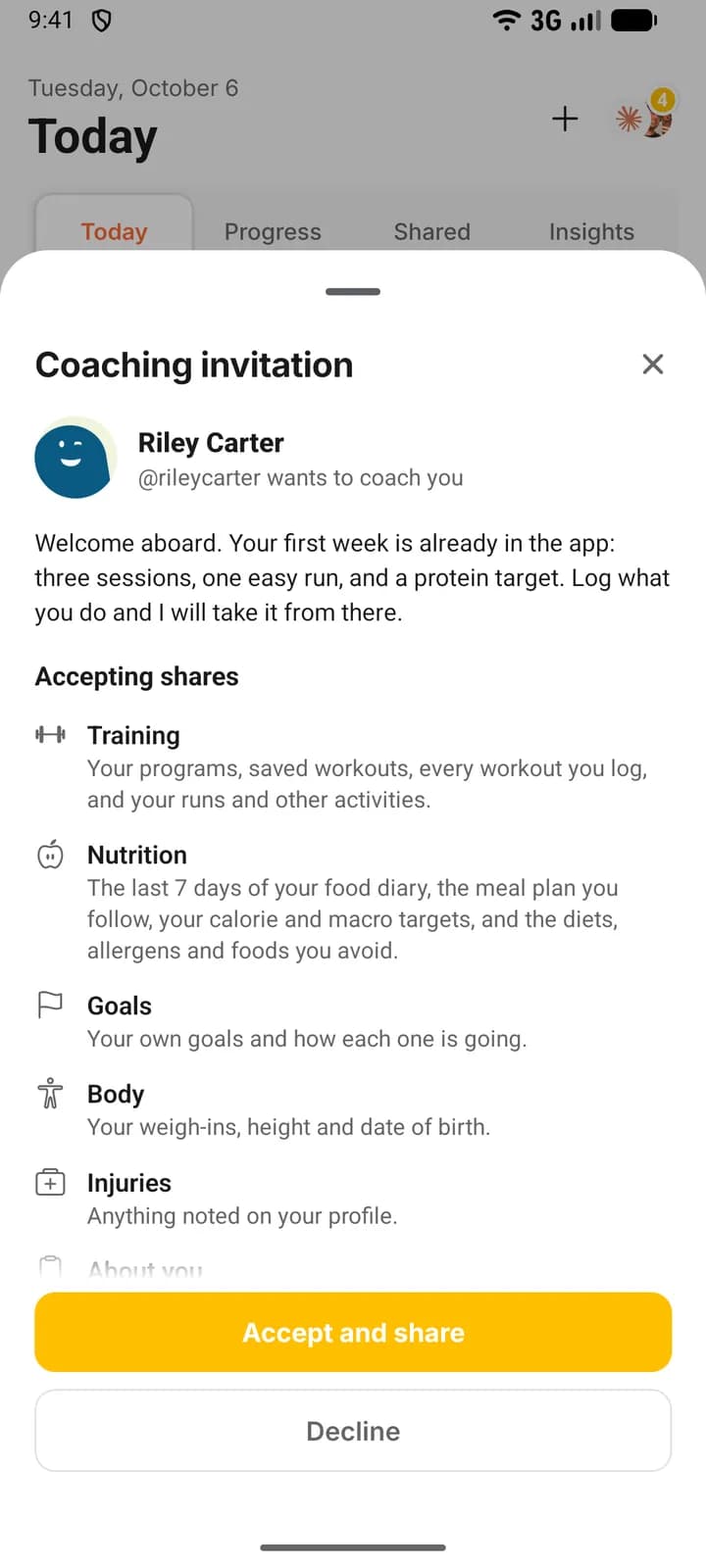
A client joins from an email, a link, a six-character code typed at signup, or an invitation sent to their username. Whichever way they arrive, they read who is asking and exactly what accepting shares before they can accept. Someone who opens the link signed out sees a one-line promise first, and the full list once they sign in. Nothing is shared before they accept.
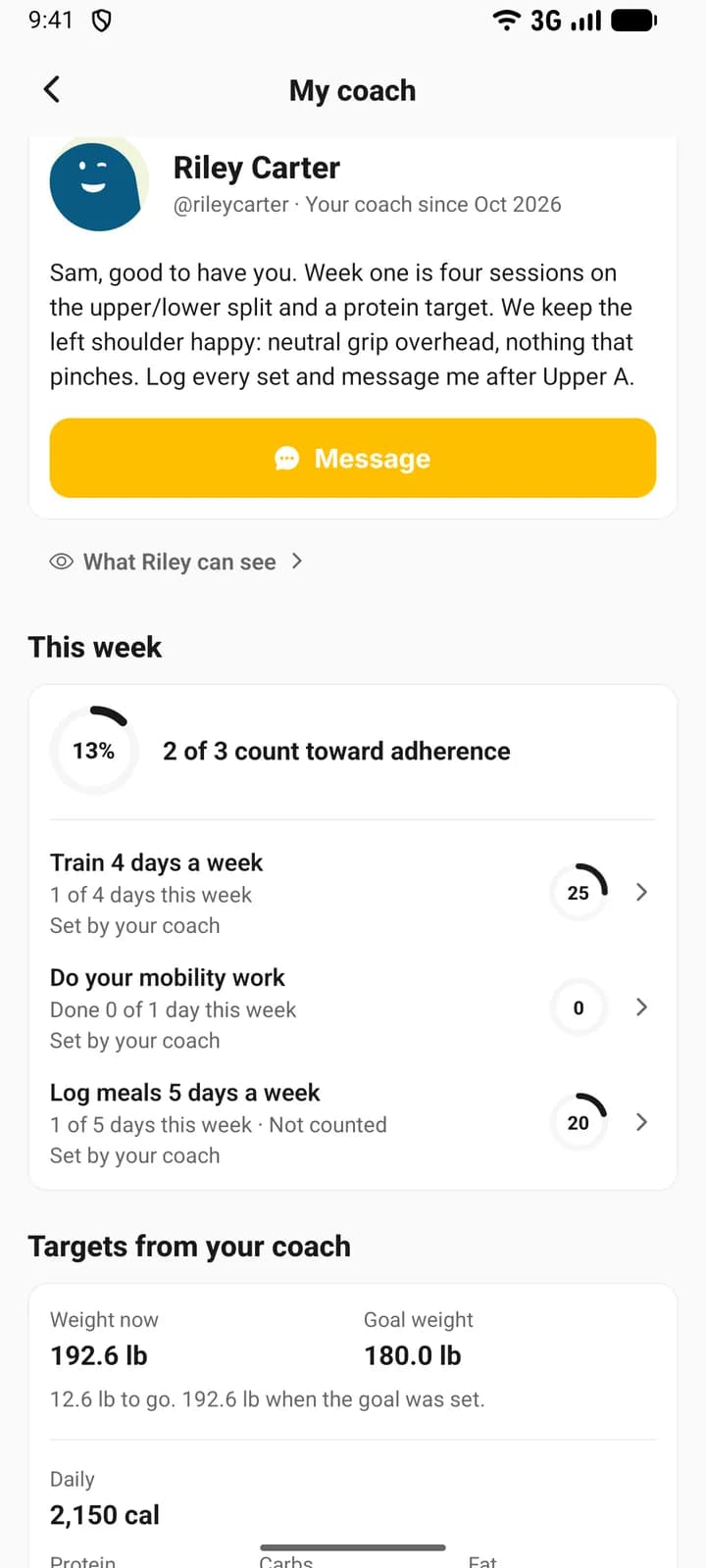
After that, coaching shows up where they already look. On the phone their coach is on Today, with a message button. On the web their coach’s card is at the top of Workout when no workout is open and on the Dashboard, with My coach in the sidebar and the bottom bar. Assigned plans open as their own copies, marked “From your coach, Riley Carter”. Goals from their coach sit with their own goals, and the ones the app counts fill themselves in. My coach gathers it in one place: this week, targets, plan and forms. Join your coach walks through it.
Web or phone
Both. A coach can run a roster from either, and the four parts are the same. Programs and workouts can be built on either, but meal plans and run plans are built on the web only. Coach from your phone lists what works where.
Where to start
- Coaches: Set up in 10 minutes. Coaching is in early access, so if you do not see Coaching yet, ask for a coach account.
- Clients: Join your coach.
FAQ
Keep learning
Set up your coaching in 10 minutes
Four steps for a new coach: practise on three demo clients, write your welcome, add a first plan and invite your first client.
Join your coach on JustGains
Accept your coach’s invitation, see what it shares before you agree, and find your plan, goals, targets and forms afterwards.
What your coach can see on JustGains
What accepting a coach shares, what stays private, what your coach can change in your app, and how to stop sharing.