Build your coaching library
Keep the programs, workouts, meal plans and run plans you reuse in one place, and see which clients are on each one.
The Library holds every program, workout, meal plan and run plan you own, ready to assign. Build a template once and give it to as many clients as you like.
Each client gets their own copy, so you can keep improving a template without touching anyone’s current plan.
Where to find it
| On | Go to |
|---|---|
| Web | Coaching, then Library |
| Phone | You, Coaching, then Library |
What goes in it
Four kinds of template: Programs, Workouts, Meal plans and Run plans. Anything of those kinds that you own is here, including plans you built before you coached anyone and plans you generate with Claude.
The web has a fifth shelf, Exercises, for movements you add yourself. They show up in the exercise picker when you build a workout or a program. They are never assigned on their own.
Where each kind is built
| Kind | On the web | On the phone |
|---|---|---|
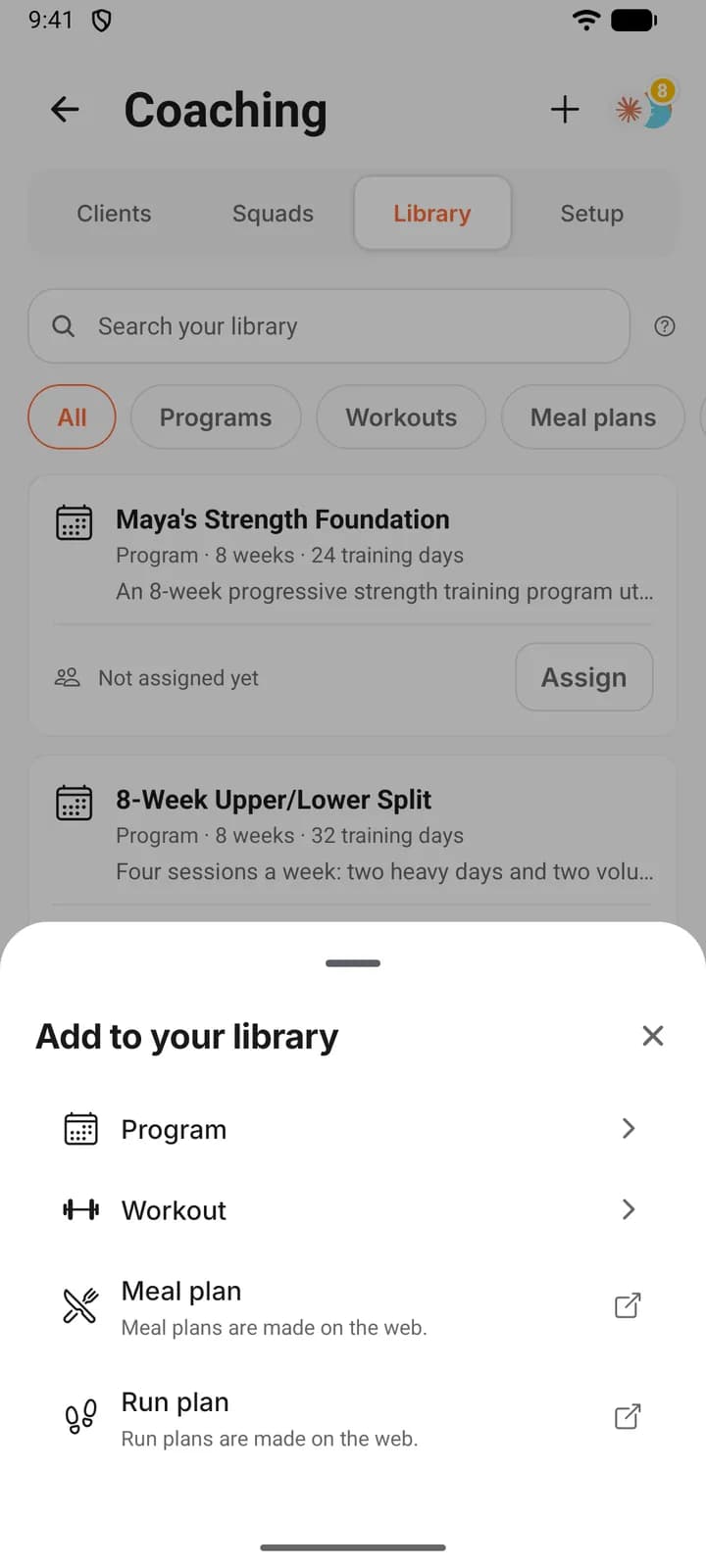
| Program | New program opens the program builder. | The plus button at the top of Library, then Program. |
| Workout | New workout opens the workout editor. | The same plus button, then Workout. |
| Meal plan | New meal plan opens the Meal Plan Creator. Ready-made plans lists the published plans, each with an Add to your library button. | The plus button, then Meal plan, opens the web editor. The phone can open a meal plan to read it and can assign it, and the Meal plans chip also lists Ready-made plans to assign as they are. |
| Run plan | New run plan opens Forge for Runs. | The plus button, then Run plan, opens the web editor. The phone can assign a run plan but not open it. |
| Exercise | New exercise, on the Exercises shelf. | This shelf is on the web. |
An empty template cannot be assigned. A workout needs at least one exercise, a program at least one workout day, a meal plan at least one day. Until then it is marked “Draft”: the web leaves out Assign, and the phone says what it still needs.
What a row tells you
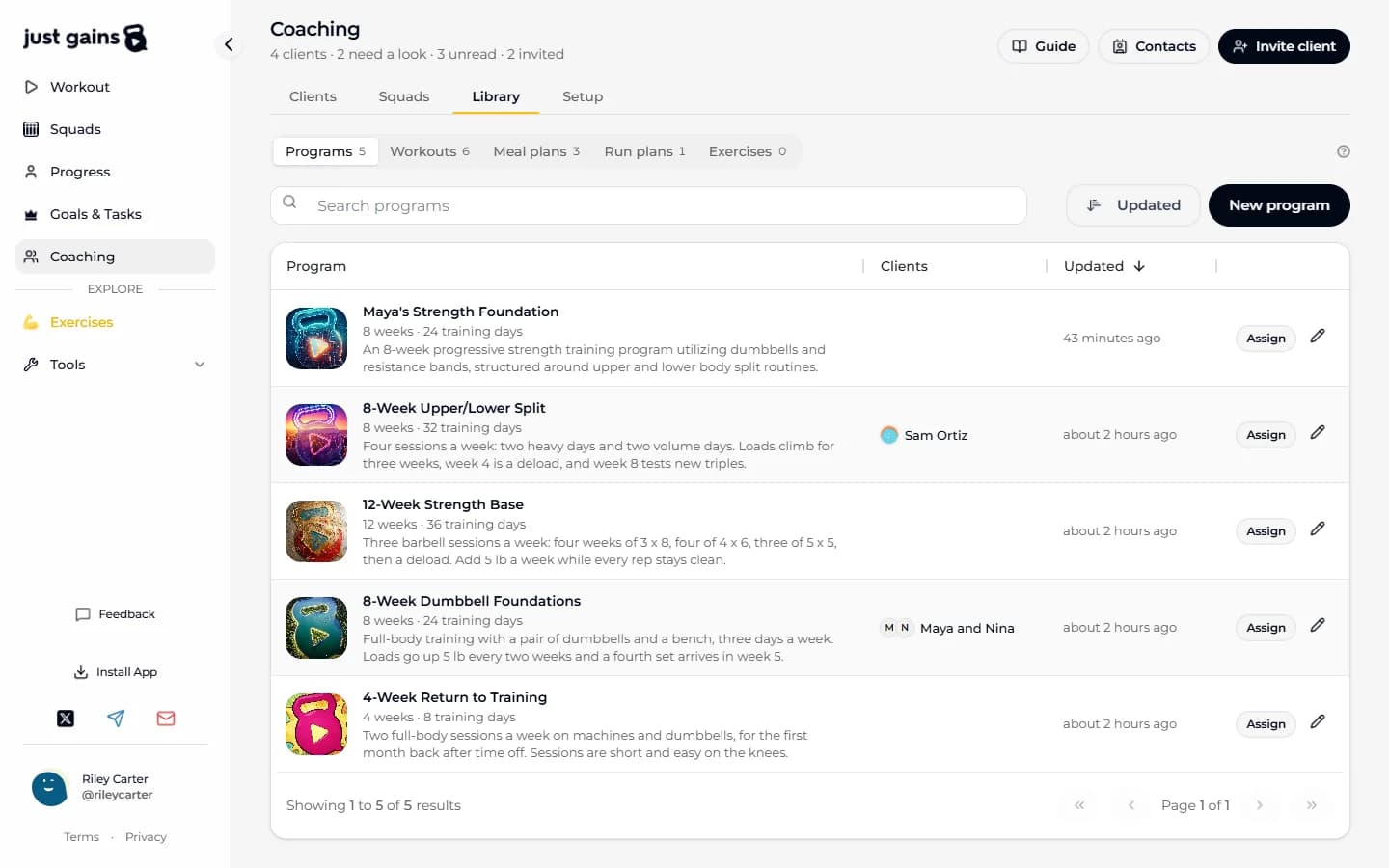
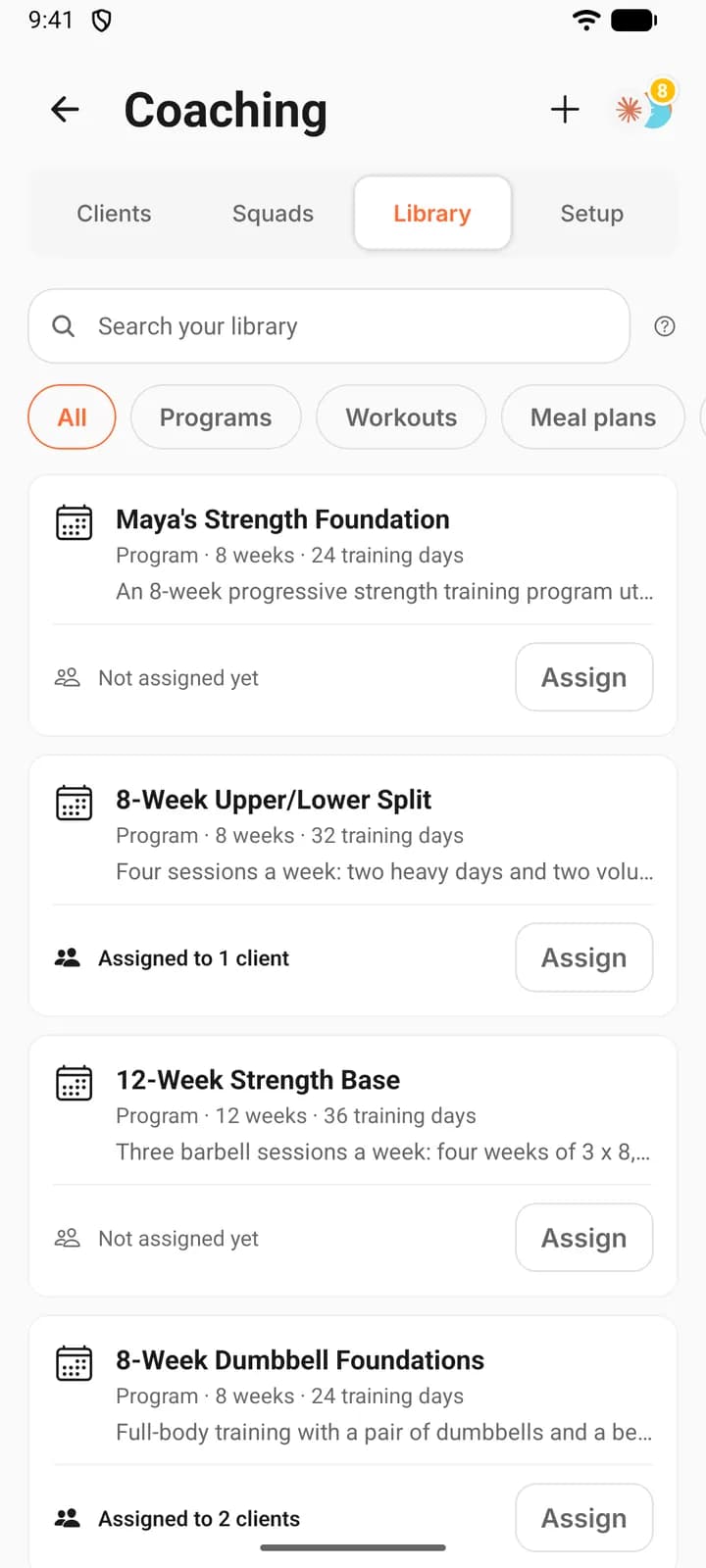
Every template shows its size and who is on it. The web adds when you last edited it. A program’s size is its weeks and training days (“8 weeks · 24 training days”). A workout shows how many exercises it has, with the first few named or pictured. A meal plan shows its days, average calories a day and diet tags, and a run plan its weeks.
The web names the clients on a template: “Maya and Nina”, or “Maya, Nina +3”. Press the names for the full list, each client with “Since Oct 6” (or “Starts Oct 12” for a plan dated ahead) and a link to their page. The phone gives the count: “Assigned to 2 clients” or “Not assigned yet”. A client counts while the assignment is active, so they drop off when you remove it, replace it or end coaching.
Find a template
On the web each shelf has its own search, which matches names, and a sort menu: Name, Clients or Updated. A shelf opens with the most recently edited template first, with drafts after the ones you can assign. Each row has Assign and an edit button. Press a template’s name to read it in a drawer first. A run plan opens in Forge for Runs.
On the phone one search covers the whole Library, names and descriptions, and the chips All, Programs, Workouts, Meal plans and Run plans narrow it. Open a card to read it, or press Assign to hand it out.
Editing a template never changes a client’s plan
Assigning copies the template into the client’s account. After that there are two documents, yours and theirs. Edit your template and the next client you assign it to gets the new version. Maya, who got it last month, keeps what she was given.
To change what a client already has, edit their copy. To move them to your new version, assign it again and replace what they are on.
FAQ
Keep learning
Assign and schedule plans for your clients
Give a client a program, workout, meal plan or run plan, choose the start date, and know what a future date really does.
Generate with Claude: draft a plan from what a client told you
Draft a program or a single workout from a client’s own answers. You read and edit the exact request before it is sent.
Change a client’s program: weeks, progressions and time off
Edit the program a client is already on: weeks, days and targets, progressions across weeks, and time off that keeps their place.
Coach from your phone: what works where
Nearly every coaching job works on both web and phone. This table lists them all, the few that need a browser, and what the phone does best.