Set up your coaching in 10 minutes
Four steps for a new coach: practise on three demo clients, write your welcome, add a first plan and invite your first client.
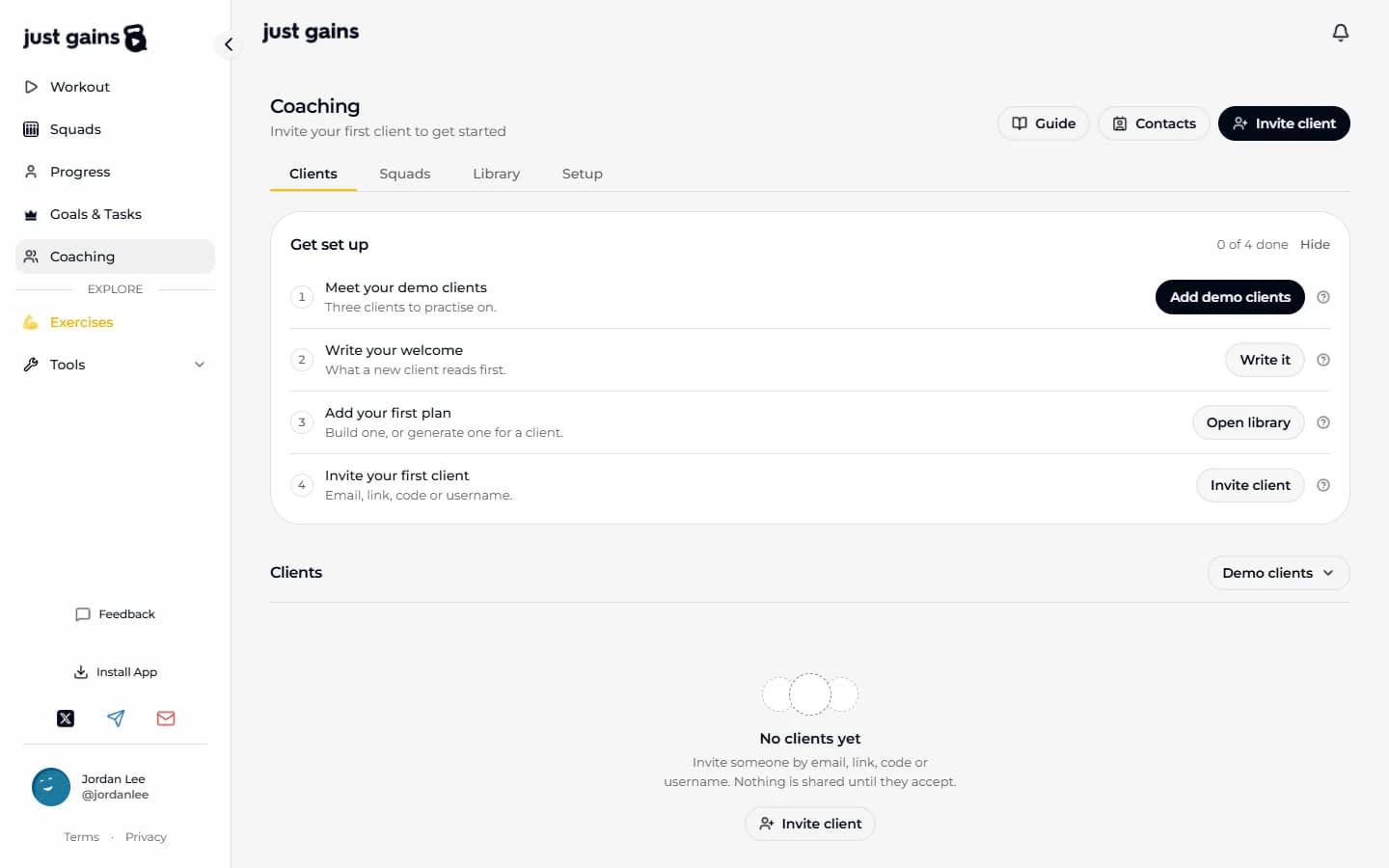
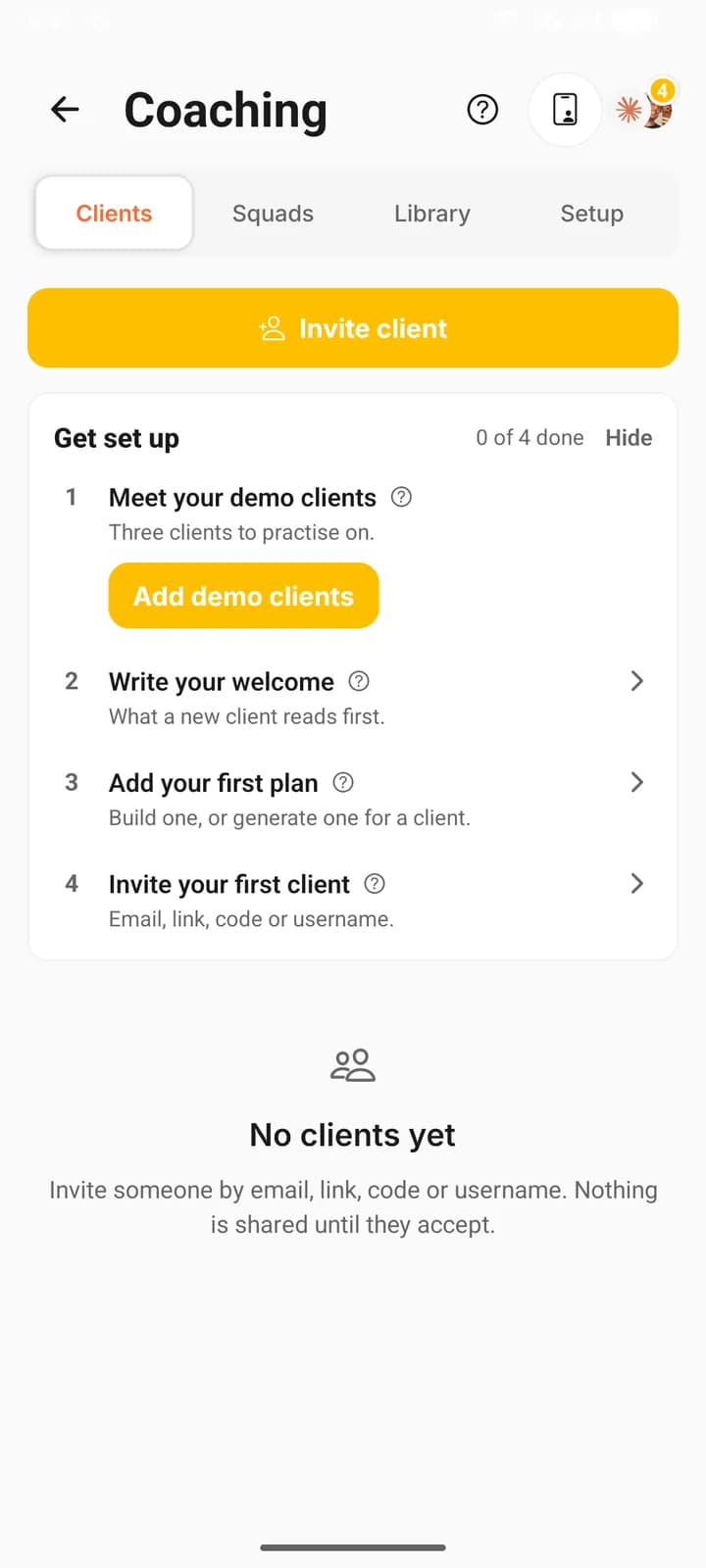
A new coach account opens on Clients with an empty roster and a card called Get set up. Its four steps leave you with three clients to practise on, a welcome your real clients will read, a plan ready to assign and an invitation on its way.
Coaching is in early access. If you see Coaching is invite-only where the card should be, press Request access. Your request goes to the JustGains team, who switch coach accounts on. They review it and reply by email.
Where to find it
| On | Go to |
|---|---|
| Web | Coaching in the sidebar, or justgains.com/coach. Get set up is at the top of Clients |
| Phone | You, then Coaching. Get set up is at the top of Clients |
The four steps
The card counts what is done and puts its main button on the next open step. You cannot tick a step by hand: each ticks when the thing it asks for exists, so the card agrees on your laptop and your phone. It goes away when all four are done, or as soon as a real client accepts. Hide puts it away sooner, on the device you press it on.
- On Meet your demo clients, press Add demo clients. Maya Chen, Nina Patel and Alex Rivera join your roster, each tagged Demo.
- On Write your welcome, press Write it. It opens Setup, where you write the message a new client reads when your invitation opens: up to 280 characters, with a video of up to 60 seconds if you want one. Saving either ticks the step.
- On Add your first plan, press Open library and build a program or a workout. Meal plans and run plans are built on the web. A plan you generate with Claude for a demo client counts too, because the draft is saved to your library.
- On Invite your first client, press Invite client and send an invitation by email, link or username. The step ticks once an invitation is waiting on an answer. For your link or code, that is when someone uses it.
Your client sees who is inviting them and exactly what accepting shares. Nothing is shared until they accept. Invite clients covers each route.
What the demo clients are for
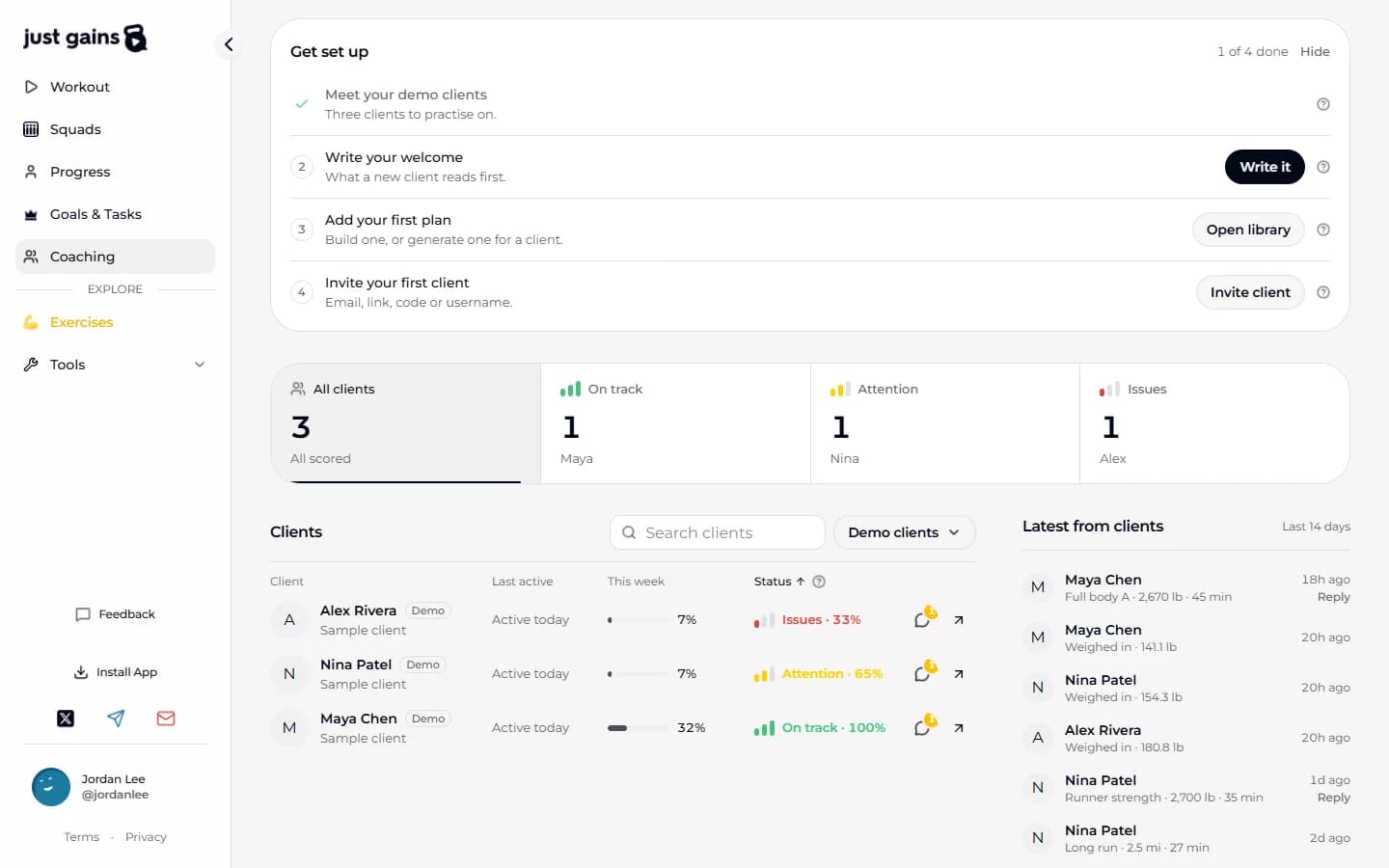
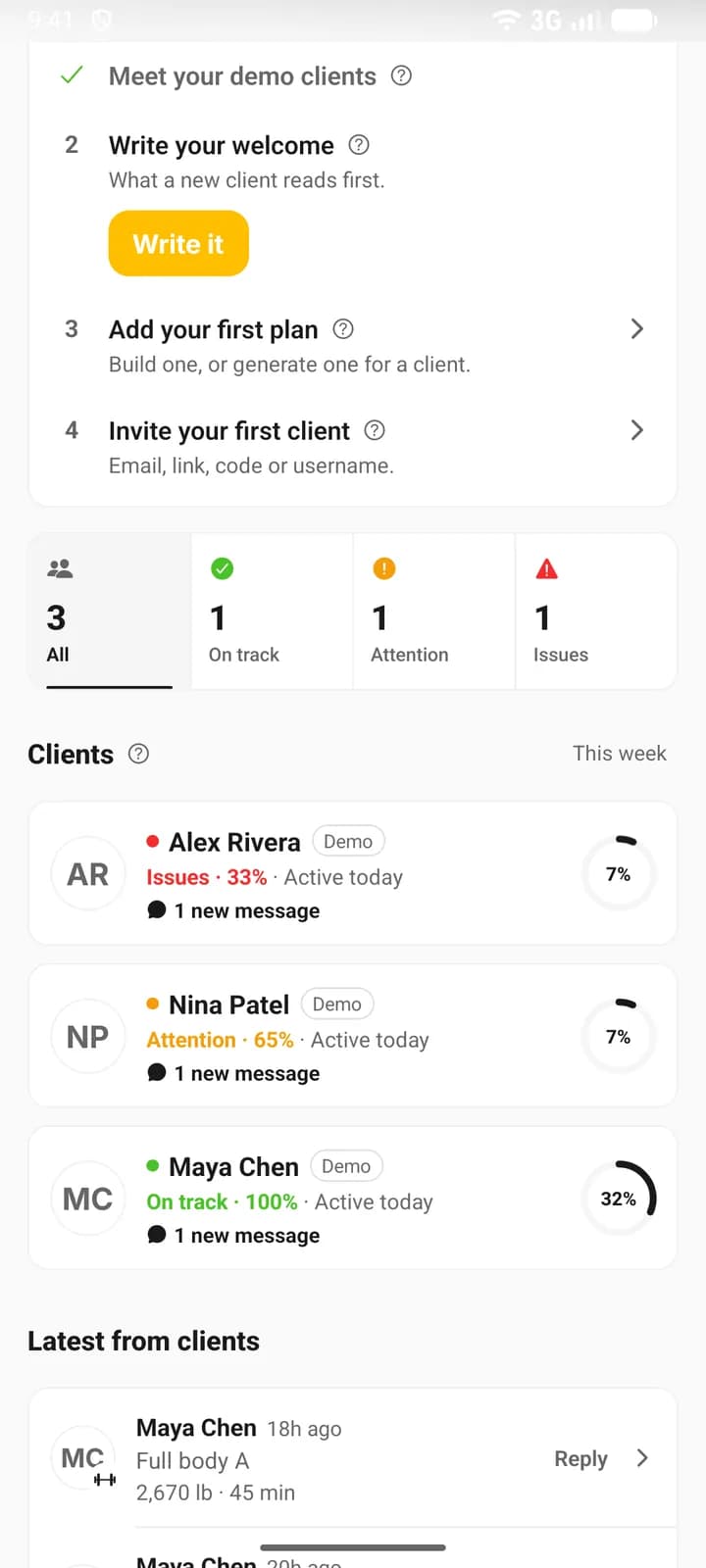
They are three sample clients, one in each status, so you can read a full roster before a real client is on it. Where a real client shows their username under their name, a demo client shows Sample client.
| Client | Status | What is going on |
|---|---|---|
| Maya Chen | On track | Trains Monday, Wednesday and Friday, logs meals six days a week and meets all three of her counted goals. |
| Nina Patel | Attention | On a First 5K run plan. Runs twice a week against a goal of three, and lifts once against a goal of two. |
| Alex Rivera | Issues | Has a goal of two sessions a week and does one. Logs food one day in seven. A knee note sits on his profile. |
Each arrives with about three weeks behind them: finished sessions, a food diary, Monday weigh-ins, an assigned program and meal plan, goals, signup answers and a short conversation with one unread message. Their history moves on a day at a time, so they look current whenever you come back.
Use them to try what you would hesitate to try on a real client: assign a plan, add a goal, set targets, generate a program from their signup answers, or preview their app. Only you can see them, and nobody is on the other end, so nothing you assign or send reaches a real person.
To take one off your roster, press Remove beside their name, in the Demo clients menu above the roster on the web or under Demo clients in Setup on the phone. Their data is kept, so Add brings back the same client with everything you changed.
After your first client accepts
They move from Invited into your roster, and Get set up goes away if it was still showing. If you marked a form Use for new clients in Setup, it is assigned to them the moment they accept, and they are asked to fill it in.
- Open their full page and read Overview: what they told you at signup, their injuries and their dietary needs.
- Open Plans and press Assign. They get their own copy, listed under Your plan on their My coach page. Assign and schedule plans has the options.
- Open Goals and press Add goal, and choose whether each goal counts toward adherence. Goals and adherence explains the difference.
- Press Message and say hello.
Their status reads Not scored yet until a goal that counts toward adherence has run a full week, unless one is already at 80% pace or better. Read your roster shows how it is scored.
FAQ
Keep learning
Invite clients by email, link, code or username
Three ways to invite a client, what each person receives, what you see while you wait, and how to resend, cancel or withdraw an invitation.
Your welcome, signup questions and client themes
Write the message and record the video a new client meets first, choose the signup questions they answer, and choose the themes their phone app can use.
Build your coaching library
Keep the programs, workouts, meal plans and run plans you reuse in one place, and see which clients are on each one.
Read your roster: On track, Attention and Issues
How to read the Clients tab, and exactly how On track, Attention, Issues and Not scored yet are worked out from goal pace.