Write forms and check-ins, and read the answers
Write a form once, make it the one every new client gets or assign it for a date, then read, correct and move the answers.
A form is a set of questions you write once and reuse, such as a new-client questionnaire or a weekly check-in. Each client answers their own copy, and the answers land on their page for you. Forms are separate from the ten signup questions, which are asked during signup.
Where to find it
| On | Go to |
|---|---|
| Web | Coaching, then Setup, to write forms. A client’s Full profile to assign them and read answers |
| Phone | You, Coaching, then Setup to write forms. Open a client to assign them and read answers |
Write a form
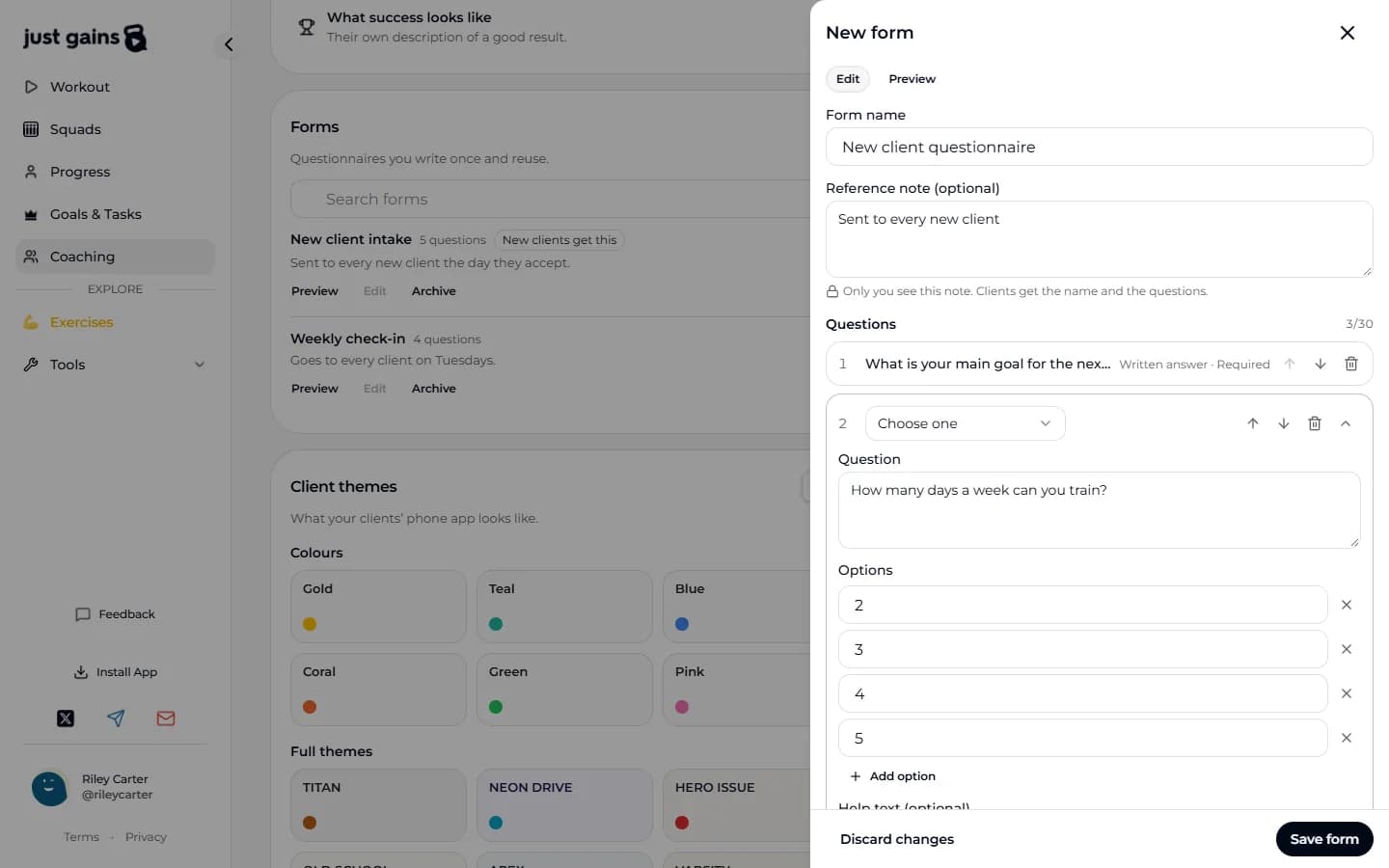
- In Setup, open Forms and press New form.
- Type a Form name. The Reference note (optional) under it is private: clients never see it.
- Add questions with the five buttons under Questions, and switch Required on for any the client must answer before submitting.
- Open Preview to try the form as a client would. Nothing you enter there is saved.
- Press Save form. It cannot be pressed while something is missing, and a line beside it says what: “Give the form a name.”, “Add a question.”, “Number 2 has no text yet.” or “An option in question 1 has no text yet.”
| Question type | What your client gets |
|---|---|
| Written answer | A text box. |
| Choose one | A list of options, one pick. |
| Choose several | The same list, any number of picks. |
| Rating from 1 to 10 | A 1 to 10 scale. |
| Instructions | Text to read, with nothing to answer. |
A form holds up to 30 questions and instructions together, counted beside Questions, and needs at least one question that asks for an answer. A choice question takes 2 to 20 options. Archive takes a form off your list without touching copies clients already have, and Restore under Show archived brings it back.
Make it the onboarding form
Open the form and switch on Use for new clients. From then on, each client who accepts your coaching gets a copy the moment they accept, and it opens in front of them once. Only one form can be the onboarding form, so switching it on here switches it off on the form that had it. Clients you already coach are not sent it. Archiving the form switches this off, and restoring it does not switch it back on.
Assign a form for a date
- Open the client and press Assign form: under Forms on Overview, or from a day on the calendar in Plans.
- Choose the form and set Available from, the first day the client can answer. A later date makes the form wait in their app until then.
- Press Assign form.
The client gets a copy of the form as it is now. Editing or archiving your form later does not change their copy.
What your client does
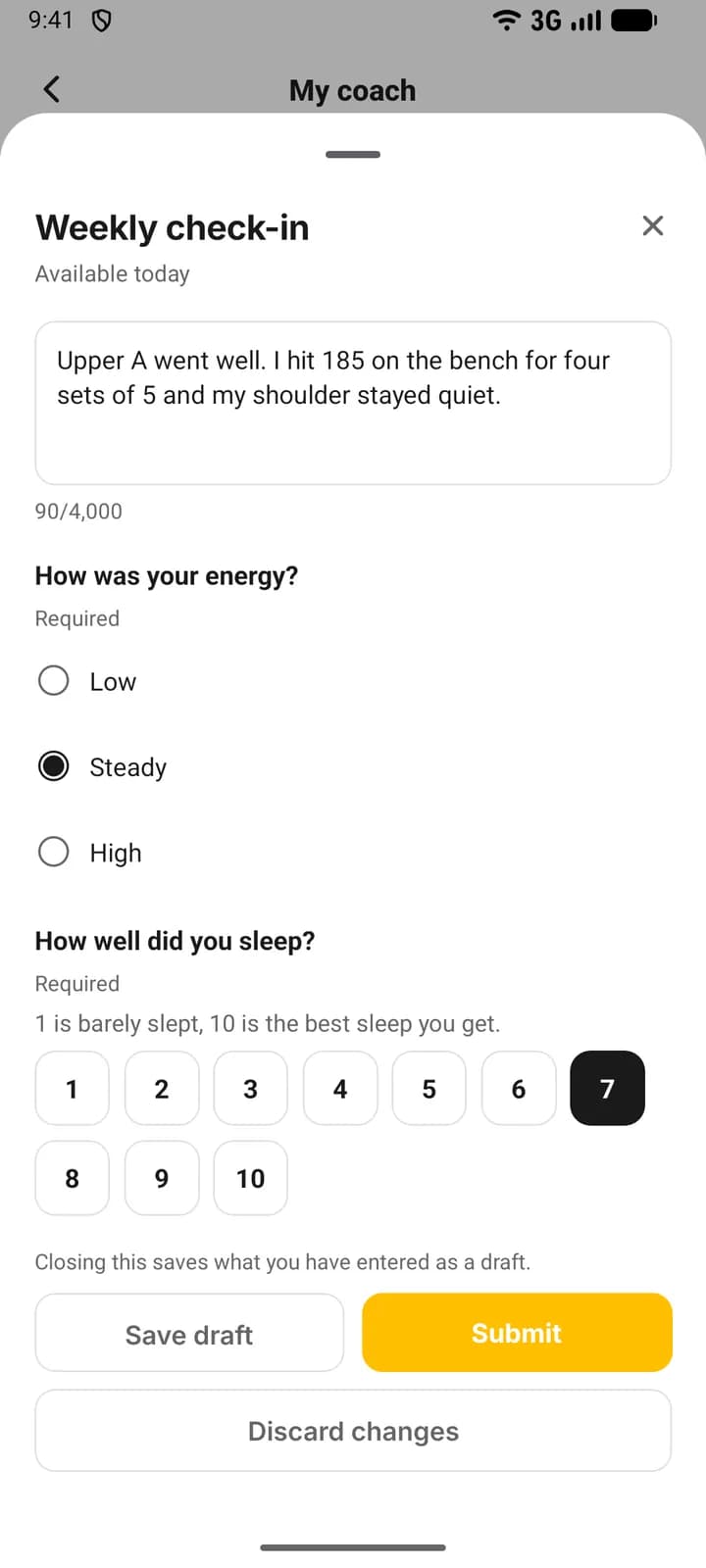
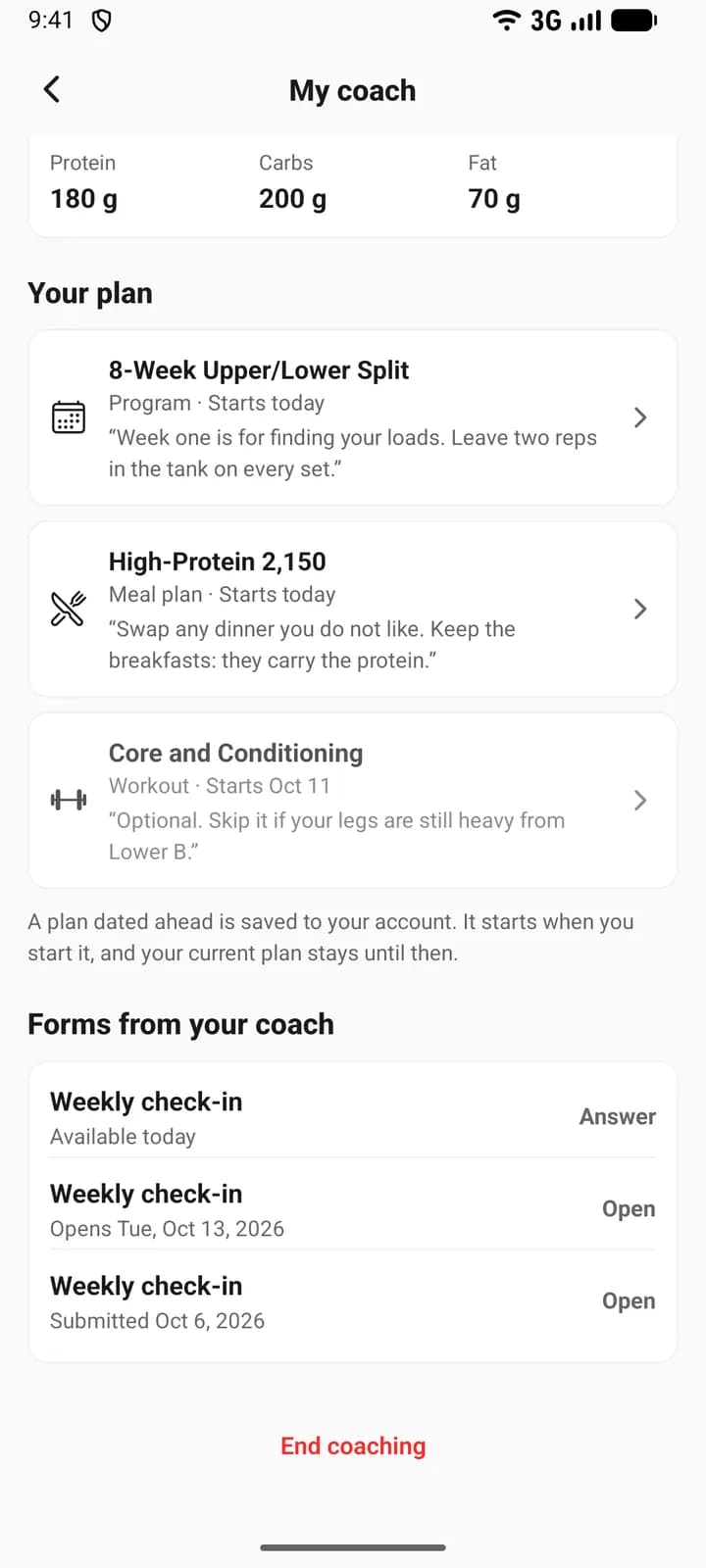
The onboarding form opens by itself. Any other form waits under Forms from your coach on My coach, where they press Answer. A form available today sends their phone a notification titled “A form from your coach”, with the form’s name under it; one dated ahead does not, and sends nothing when its day arrives. They can Save draft and come back, and closing a form part-way saves a draft too. Submit works once the required questions are answered. A form dated ahead can be read straight away and answered from its day, in the client’s own time zone.
Read, correct and move answers
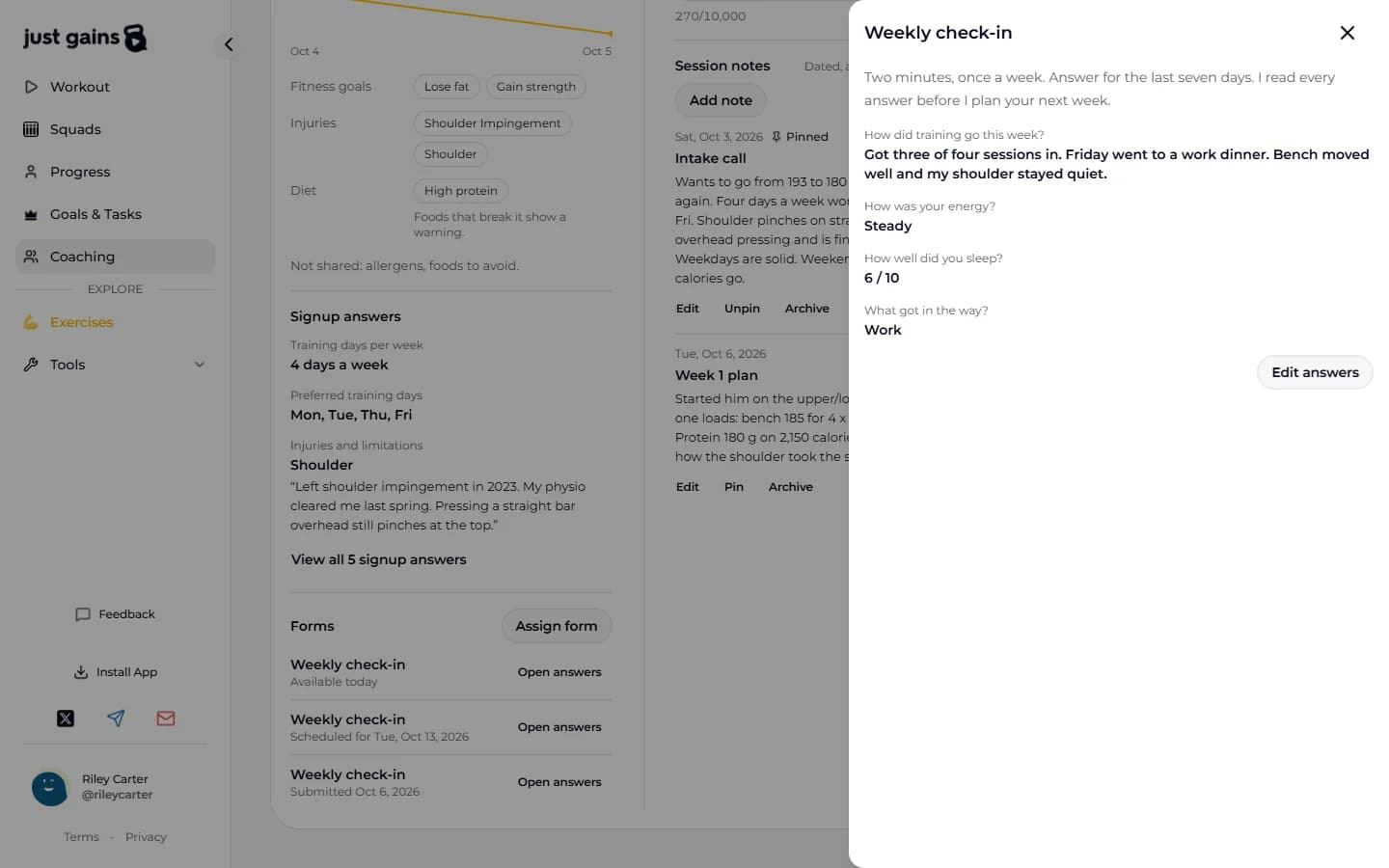
The first time a client submits a form you get a notification, and opening it takes you to the answers. In your notifications it names the client and the form. The push on your phone names neither: it says only that a client submitted a form. You can also press Open answers beside the form on the client’s page. There each form reads “Scheduled for Tue, Oct 13, 2026”, “Available today”, “Waiting since Tue, Oct 6, 2026” or “Submitted Oct 6, 2026”, and the Plans calendar marks an unanswered form as Waiting once its day has passed. Nothing expires, so it stays that way until the client answers.
Edit answers corrects an answer, or fills a form in for a client during a call. Drafts and corrections do not notify you, and the first submission keeps its date. To move a form that is not submitted yet, open it, change the date and press Move form: their draft goes with it. Cancel form withdraws an unfinished form and keeps what was saved. A submitted form cannot be moved or cancelled.
When coaching ends
Unfinished forms are cancelled and their drafts kept. The client keeps every form as a read-only history under Forms from your coach, and you lose access with the rest of their page.
FAQ
Keep learning
Your welcome, signup questions and client themes
Write the message and record the video a new client meets first, choose the signup questions they answer, and choose the themes their phone app can use.
Read a client’s breakdown and keep private notes
See what a client shared, correct it for them, read their signup answers, and keep coaching notes and session notes only you can see.
Join your coach on JustGains
Accept your coach’s invitation, see what it shares before you agree, and find your plan, goals, targets and forms afterwards.