Generate with Claude: draft a plan from what a client told you
Draft a program or a single workout from a client’s own answers. You read and edit the exact request before it is sent.
Generate with Claude drafts a program or a single workout for one client from what they told you: their schedule, equipment, injuries and goals. You read the request before it is sent and can change every word.
What comes back is a first draft written by AI. It is saved to your library and kept off your public profile, and nothing reaches the client until you assign it.
Where to find it
| On | Go to |
|---|---|
| Web | A client’s page, then Generate with Claude. In the quick-look drawer, the sparkle icon in the header |
| Phone | You, Coaching, a client, then Generate with Claude |
How the request is built
Choose Program or Workout. The app writes a request in plain sentences from the client’s profile and their answers to your signup questions. For Maya it opens “Build a training program for Maya: 8 weeks, 3 days a week.” and goes on to her training days, her equipment and her wrist.
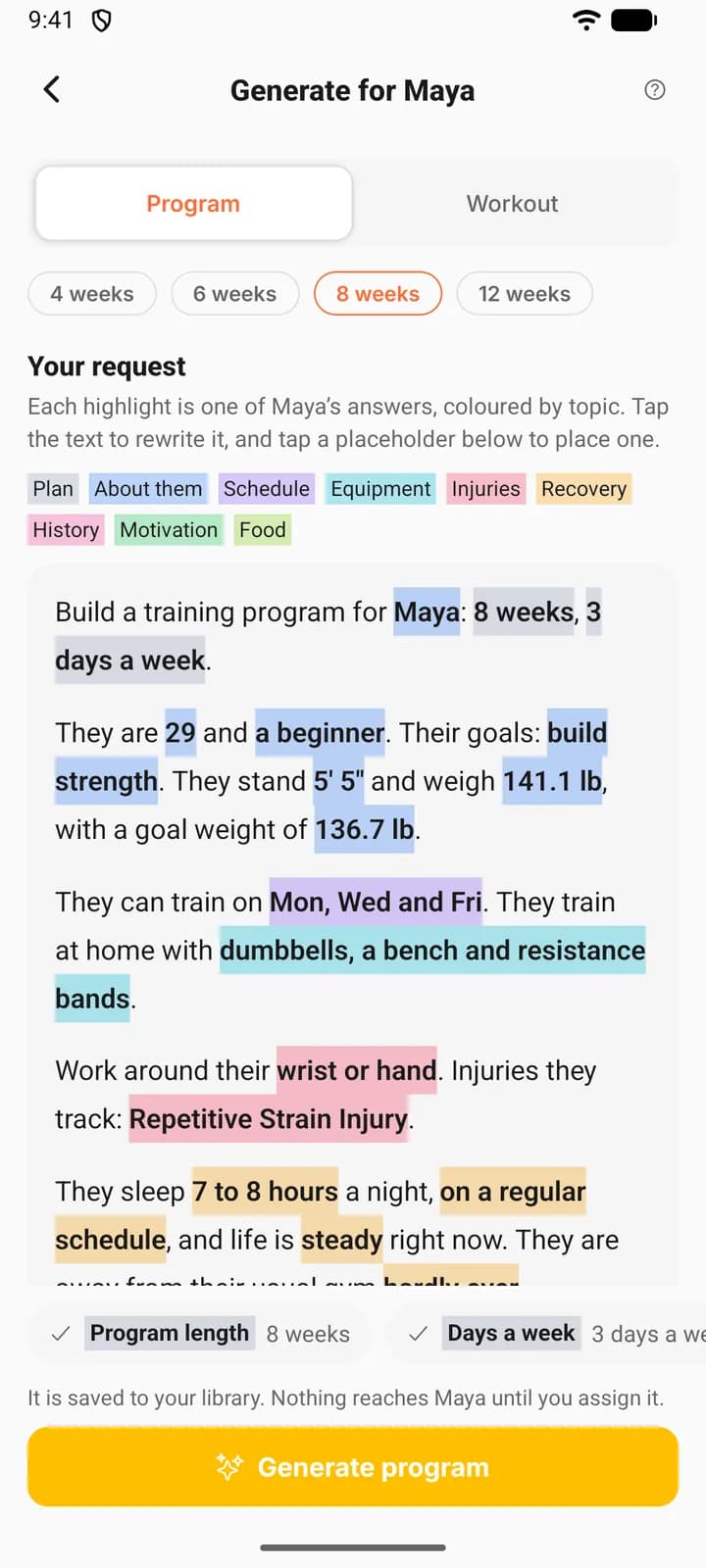
Each answer is highlighted in the colour of its topic. Once a client has a few answers, the phone lists the topics in a key above the request.
| Colour | Topic | What it holds |
|---|---|---|
| Grey | Plan | Program length and days a week, or session length |
| Blue | About them | First name, age, experience, goals, height, weight, goal weight |
| Purple | Schedule | Preferred days, or a week that keeps changing |
| Cyan | Equipment | What they have at home |
| Red | Injuries | Injury areas, tracked injuries, their own note |
| Amber | Recovery | Sleep, stress, how often they travel |
| Pink | History | What they tried before and what got in the way |
| Green | Motivation | What success means to them |
| Lime | Food | Diet, allergens, foods they skip |
A question the client never answered gets no sentence and is listed after “Not answered yet”. Food is left out of the suggested request. Place it yourself if it matters.
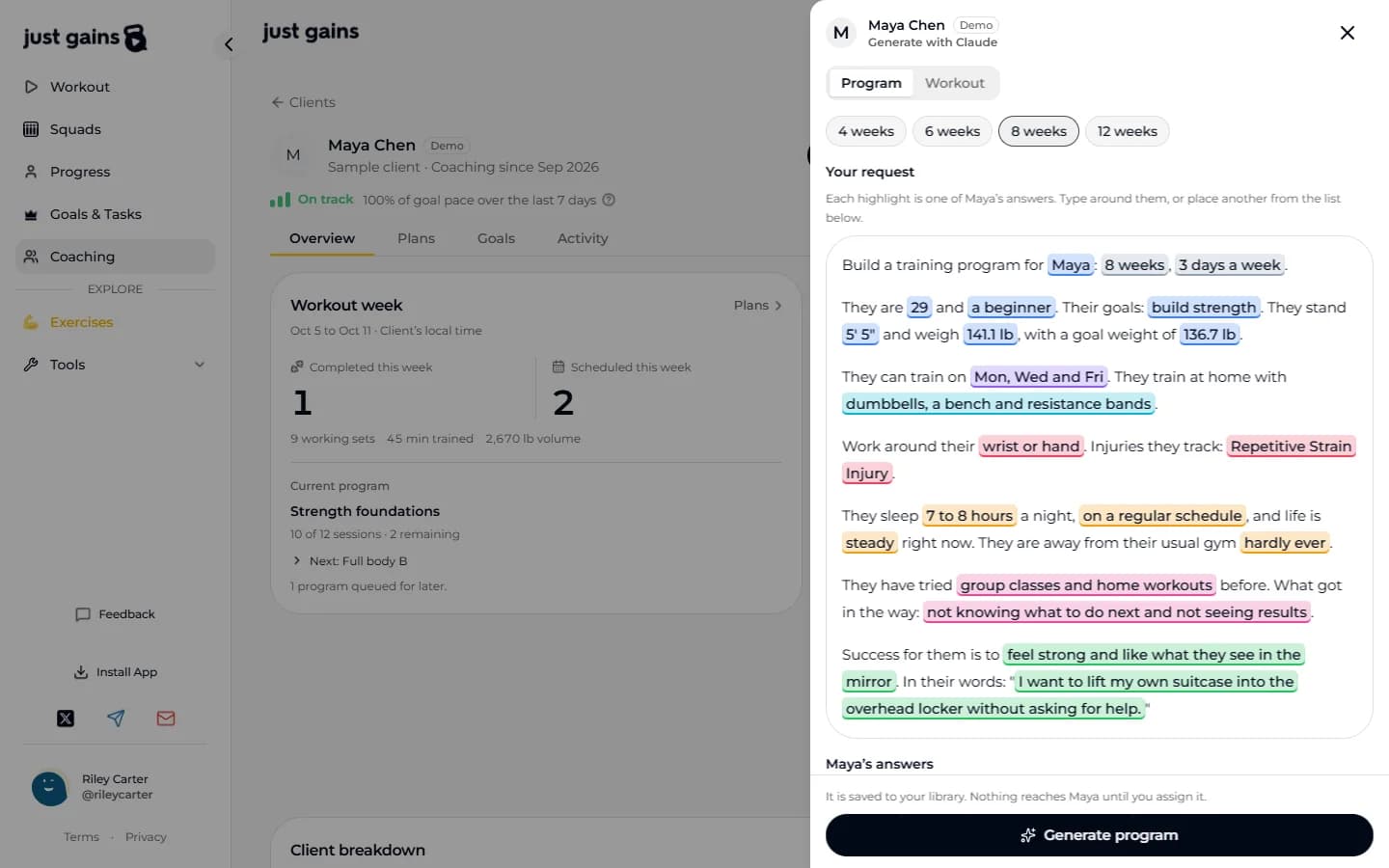
Edit the request
- Type around the highlights. The wording is yours.
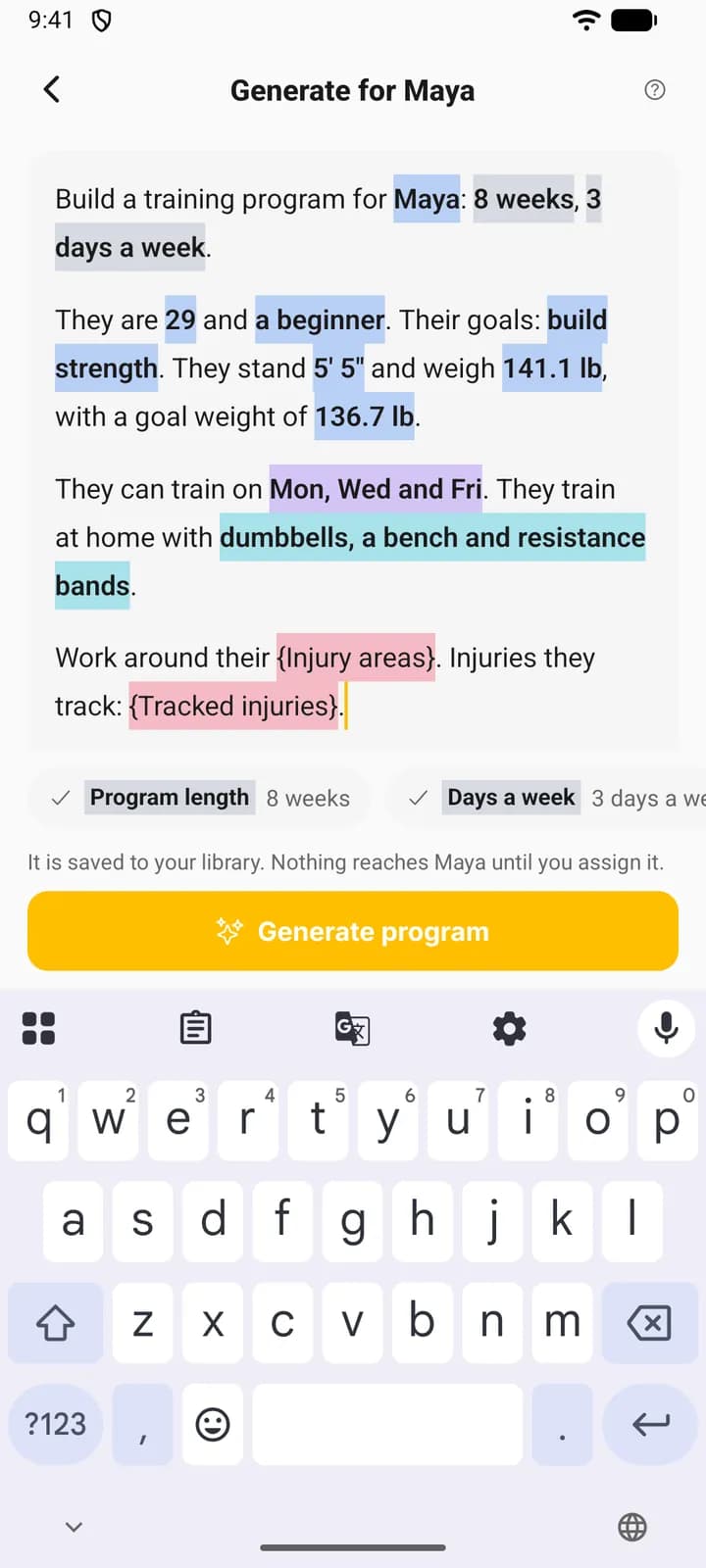
- Remove an answer with Backspace. It goes as one piece. On the phone, tap the paragraph first, and highlights show as names in braces, such as {Injury areas}.
- Place an answer by pressing it in the list under the request (web) or in the strip above the button (phone). It lands at the cursor, or at the end if no paragraph is open on the phone.
- Change the length with the chips: 4, 6, 8 or 12 weeks for a program, 30, 45, 60 or 75 minutes for a workout. Remove the length highlight from the request and the chips go too, because they have nothing left to set.
- Reset brings back the suggested request.
On the web, your request survives closing the drawer: it is there when you reopen it. It is held in memory only, so reloading the page or closing the tab clears it, and so does assigning the result. On the phone it lasts until you leave the screen.
What is sent
The text under Your request is what goes to the model, with each highlight swapped for the client’s answer. Nothing else from their profile is added, and your own profile is left out. A single workout is also told which units the client uses, lb or kg.
Read the result, then assign it
Press Generate program or Generate workout, pinned to the bottom of the screen. A program can take a minute or more.
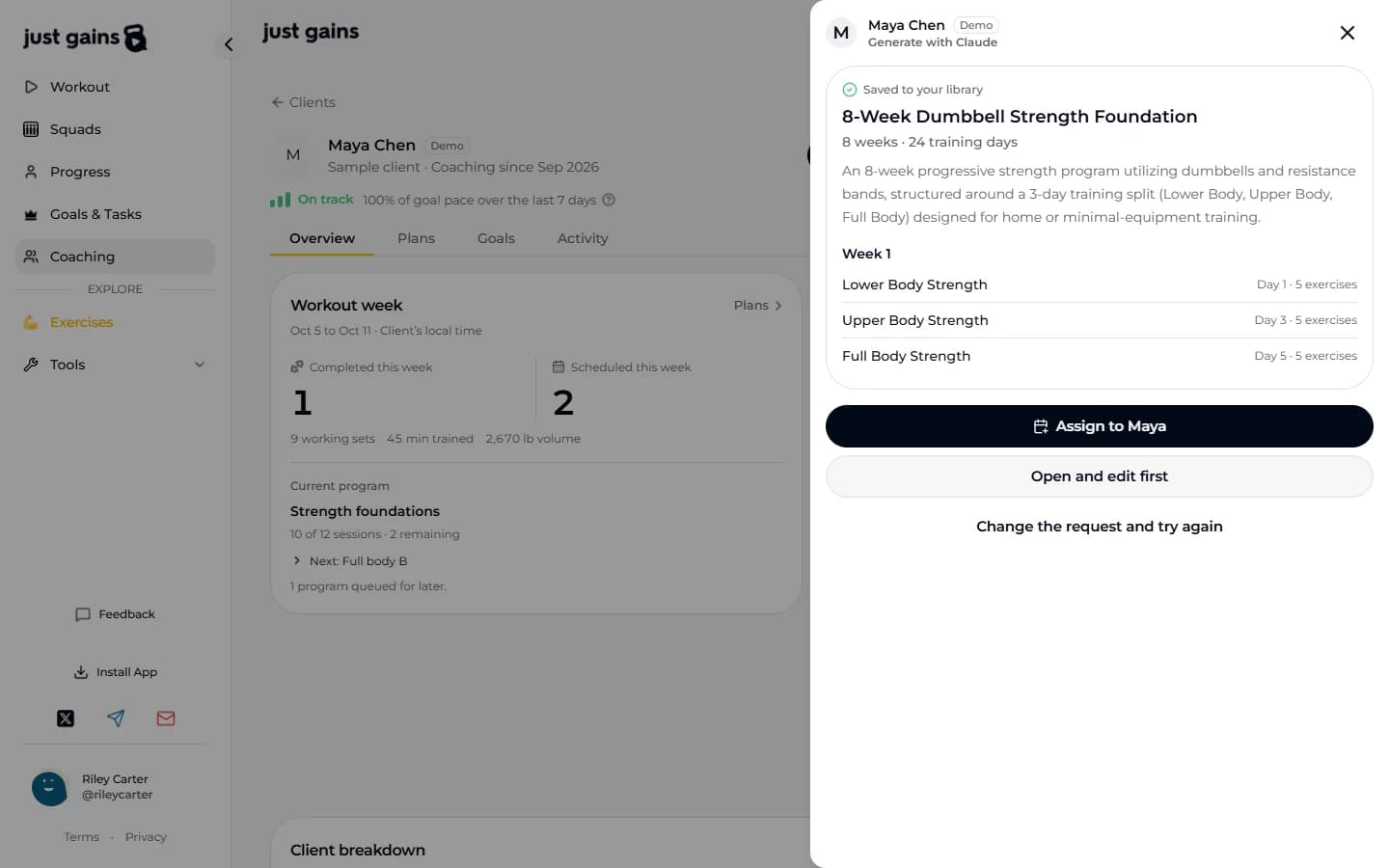
The result shows the title, a summary and an outline: the training days of week 1 for a program, every exercise with its sets for a workout. Under the title, a program gives its length in weeks and its number of training days, and a workout its number of exercises. A program exercise with no match in the exercise library is left out, and a line says which.
- Assign to Maya opens the assign drawer on the web and the assign sheet on the phone. You choose the day, add a note and, for a program, decide whether it replaces what she is on. Nothing is assigned until you press Assign there.
- Open and edit first opens it in the editor. It is an ordinary template now.
- Change the request and try again goes back to the request. Each try saves another template to your library.
FAQ
Keep learning
Read a client’s breakdown and keep private notes
See what a client shared, correct it for them, read their signup answers, and keep coaching notes and session notes only you can see.
Your welcome, signup questions and client themes
Write the message and record the video a new client meets first, choose the signup questions they answer, and choose the themes their phone app can use.
Assign and schedule plans for your clients
Give a client a program, workout, meal plan or run plan, choose the start date, and know what a future date really does.
Build your coaching library
Keep the programs, workouts, meal plans and run plans you reuse in one place, and see which clients are on each one.