Preview your client’s app
Open a read-only copy of a client’s JustGains to see how an assigned plan looks on their side, or to read their week before a call.
Preview their app opens a read-only walk through one client’s JustGains. Every tab is drawn from one snapshot of their data, taken when you open it.
Open it after you assign something, to see how it reads on their side, and before a call, to see their week the way they do.
Where to find it
| On | Go to |
|---|---|
| Web | Open a client’s page from Coaching, then Preview their app in the header |
| Phone | You, then Coaching, open a client, then Preview their app under their name |
Open the preview
- Open a client from Clients. On the web the roster opens a quick look first, so press Full profile to reach their page.
- Press Preview their app. It is there for every active client, demo clients included.
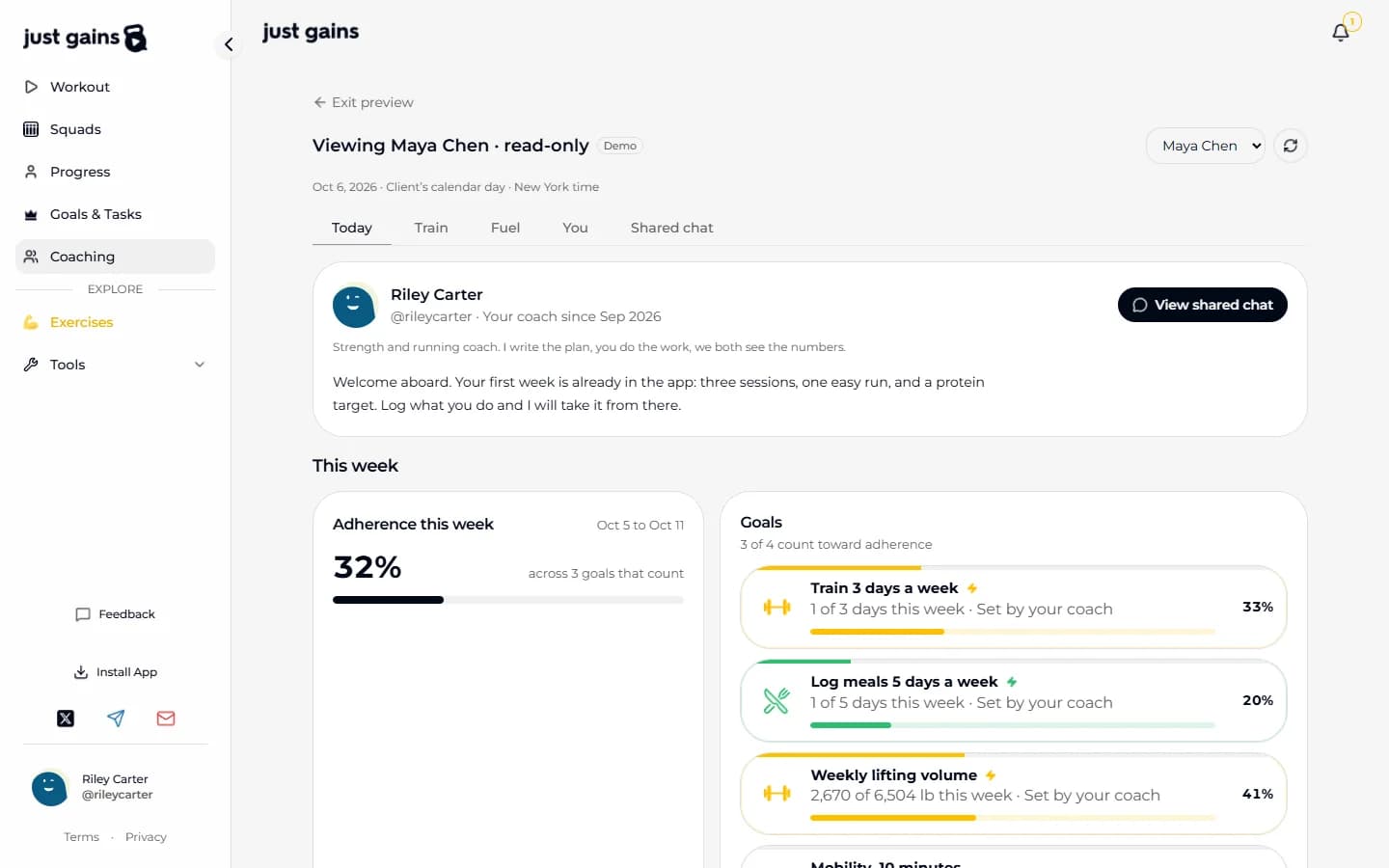
- Move through their tabs. The header reads “Viewing Maya Chen · read-only” the whole time.
- Leave with Exit preview on the web, or the back arrow on the phone.
What each tab shows
| Tab | What you see |
|---|---|
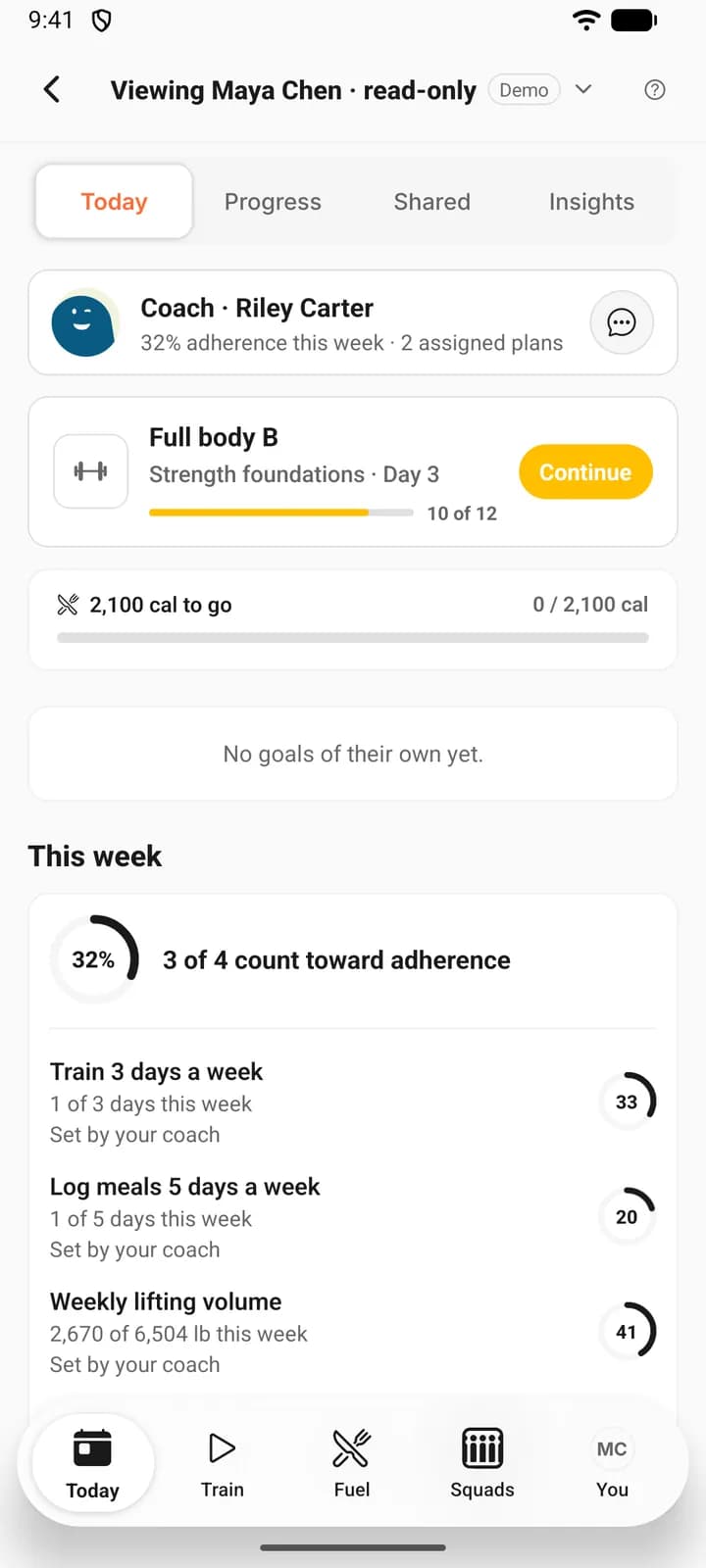
| Today | Their coach card, the forms you sent, their own goals (on the phone, “No goals of their own yet.” when there are none), and under This week the goals you set, marked Set by your coach. |
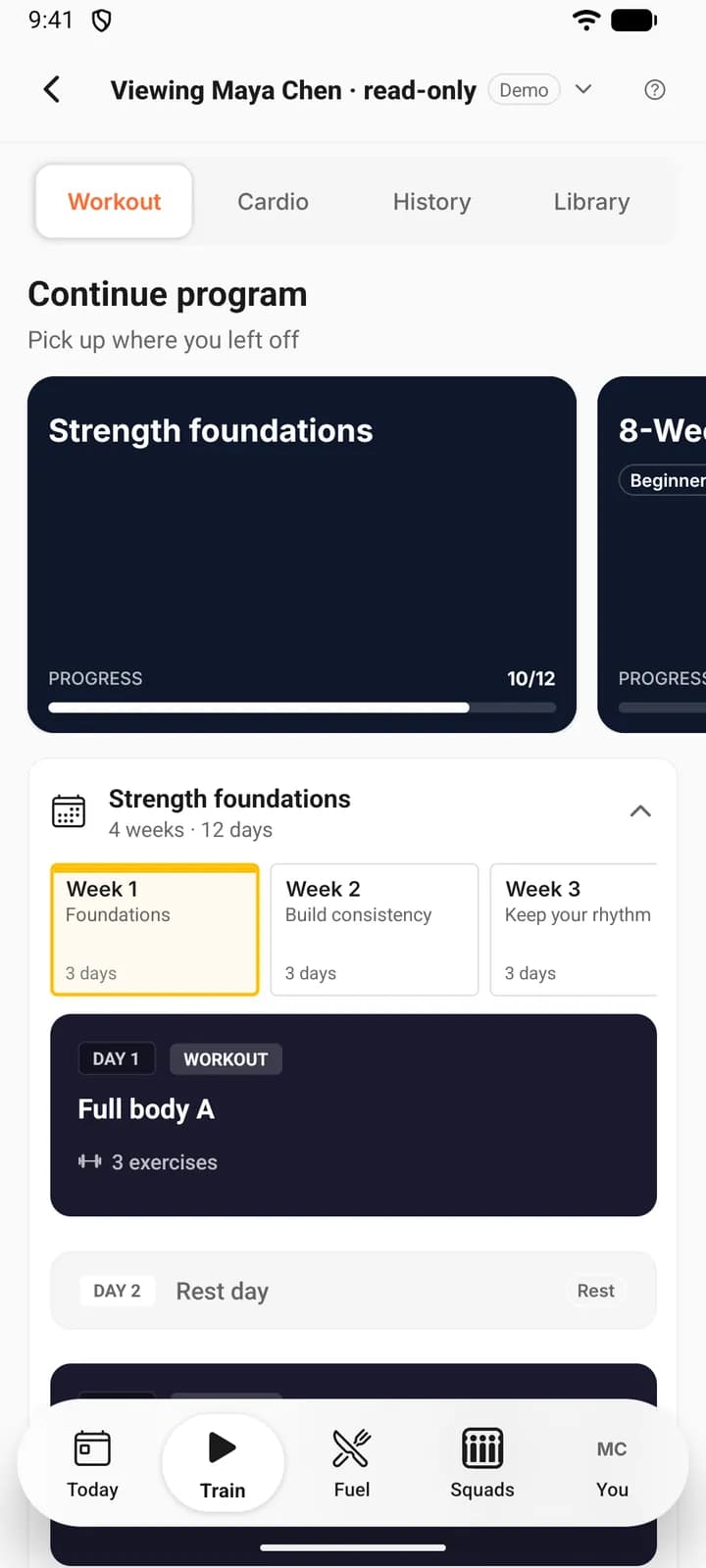
| Train | Their programs with sessions done out of the total and each week down to the sets, their saved workouts, and run plans with finished sessions ticked. |
| Fuel | The last 7 days of their food diary against their targets, and their meal plans with the active one first. |
| You | What they share about themselves: injuries, diet, fitness goals, experience and weight. |
| Shared chat | The last 50 messages between the two of you, with no message box. On the phone, open it from the coach card on Today. |
The phone preview is the closer copy. It draws their real tab bar, Squads included, and the same sections inside each tab: Workout, Cardio, History and Library under Train, for instance. The web lays the same data out as cards.
Finished workouts and activities are under Train, then History on the phone, and under You on the web. A workout opens its full log, set by set. Weights and distances show in your own units, whatever the client uses.
What it leaves out
The preview shows what the client agreed to share and stops there. Where something is held back it says so, and you can tell a private section from an empty one.
- Their squads, posts, stories and followers.
- Their recipe box. On the phone, a recipe that is part of a meal plan still opens under Planner.
- Goals they joined that someone else started, and their tasks.
- Messages with anyone but you.
Your private notes are left out as well, because the client never sees them. What your coach can see is the list they agreed to.
Nothing in it changes their data
You cannot log, edit or start anything from the preview. Goals do not tick and sessions do not start. The client is not notified that you looked, and opening the chat marks nothing as read.
To change something, exit and use their page: assign a plan, edit their program or set targets.
How fresh it is
The snapshot follows the client’s own calendar day and time zone. On the phone it reloads each time you return to the screen and every 30 seconds while it stays open. On the web it reloads when you come back to the browser tab, and the refresh button in the header reloads it on demand.
If coaching ends while the preview is open, their data is hidden at the next reload.
Two good uses
- After you assign a plan, check that it landed and reads the way you meant. On the web, open it under Your plan on Today. On the phone, View their plan on an assigned program, workout or run plan opens the preview on Train.
- Before a call, read their Today and their food diary first. To move on to another active client without leaving the preview, press the name in the header on the phone, or use the client menu in the header on the web.
FAQ
Keep learning
Assign and schedule plans for your clients
Give a client a program, workout, meal plan or run plan, choose the start date, and know what a future date really does.
Change a client’s program: weeks, progressions and time off
Edit the program a client is already on: weeks, days and targets, progressions across weeks, and time off that keeps their place.
What your coach can see on JustGains
What accepting a coach shares, what stays private, what your coach can change in your app, and how to stop sharing.