Read your roster: On track, Attention and Issues
How to read the Clients tab, and exactly how On track, Attention, Issues and Not scored yet are worked out from goal pace.
Clients is the first thing you see in Coaching, and it is laid out as a to-do list: who needs you, and what was logged since you last looked.
Every active client carries one of four statuses: On track, Attention, Issues or Not scored yet. Each is worked out from goal pace over the last 7 finished days.
Where to find it
| On | Go to |
|---|---|
| Web | Coaching in the sidebar. Clients is the first tab |
| Phone | You, then Coaching. Clients opens first |
What is on the page
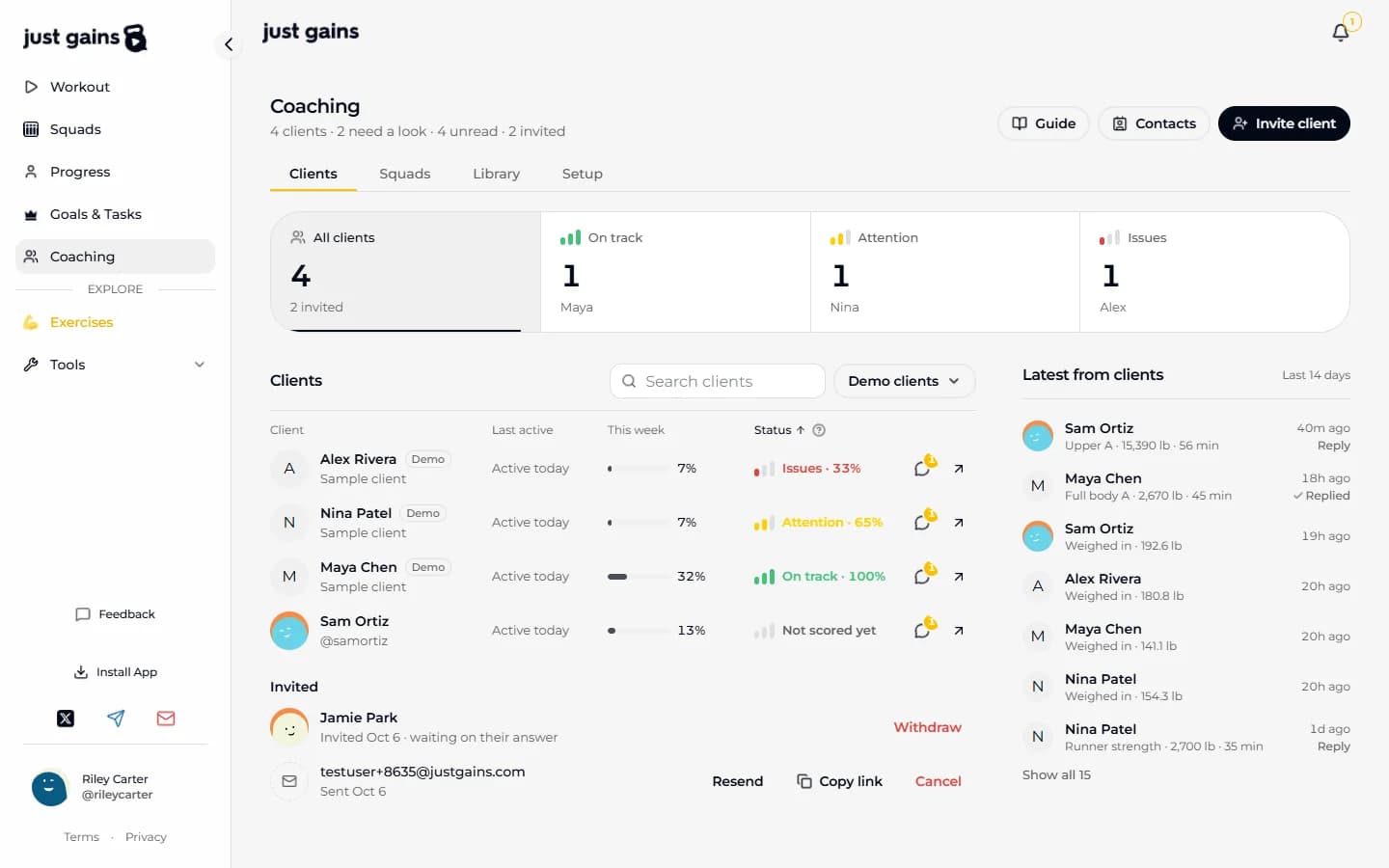
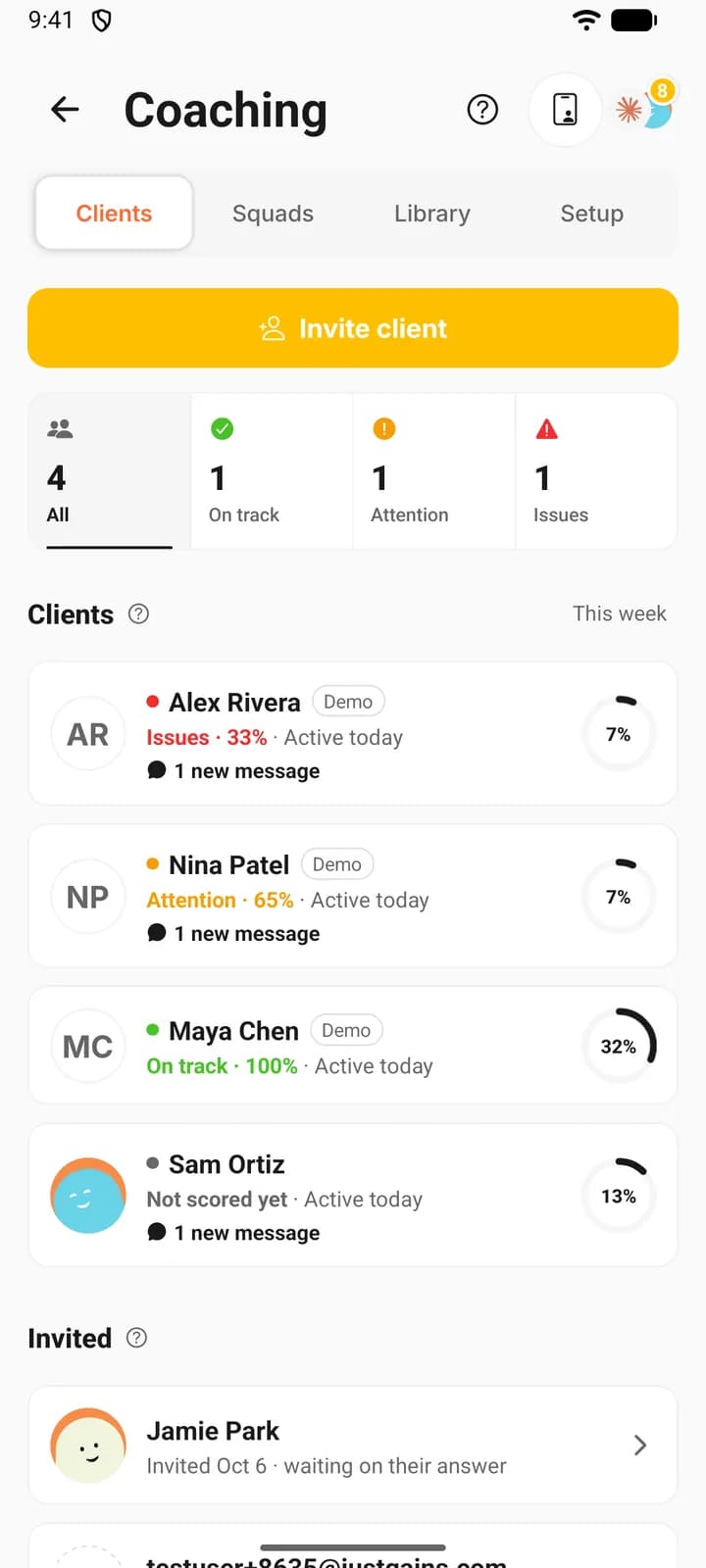
The page has three parts: the status counts, the roster and Latest from clients. Each count is also a filter: press it to see only those clients, and press it again to clear it.
| For each client | What it tells you |
|---|---|
| Last active | The latest of a finished workout, a recorded activity, a food log or a weigh-in. Messages do not move it. “Active today” means within the last 24 hours. A client who has gone quiet reads Quiet 6d here instead. |
| This week | How much of this week’s counted goals is done, Monday to today. It restarts at 0% every Monday. |
| Status | The verdict and the number behind it, from goal pace over the last 7 finished days: On track · 100%. |
These are columns on the web, where the line under each name is their username (Sample client for a demo client) and a message icon carries the number of unread messages. On the phone, the ring at the end of each row is this week. The line under the name gives the status with its number and when they were last active (Issues · 33% · Active today), and 1 new message sits under it when they have written.
How status is worked out
Status is the average pace of the goals marked Counts toward adherence. Pace asks one thing of each goal: of what it asked for over the last 7 finished days, how much did the client do?
- Today is credited and never held against anyone: what a client logs today counts, and today adds nothing to what was expected.
- A weekly goal is measured against its whole target. In its first week the target is spread across the days so far: three days into “Train 4 days a week”, the client should have done 4 × 3 ÷ 7, about 1.7 sessions.
- A daily goal is checked day by day, on the days you set for it. Extra on Monday does not fill an empty Tuesday.
- Each goal stops at 100%. Doing double on one goal does not cover for another.
- Days are the client’s calendar days, in their time zone.
| Status | Average pace |
|---|---|
| On track | 80% or more |
| Attention | 50 to 79% |
| Issues | Under 50% |
| Not scored yet | No counted goal has run a full week |
A goal joins the average once it has run 7 full days. Before that it can lift a client and never pull them down: if no counted goal has run a week yet and one is already at 80% pace, the client reads On track.
A worked example
Nina Patel, the demo client, arrives with three counted goals, all weekly. Her last 7 finished days:
| Goal | Asked for | Did | Pace |
|---|---|---|---|
| Strength 2 days a week | 2 days | 1 day | 50% |
| Log meals 5 days a week | 5 days | 4 days | 80% |
| Run 3 times a week | 3 runs | 2 runs | 66.7% |
(50 + 80 + 66.7) ÷ 3 = 65.6%, which is between 50 and 79, so Nina reads Attention. Her fourth goal, Ankle mobility, is marked Not counted and plays no part.
The number sits beside the status, on the roster and at the top of the client’s page. It is always rounded down, so Nina’s row reads Attention · 65% and a pace of 79.6 never shows as 80 next to Attention. A client who is not scored yet shows no number.
Sort, filter and search
The roster opens with Issues first, then Attention, On track and Not scored yet. Inside a status, the lowest This week comes first.
On the web, press a column heading to sort by it, and again to reverse it: Client from A to Z, Last active most recent first, This week lowest first. The phone always lists Issues first.
Search looks at names, usernames and the addresses of people you invited by email. On the phone the search box appears once your clients and invitations add up to more than six.
Invited, quiet and the latest activity
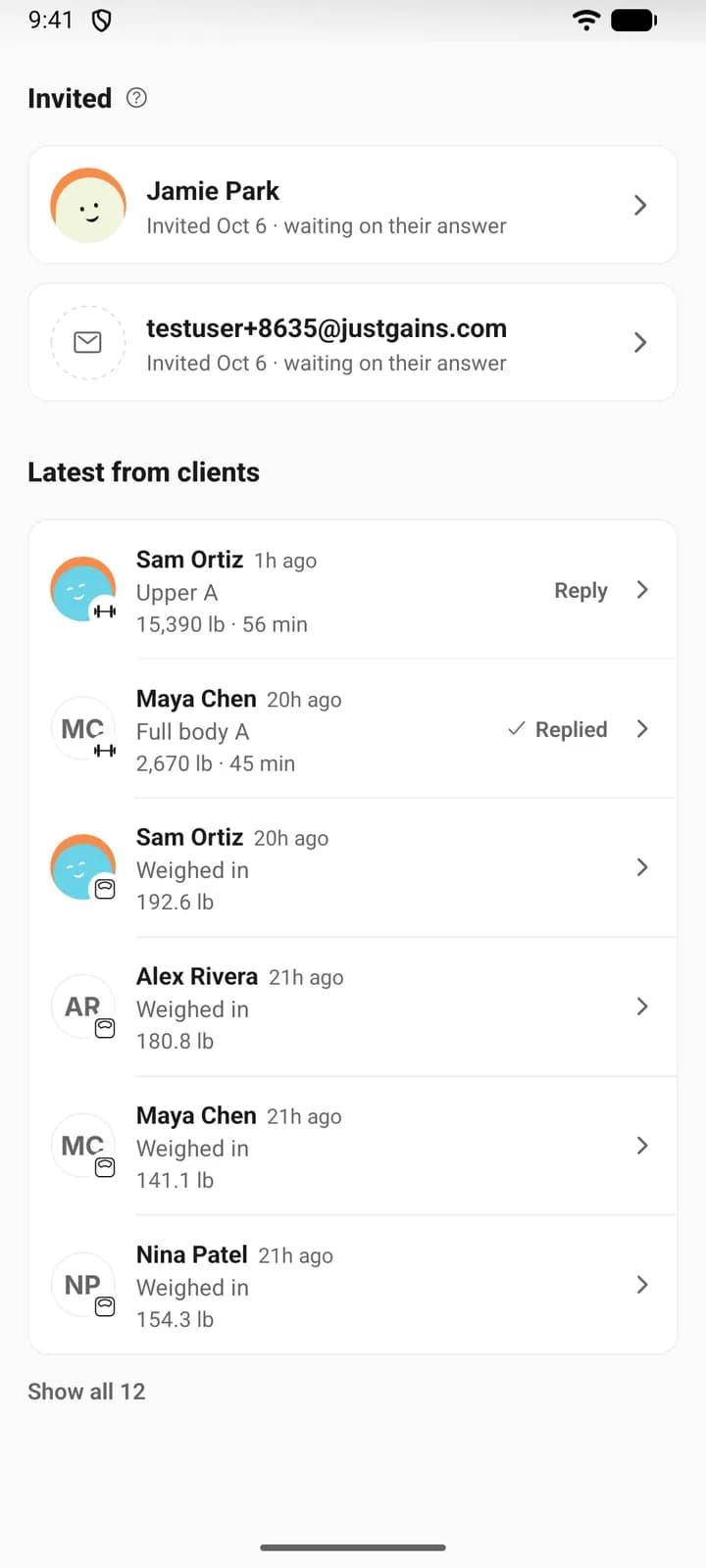
People who have not answered an invitation are listed under Invited, below your active clients, when no status filter is on. They have no status because nothing is shared yet. Someone you invited by email shows only their address until they answer, which is deliberate. Invite clients covers the actions on each one.
A client is quiet once four days pass with nothing logged. A client who has never logged is counted from the day coaching started. On the web and on the phone, a quiet client’s row says Quiet 6d, with their number of days, where it would say when they were last active. On the web, sort by Last active and press it again to put the longest gaps on top. A client who has never logged stays at the bottom either way.
Latest from clients is what your active clients logged in the last 14 days, newest first: finished workouts, activities and weigh-ins. A workout opens the session set by set, with its comments. Write yours there and the client gets the usual comment notification. An unanswered workout reads Reply, or a comment count if someone else has commented. After you comment it reads Replied.
FAQ
Keep learning
Set goals for a client and read their adherence
Add a goal JustGains counts for you or a habit your client logs, choose what counts toward adherence, and see how the week is scored.
Message a client and comment on their workouts
Message one client from the roster or their page, send photos, voice and video, and reply to a finished workout with a comment they are notified about.
Invite clients by email, link, code or username
Three ways to invite a client, what each person receives, what you see while you wait, and how to resend, cancel or withdraw an invitation.