Read a client’s breakdown and keep private notes
See what a client shared, correct it for them, read their signup answers, and keep coaching notes and session notes only you can see.
Overview is where you learn who a client is. The client breakdown gathers what they shared when they accepted: experience, body measurements, goals, injuries and how they eat. Alongside are their signup answers and two kinds of notes that only you can see.
Where to find it
| On | Go to |
|---|---|
| Web | In Coaching, open a client’s Full profile. It opens on Overview |
| Phone | You, Coaching, open a client. The page opens on Overview |
What the breakdown shows
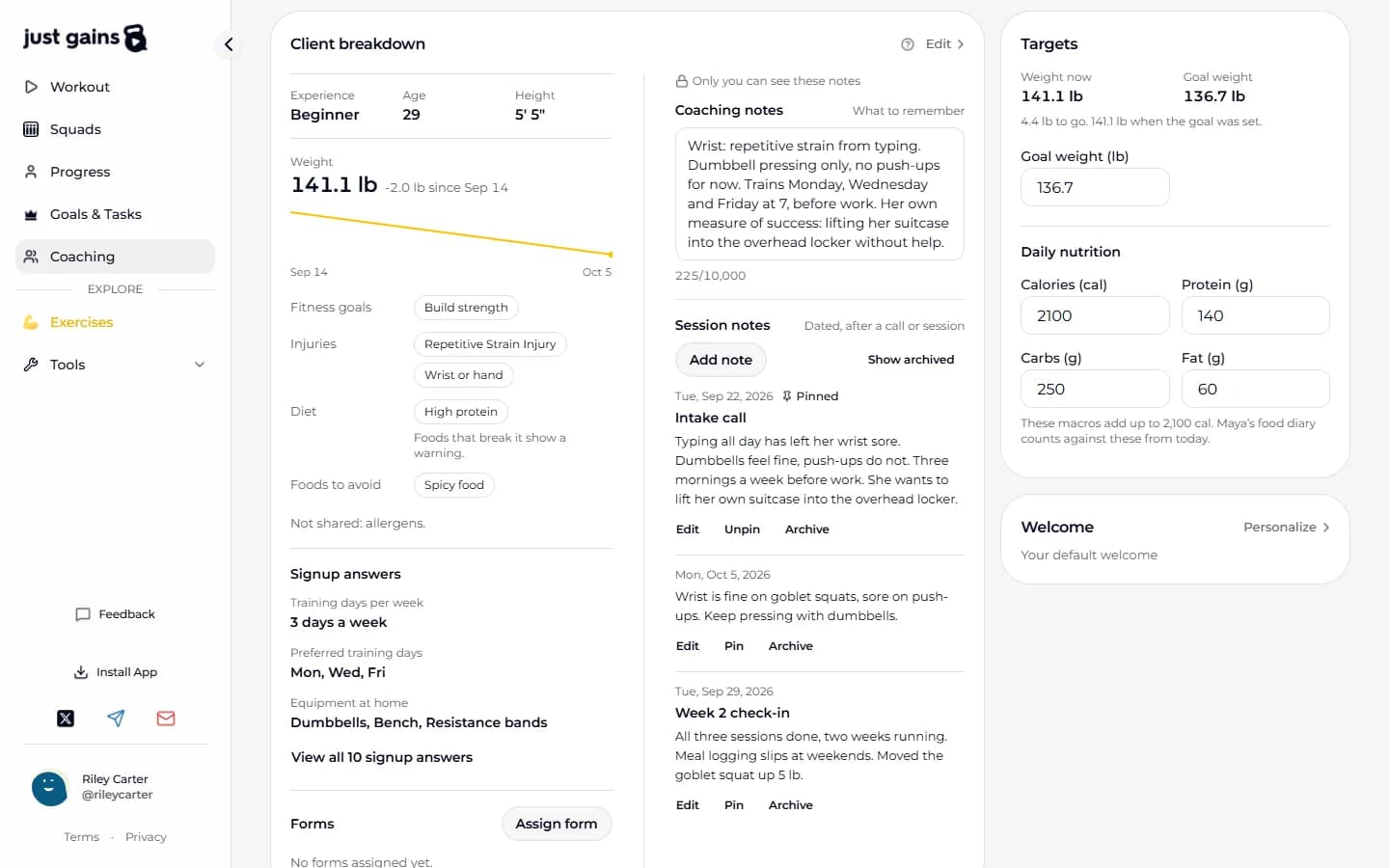
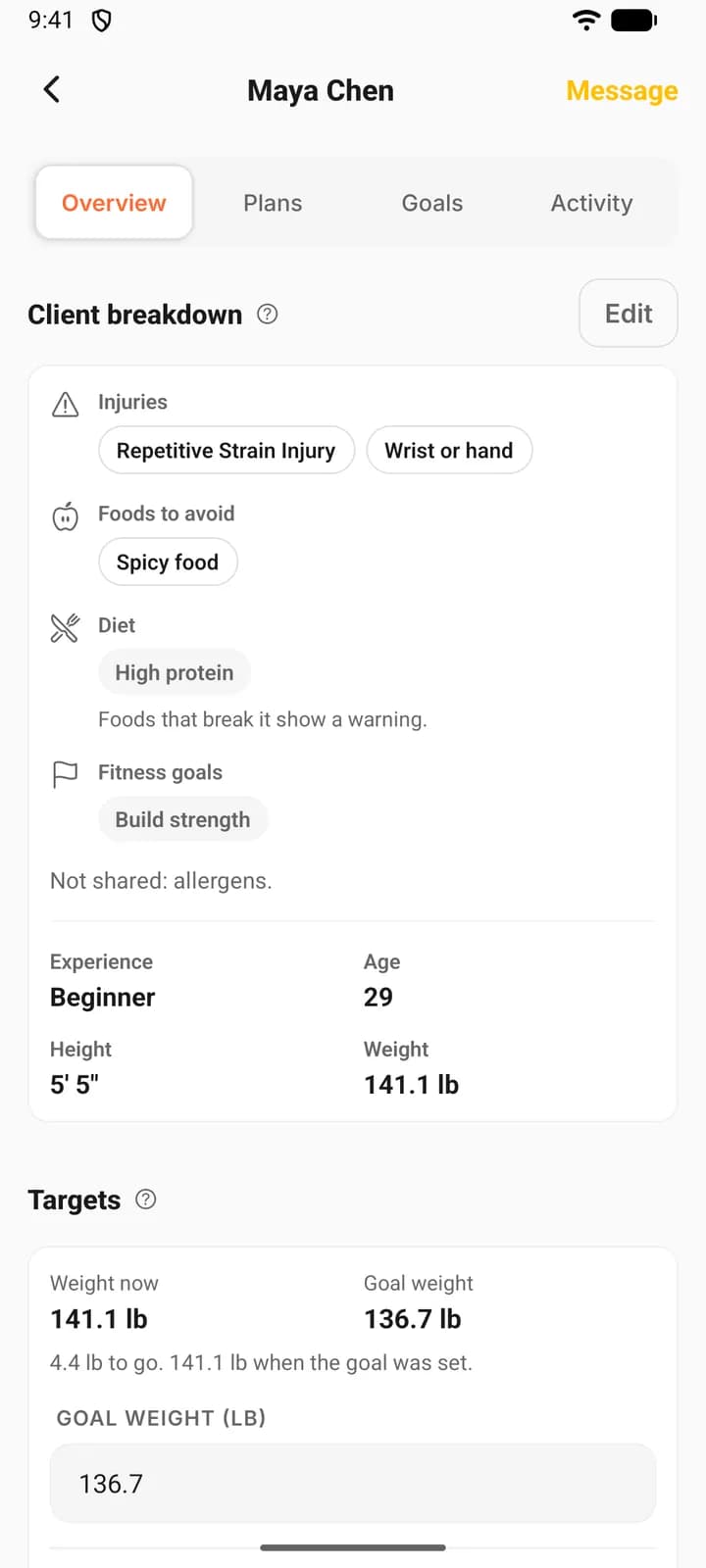
On the web, Client breakdown shows Experience, Age, Height and Weight, then Fitness goals, Injuries, Diet, Allergens and Foods to avoid. The phone leads with what you have to plan around (Injuries, Allergens and Foods to avoid), then Diet and Fitness goals, then Experience, Age, Height and Weight. Weight is their latest weigh-in. The web adds how much it has changed and a trend line, which the phone keeps at the top of the client’s page. All of it is the client’s own profile.
One line names the lists they left blank, such as “Not shared: allergens.” That means unanswered. A client with no allergens listed has not told you they have none, so ask before you plan their food.
Edit it for a client
- Press Edit on Client breakdown.
- Change what you need: experience, height, date of birth, goals, injuries, diet, allergens, foods to avoid, or any signup answer.
- Press Save breakdown.
These are the client’s own answers, so what you change shows in their app too. Weight is the exception: it comes from their weigh-ins. If the breakdown changed somewhere else while you were editing, your save does not overwrite it. You press Keep my edits, which keeps the fields you touched and takes the newer value for the rest, or Load the latest.
Signup answers
Signup answers are the client’s replies to the questions you switched on in Setup, such as training days and sleep. Three show at first, with a button under them to view them all. A question they skipped is left out, and you can fill it in from Edit once they tell you.
Two kinds of private notes
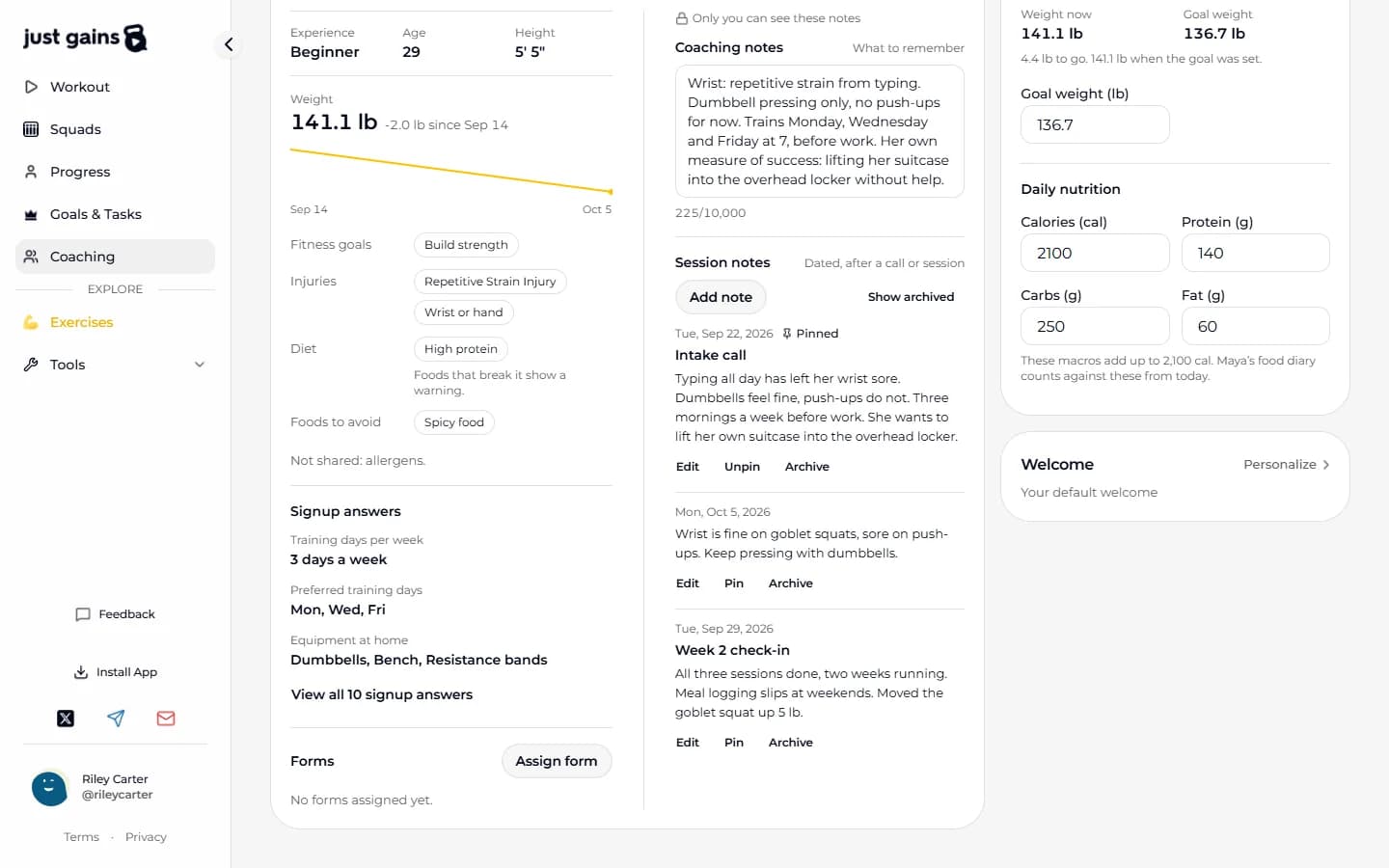
Coaching notes is one running summary of up to 10,000 characters: what to remember about this client between sessions. Type, then press Save notes.
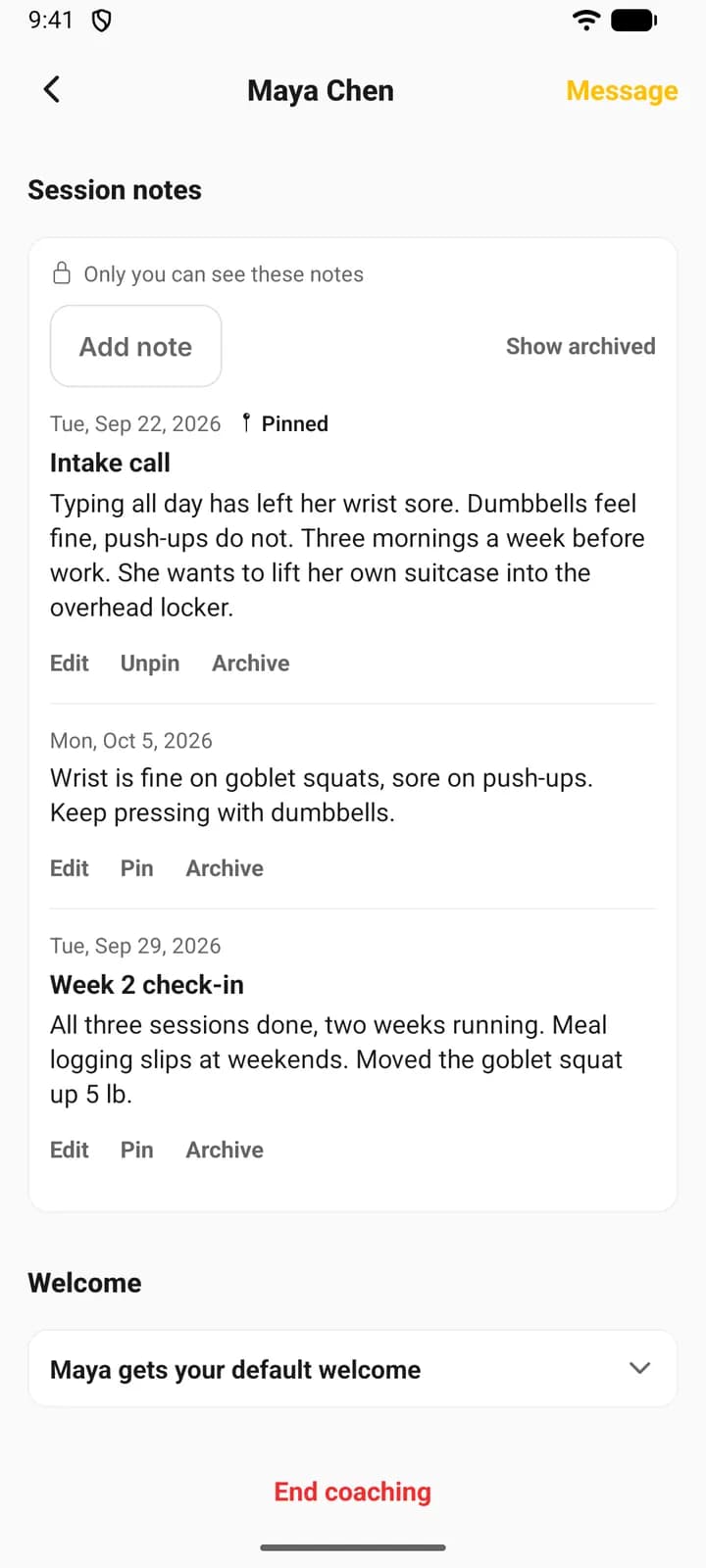
Session notes is a dated journal. Press Add note, set the Session date (it starts on today), fill in Title (optional) if you want one, write the note and save. Each note can be edited, pinned to the top or archived. Nothing is deleted: Show archived lists archived notes with Restore beside each. The journal shows five notes to a page: pinned notes first, then by session date, latest first.
Who can see your notes
Only you, and the screen says so: “Only you can see these notes”. Both kinds are stored on your coaching relationship with that client. They are left out of everything the client can open, out of the preview of their app, and out of what syncs to the client’s devices. Your own access ends when coaching ends, along with the rest of the client’s page.
FAQ
Keep learning
Write forms and check-ins, and read the answers
Write a form once, make it the one every new client gets or assign it for a date, then read, correct and move the answers.
Your welcome, signup questions and client themes
Write the message and record the video a new client meets first, choose the signup questions they answer, and choose the themes their phone app can use.
What your coach can see on JustGains
What accepting a coach shares, what stays private, what your coach can change in your app, and how to stop sharing.