Invite clients by email, link, code or username
Three ways to invite a client, what each person receives, what you see while you wait, and how to resend, cancel or withdraw an invitation.
There are three ways to bring a client in: email them, hand over your link or code, or invite their JustGains username. All three end the same way: the client reads who is asking and what accepting shares. Nothing is shared until they accept.
Where to find it
| On | Go to |
|---|---|
| Web | Coaching, then Invite client in the header |
| Phone | You, then Coaching. Invite client is on Clients |
Three ways in
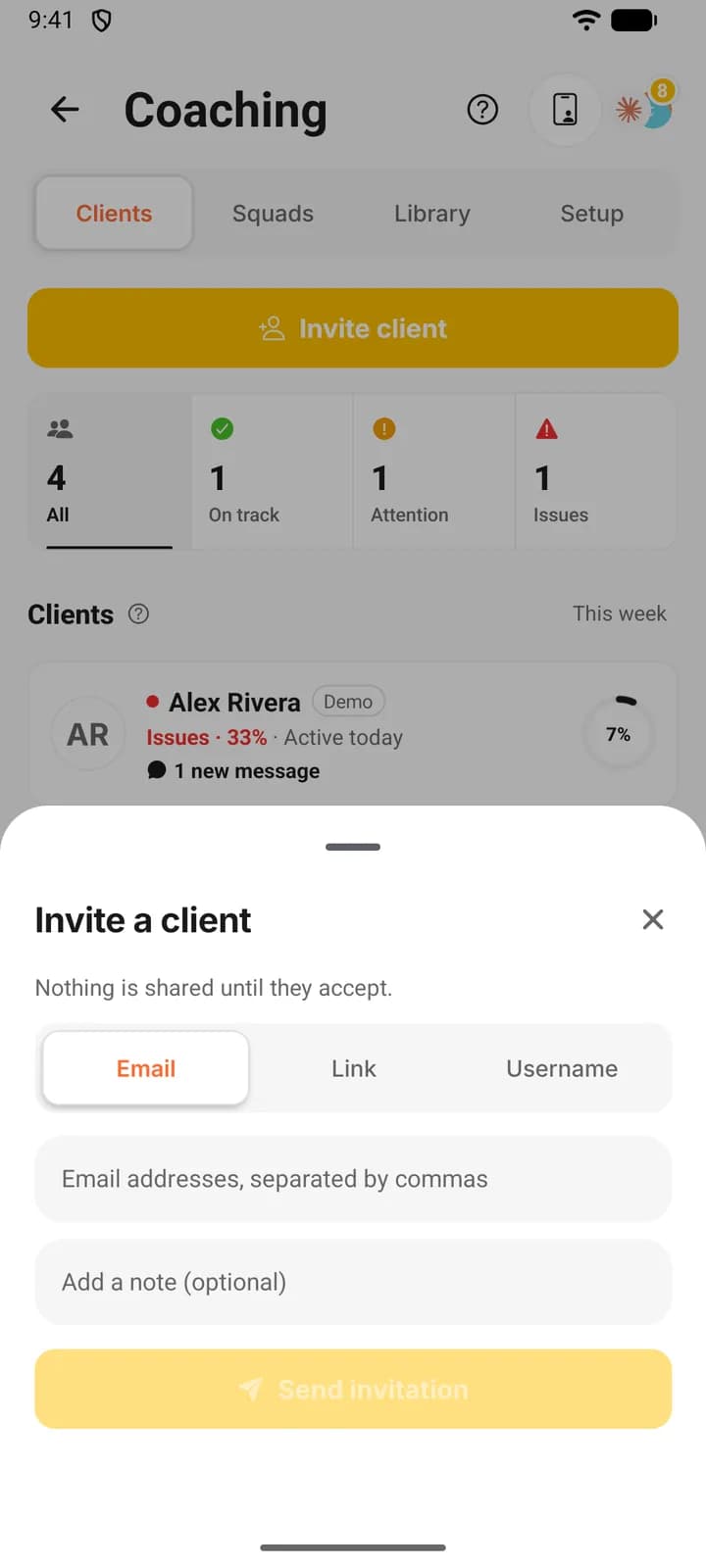
On the web all three sit in one drawer, under Email, Link and code and Username. On the phone they are three tabs: Email, Link and Username.
| Way | Good for | What the client receives |
|---|---|---|
| Anyone whose address you have, with or without a JustGains account | An email with their own link. If their account already uses that address, the invitation is also waiting in their account. | |
| Link and code | A group chat, a poster, or someone standing next to you | Your coach page. Someone signed in accepts there, and anyone else signs up first. The code is typed during signup in the app and does the same job. |
| Username | Someone already on JustGains | An invitation inside their account. Nothing is emailed. |
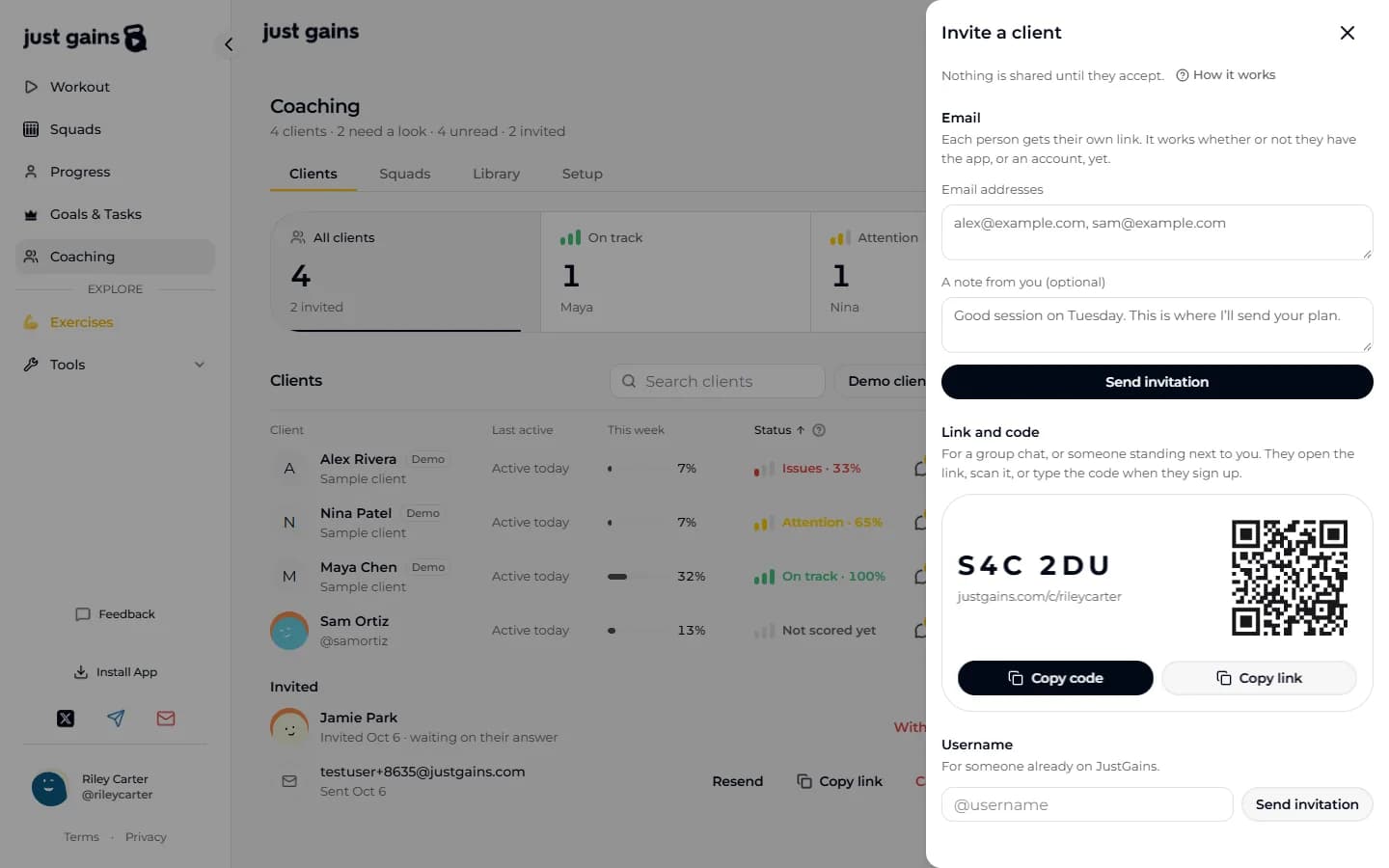
Send an invitation
- Press Invite client.
- Under Email, type or paste the addresses. One send takes up to 20, separated by commas, spaces or new lines. An address pasted twice counts once.
- Add a note if you like, up to 280 characters. It goes in the email and shows again when they open the invitation.
- Press Send invitation. With several addresses the button counts them: Send 3 invitations.
Each person gets an email in your name (“Your Name via JustGains”) with the subject “Your Name wants to coach you on JustGains”. Any address that could not be invited is listed with the reason. The rest have gone.
Your link and code are under Link and code, or the Link tab on the phone. On the web, Copy link and Copy code copy them, and a QR code of the link is there to scan. The phone has the same two buttons plus Share link, and no QR code. The code is six characters and never uses 0, O, 1 or I, so it survives being read aloud. It is typed during signup in the app, which suits someone new to JustGains. Anyone with an account opens the link.
Under Username, type their @username and press Send invitation. The invitation appears on their Today screen in the app, or as a banner on the web, and their phone shows a notification if they allow them. No email is sent, so tell them to look.
What the client sees
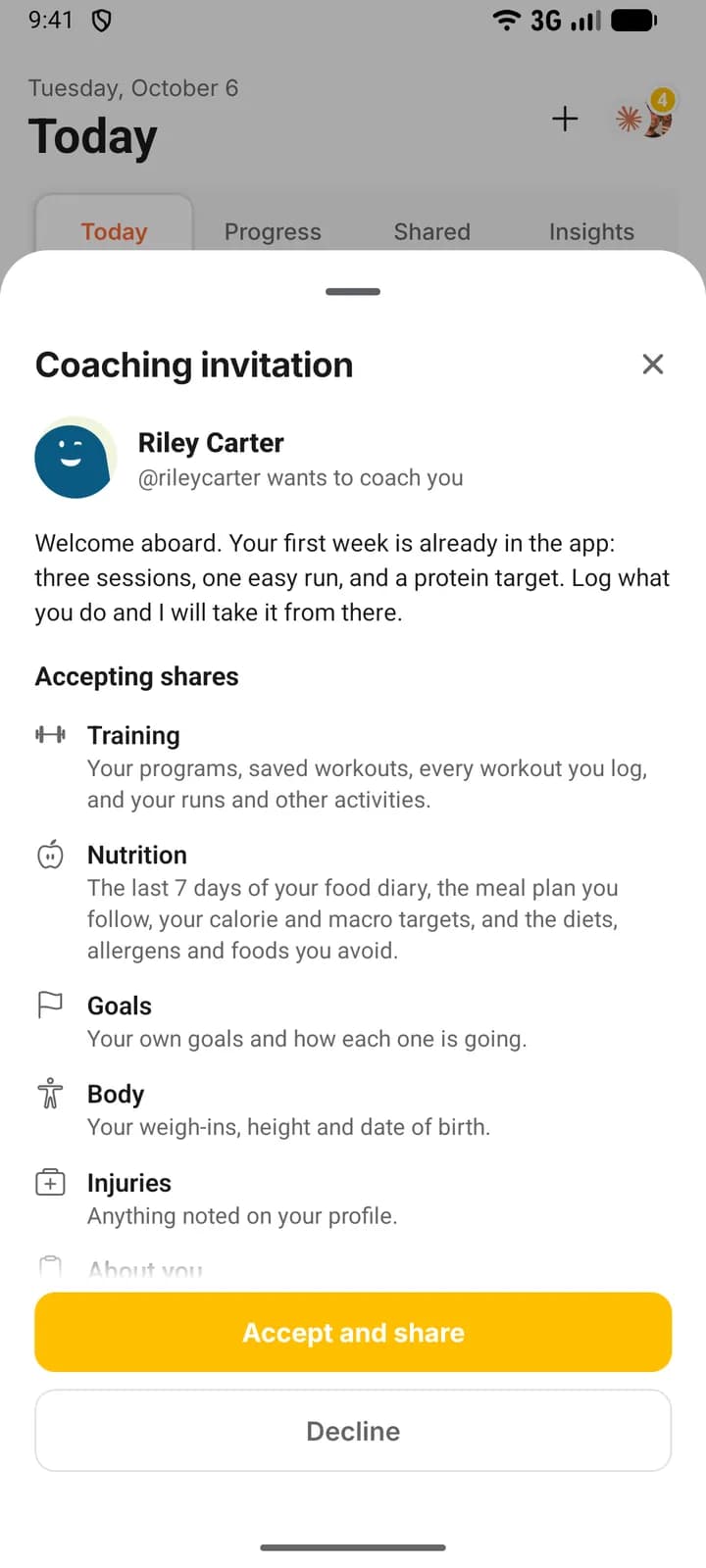
They see your name with your @username and “wants to coach you” under it, then your welcome, what accepting shares (training, nutrition, goals, body, injuries and about you) and what stays private. In the app this is a sheet titled Coaching invitation, and on the web the banner opens the same thing in a drawer. Accept and share and Decline stay pinned at the bottom, and the How it works link under the list opens What your coach can see, which has the full list. Your link’s page on the web shows the same list above Accept and share once the visitor has signed in. Signed out, they see one line saying nothing is shared until they accept, with How it works under it.
While you wait
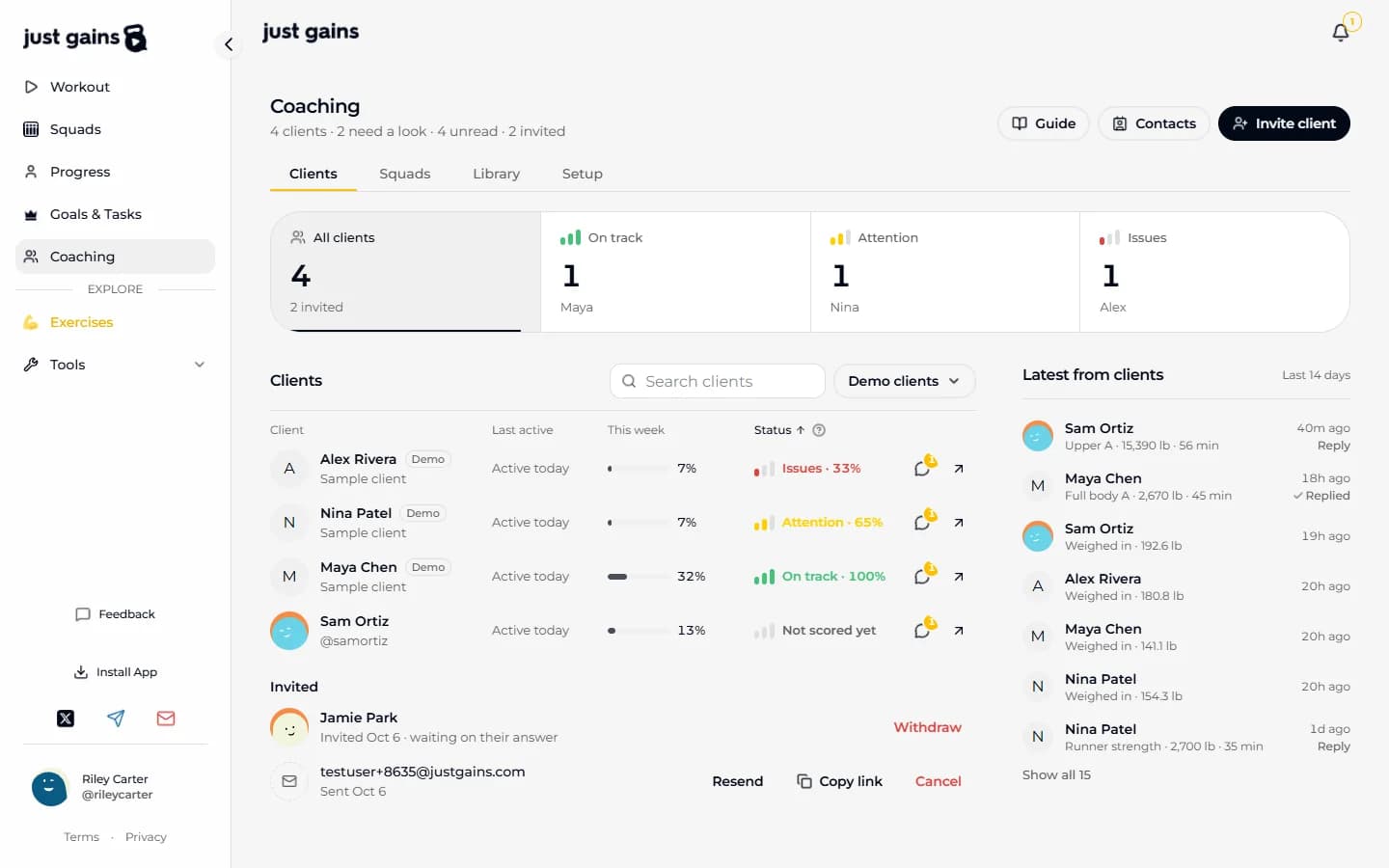
Open invitations are listed under Invited, below your active clients. Someone you invited by username, or who used your link or code, is listed by name, with Invited Oct 6 · waiting on their answer under it. Someone you emailed is listed by address only, even when that address already has an account. That is deliberate: an invitation to an address can never reveal whether the address has an account. You learn whose it is when they accept.
On the web each row has its buttons. On the phone, open the row.
| Action | What it does |
|---|---|
| Resend | Emails the same invitation again. One invitation can be emailed 5 times in all, at least a minute apart. |
| Copy link | Copies that person’s own link so you can send it yourself. It works until they accept or you cancel. |
| Cancel | Takes back an emailed invitation. Their link stops working and nothing is shared. |
| Withdraw | Takes back an invitation listed by name. It disappears from their account and nothing is shared. |
When they accept, they move from Invited into your roster. If someone you emailed declines, their row reads Declined, and inviting the same address again reopens it on the same link. You can hold up to 300 unanswered emailed invitations at once.
One coach at a time
A client has one coach at a time. Invite the username of someone who already has a coach and the invitation is refused, and you are told why. An email or a link still goes out, and the client is told when they open it that they must end coaching with their current coach first. When a client accepts you, any other invitations they were holding are declined for them.
FAQ
Keep learning
Join your coach on JustGains
Accept your coach’s invitation, see what it shares before you agree, and find your plan, goals, targets and forms afterwards.
What your coach can see on JustGains
What accepting a coach shares, what stays private, what your coach can change in your app, and how to stop sharing.
Your welcome, signup questions and client themes
Write the message and record the video a new client meets first, choose the signup questions they answer, and choose the themes their phone app can use.
Read your roster: On track, Attention and Issues
How to read the Clients tab, and exactly how On track, Attention, Issues and Not scored yet are worked out from goal pace.