Assign and schedule plans for your clients
Give a client a program, workout, meal plan or run plan, choose the start date, and know what a future date really does.
Assigning gives a client their own copy of a program, workout, meal plan or run plan from your library. You choose who gets it and the day it starts.
The date decides how it arrives: at once if it is today, as a saved copy if it is later.
Where to find it
| On | Go to |
|---|---|
| Web | Coaching, a client, then Plans. Or Library, for several clients at once |
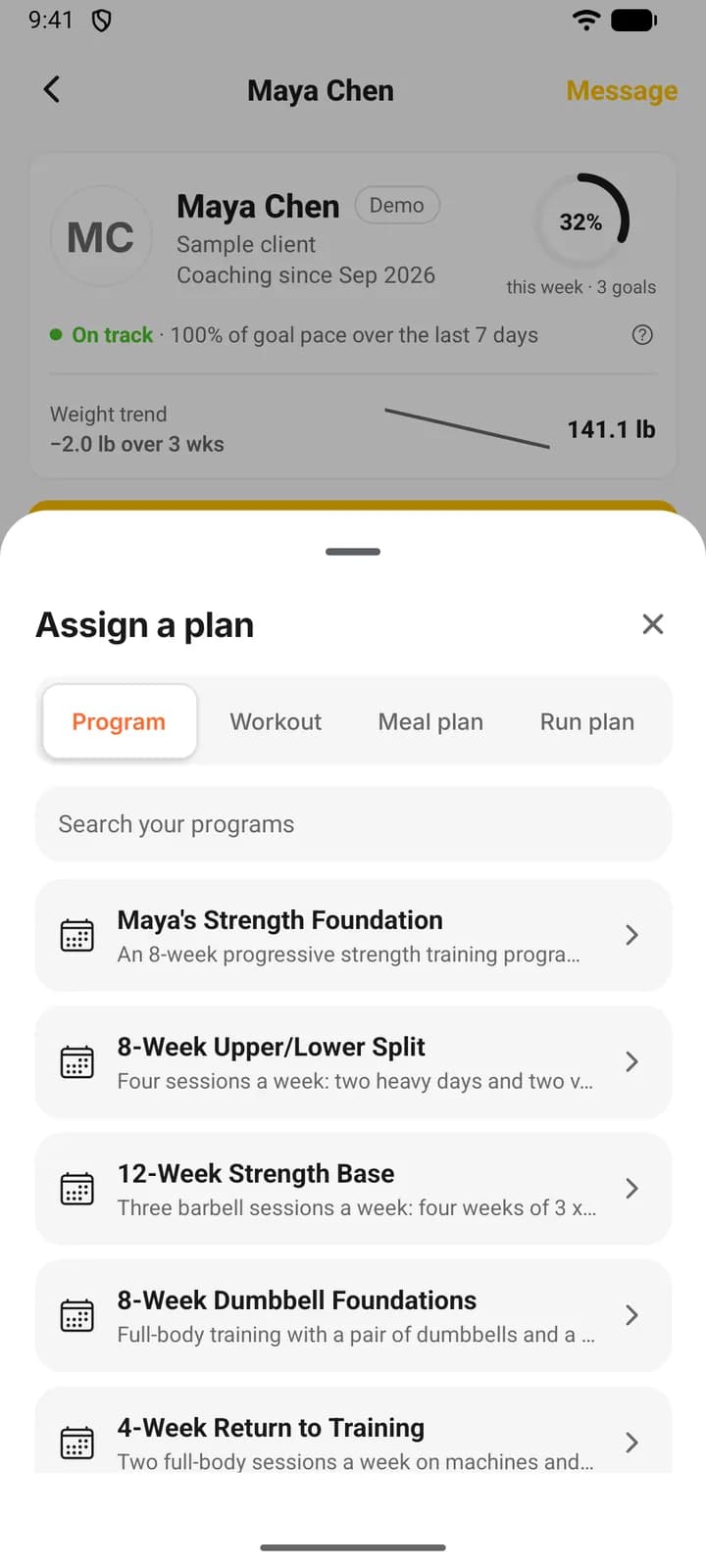
| Phone | You, Coaching, a client, then Plans. Or Library, for several clients |
Assign to one client
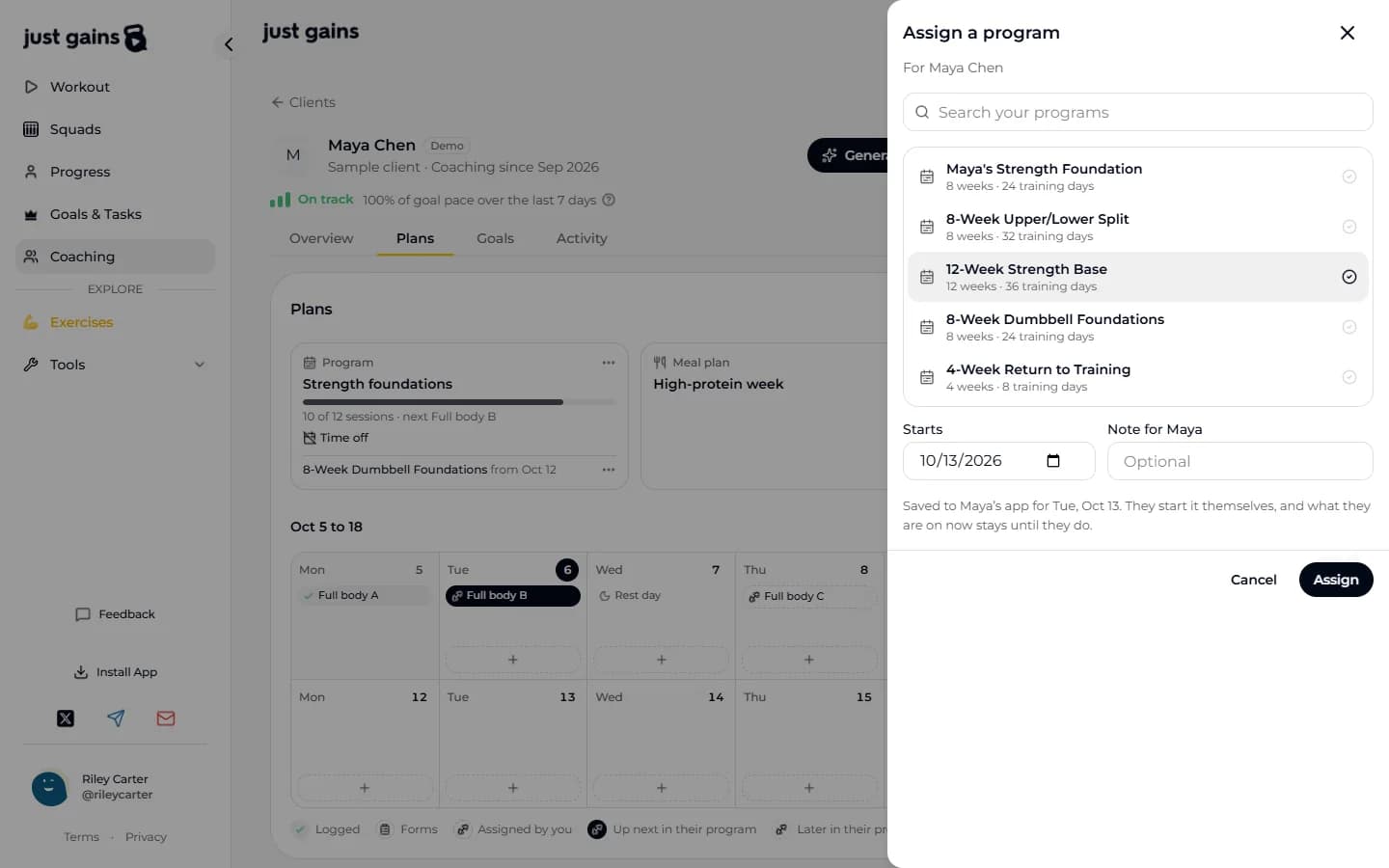
- Open the client’s Plans and press Assign.
- Choose the kind (Program, Workout, Meal plan or Run plan), then the template.
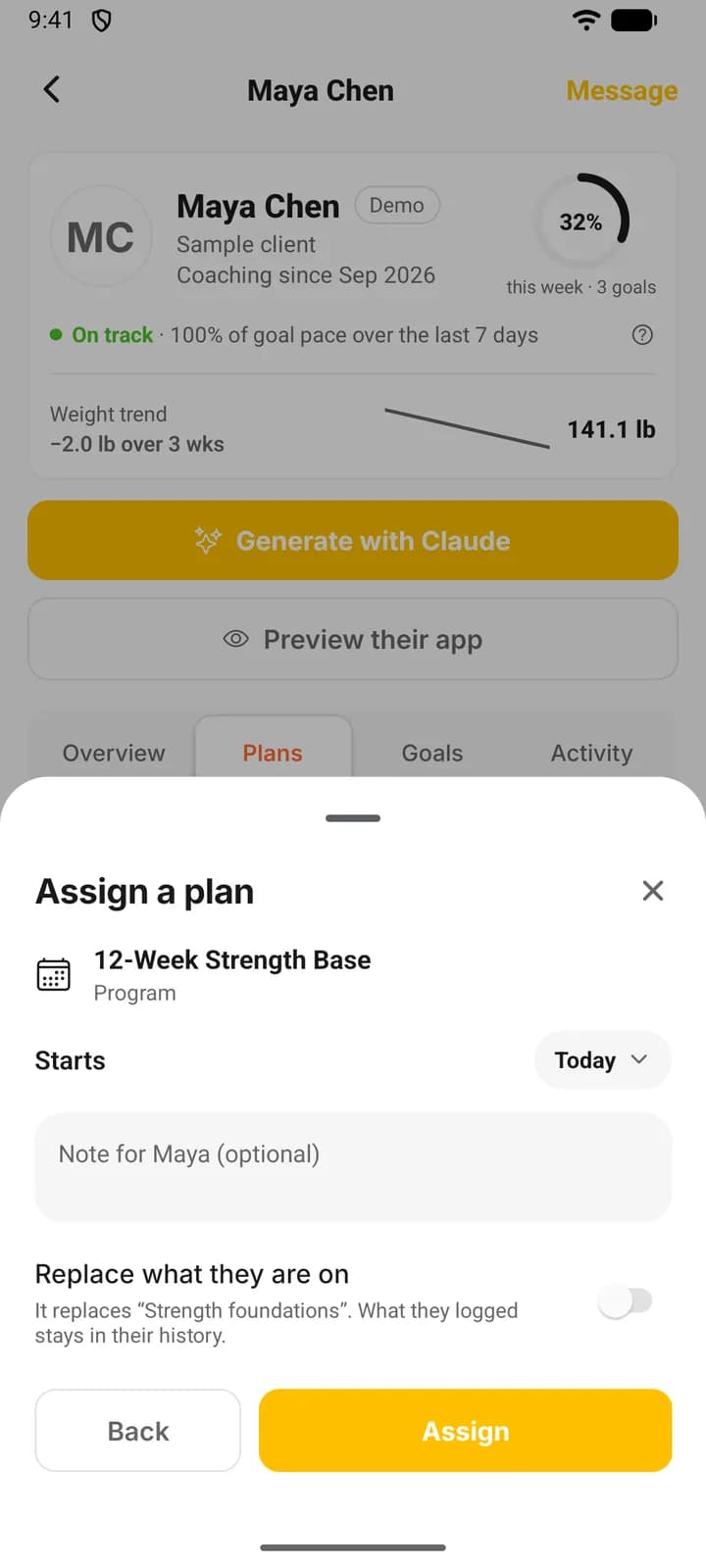
- Set the date (Starts for a program, meal plan or run plan, On for a single workout) and add a note if you want one. The client reads the note under the plan.
- Press Assign.
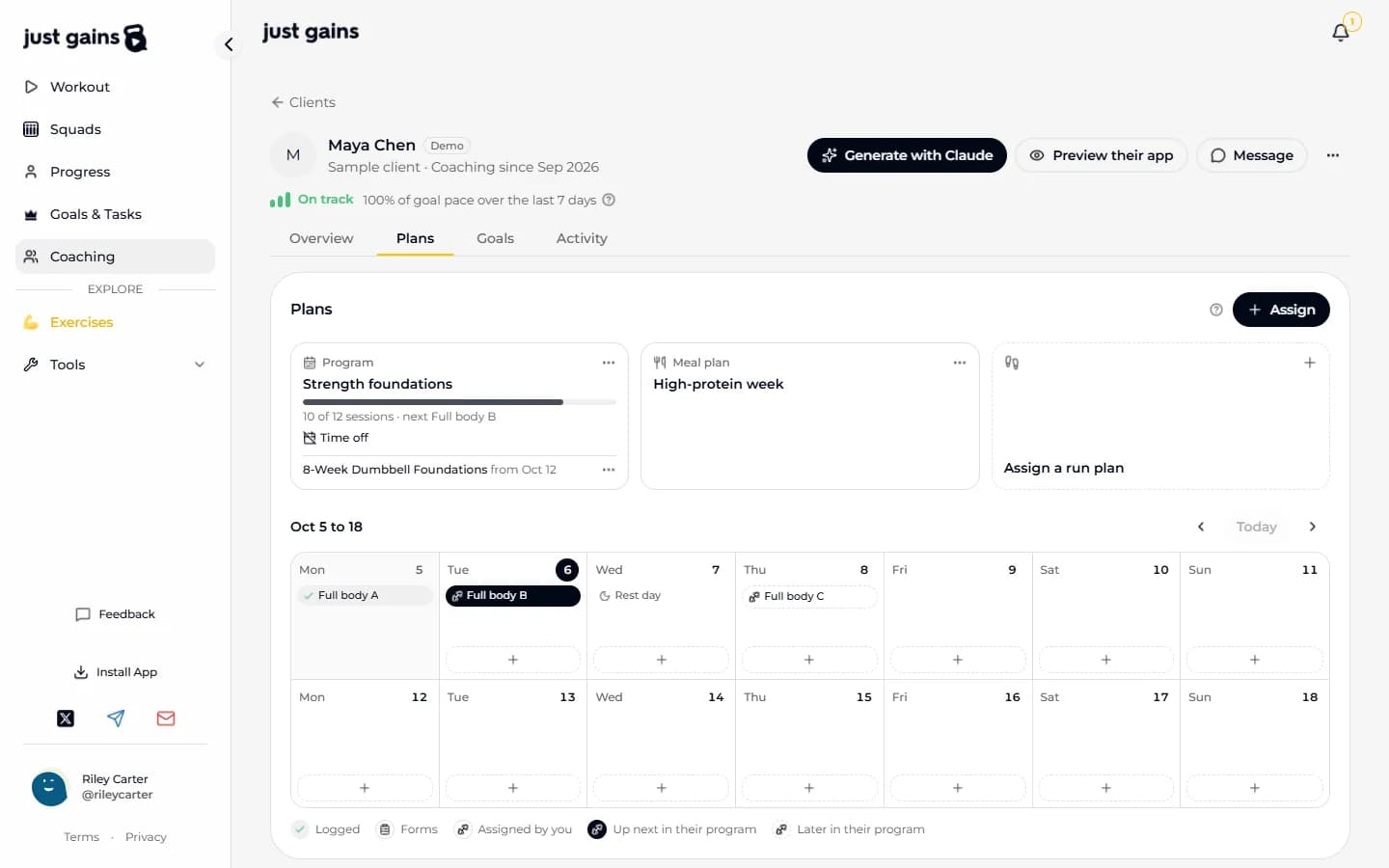
On the web, the three tiles and the plus on a calendar day are shortcuts to the same drawer.
The client’s phone says “New from your coach” if their notifications are on, and the plan appears on their My coach page under Your plan. A program, workout or meal plan reads “From your coach, Riley Carter” where an author’s name would be.
What the start date does
Dated today, the plan becomes the one they are on: a program opens at its first session, a meal plan at day 1. Today means the client’s today, in their time zone.
Dated later, the client gets a saved copy now, listed with its date. Nothing starts by itself when the day arrives. They open it and start it, and what they are on now stays until they do.
Replacing the plan they are on
A client is on one program, one meal plan and one run plan at a time. If they have one and the new plan starts today, the new plan can take its place. The old one stops, and everything they logged stays in their history.
Replacing is always your choice. When a plan would take another one’s place, the line under the date names it and Replace what they are on appears, as a checkbox on the web and a switch on the phone. Press Assign with it off and nothing is sent: a line above the buttons says to turn it on or choose a later date. In the Library, where you assign to several clients, the same option is on the form, and a client who is already on a plan of that kind is skipped and named unless it is on.
A later date replaces nothing, and neither does a single workout, so Replace is never offered for one: a client can hold several.
Assign to several clients
- Open Library and press Assign on the template.
- Tick the clients. Only active clients are listed, so someone still under Invited has to accept first.
- Set the Starts date (On for a workout) and a note, and decide on Replace what they are on.
- Press Assign to 3. The button counts as you tick.
If one client is refused the others still go through, and you see who was skipped and why.
Reschedule or remove
Reschedule moves a plan the client has not started: on the web from the menu of a calendar workout or of a plan saved for later, on the phone by opening the plan. After a logged session, meal or run the app refuses and asks for a new copy, so their history stays where it happened. Moving a plan they are on to a later date takes it off what they are on until they start it again, and the app says so before you confirm.
Remove takes the plan off Your plan and stops it being the one they are on. They keep the copy and everything they completed.
The two-week calendar on the web
Plans shows this week and next. A day holds what the client logged, workouts you assigned for that date, forms, time off and upcoming program sessions. A program’s next session sits on today and the rest follow a day at a time, so they slide when a day is missed. The phone lists current and scheduled plans, with no training calendar.
FAQ
Keep learning
Build your coaching library
Keep the programs, workouts, meal plans and run plans you reuse in one place, and see which clients are on each one.
Generate with Claude: draft a plan from what a client told you
Draft a program or a single workout from a client’s own answers. You read and edit the exact request before it is sent.
Change a client’s program: weeks, progressions and time off
Edit the program a client is already on: weeks, days and targets, progressions across weeks, and time off that keeps their place.
Set calorie, macro and weight targets for a client
Give a client a goal weight and daily calories and macros, assign a meal plan that respects their allergens, and check how the week went.