Your welcome, signup questions and client themes
Write the message and record the video a new client meets first, choose the signup questions they answer, and choose the themes their phone app can use.
Setup holds what a new client meets before they have logged anything: your welcome message and video, the questions they answer at signup, and the themes their phone app can use.
Your welcome and the themes you allow reach the clients you already coach as well as everyone who joins later. Signup questions are only asked of people who sign up afterwards. One client can have a welcome of their own.
Where to find it
| On | Go to |
|---|---|
| Web | Coaching, then Setup |
| Phone | You, then Coaching, then Setup |
Write your default welcome
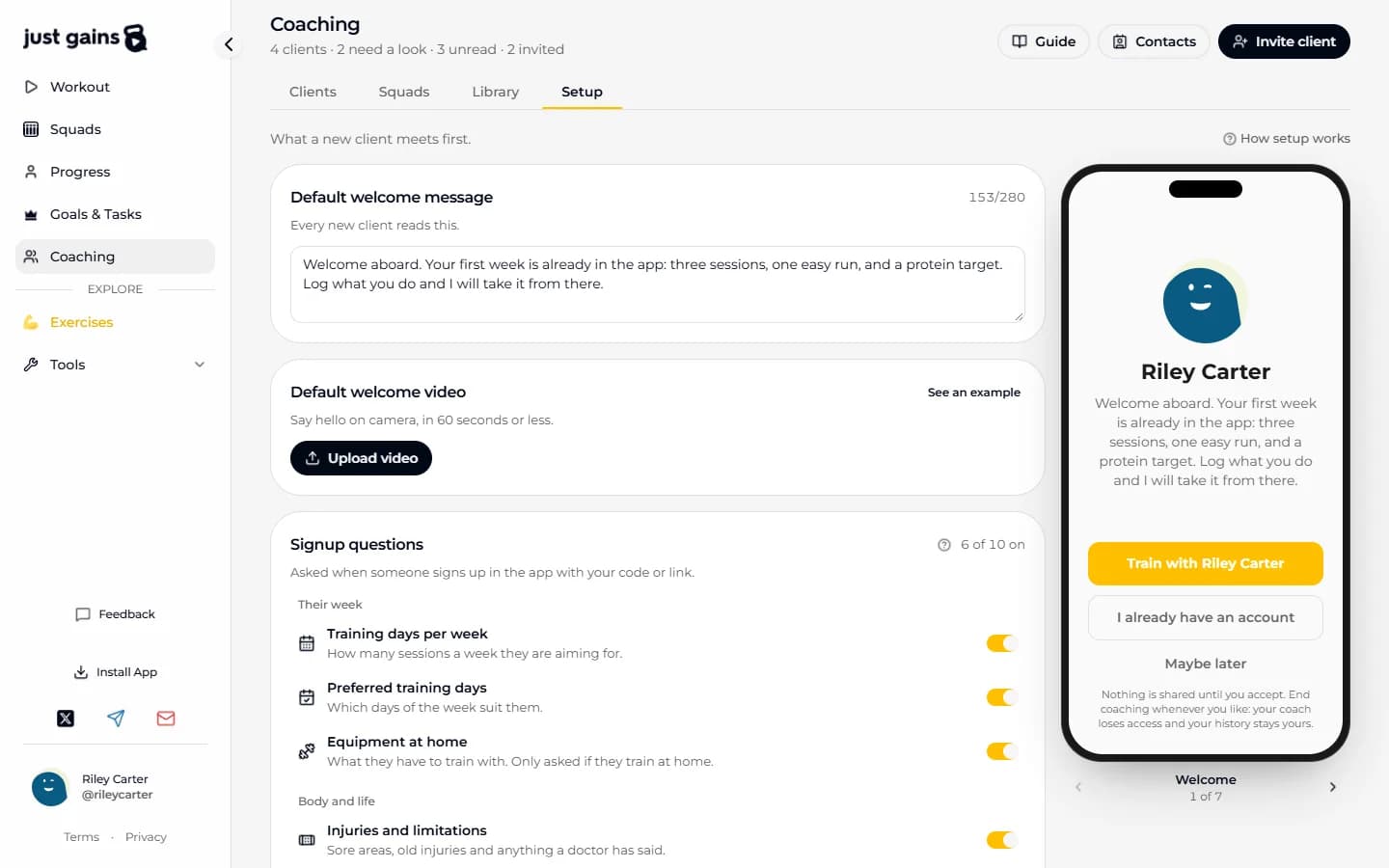
The default is what every client gets unless you make one for them. Change it later and every client still on the default sees the new one on My coach. Use a message, a video, or both. The message can be up to 280 characters. The video can be up to 60 seconds and 100 MB, as an MP4 or MOV. A longer clip is refused, so trim it first.
- Press Upload video and choose the clip.
- Wait about a minute while it reads “Optimizing for phones”. You can leave the screen.
- When it reads “Live”, clients can play it.
If a clip is refused, the reason appears. With no video live yet, the button then reads Try another video. With one live, the button stays Replace, and clients keep the old video until a new one is live.
Give one client their own welcome
Open the client’s Overview. On the web, press Personalize on the Welcome card. On the phone, open the Welcome row, which reads “Maya gets your default welcome”. A part you leave empty falls back to your default, so a personal message still plays your default video. It works once they are an active client.
Where a client meets it
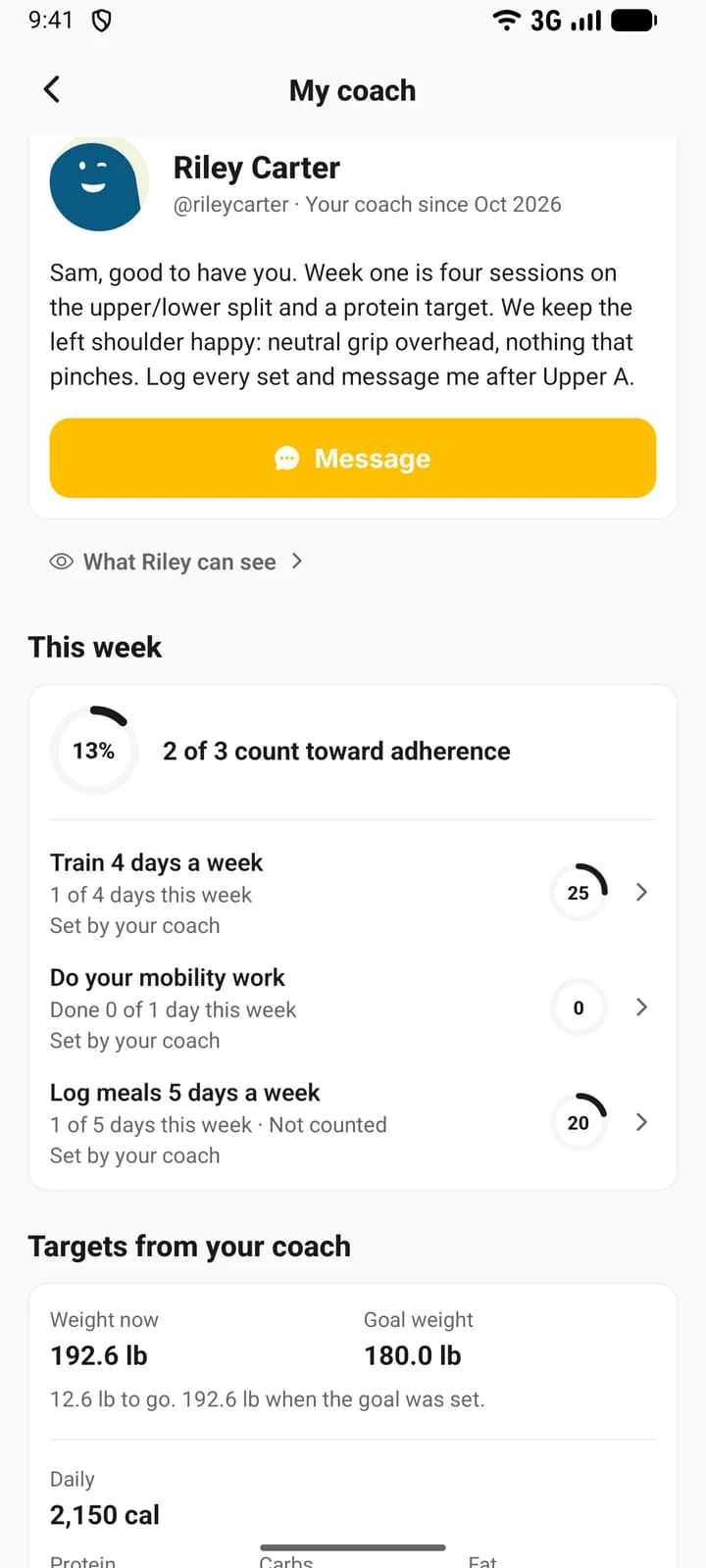
In three places: your link page (the link in your invite drawer), the invitation, and My coach, where the video stays to watch again. A note on an emailed invitation replaces the message for that person.
Choose your signup questions
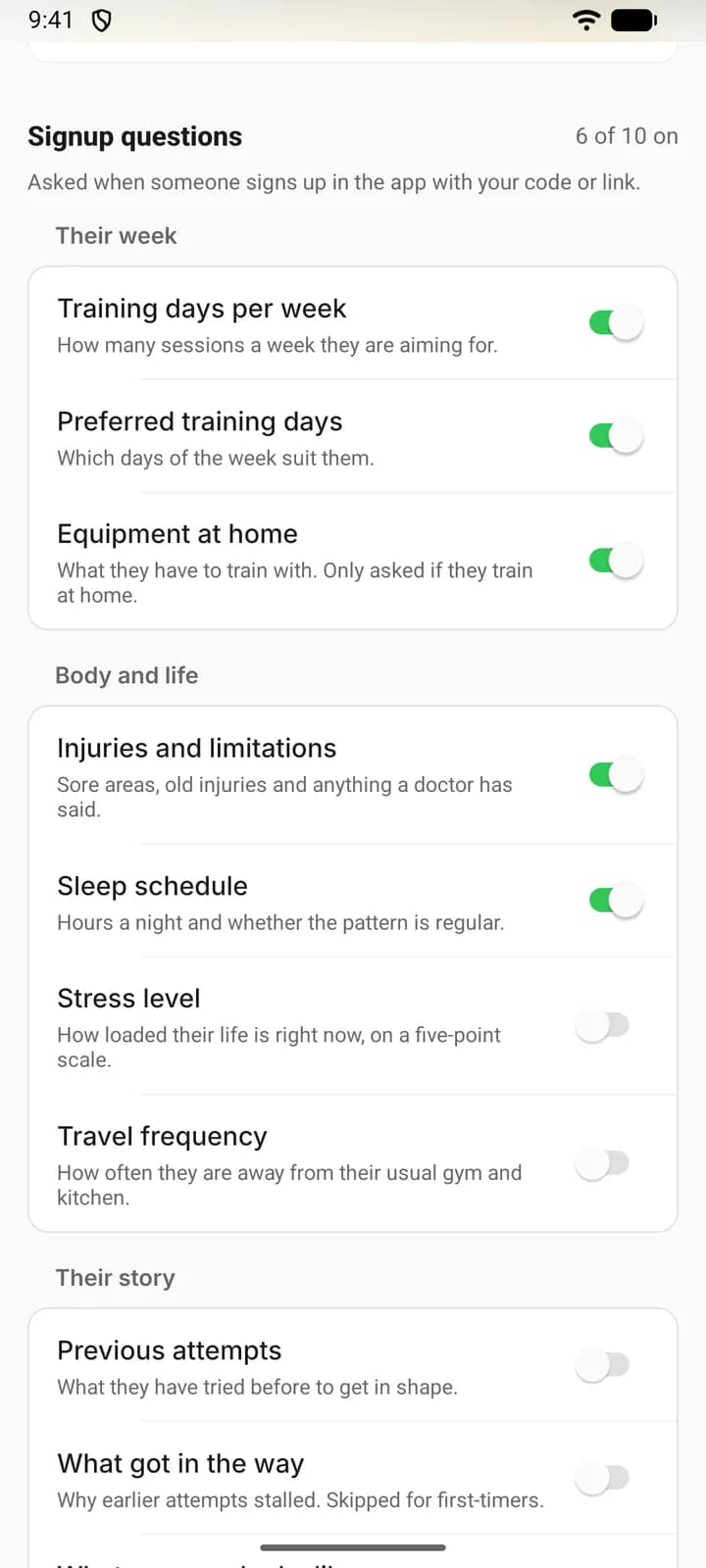
There are ten, all off by default. They are asked in one place: the phone app, while someone creates an account after choosing you by code or link. Setup says so itself: “Asked when someone signs up in the app with your code or link.” Any can be skipped.
Answers appear under Signup answers on the client’s Overview: inside the Client breakdown card on the web, and as a section of its own on the phone. Your demo clients arrive with all ten answered, so open Maya to see where they land.
| Question | What the client is asked |
|---|---|
| Training days per week | How many days they can train. |
| Preferred training days | The weekdays that suit them. |
| Equipment at home | What they have to train with. Only asked if they train at home. |
| Injuries and limitations | Areas to train around, and a note. |
| Sleep schedule | Hours on a normal night, and how regular they are. |
| Stress level | How full life is, from Calm to Flat out. |
| Travel frequency | How often they are away from home. |
| Previous attempts | What they have tried before. |
| What got in the way | Why earlier attempts stalled. Skipped if this is their first real go. |
| What success looks like | A good result, three months from now. |
Two groups are never asked: people who sign up on the website, and people who already had JustGains when they accepted. For them, and for anything every client must answer, use a form. Switch on Use for new clients on one form in Setup, and every client who accepts from then on gets a copy, on web and phone.
Or fill in and correct the answers yourself with Edit on Client breakdown.
Choose client themes
Client themes change the look of your clients’ phone app. On the website, only your link page follows them: it is drawn in your Starting theme when you have set one.
Any theme leaves clients free to choose. Only my picks limits them: every theme starts ticked, so untick the ones you do not want. Starting theme is what a new client’s app opens in. Under Any theme you can leave it on Their own to keep whatever they had.
A theme you allow is theirs even if it is normally a Pro theme. The starting theme is applied once, when coaching begins on that phone. After that their own choice stands while you allow it. The list you allow applies to the clients you already coach too: untick the theme one of them is on and the app moves them to your starting theme, or the first on your list.
FAQ
Keep learning
Set up your coaching in 10 minutes
Four steps for a new coach: practise on three demo clients, write your welcome, add a first plan and invite your first client.
Invite clients by email, link, code or username
Three ways to invite a client, what each person receives, what you see while you wait, and how to resend, cancel or withdraw an invitation.
Read a client’s breakdown and keep private notes
See what a client shared, correct it for them, read their signup answers, and keep coaching notes and session notes only you can see.
Write forms and check-ins, and read the answers
Write a form once, make it the one every new client gets or assign it for a date, then read, correct and move the answers.