Change a client’s program: weeks, progressions and time off
Edit the program a client is already on: weeks, days and targets, progressions across weeks, and time off that keeps their place.
An assigned program is the client’s own copy, and you can keep changing it: swap an exercise, add a week, progress the loads, pause it while they are away.
Your library template is a separate document. Nothing here touches it.
Where to find it
| On | Go to |
|---|---|
| Web | A client’s Plans, the program’s menu, then Edit their program |
| Phone | A client’s Plans, open the program, then Edit their program |
Open their copy
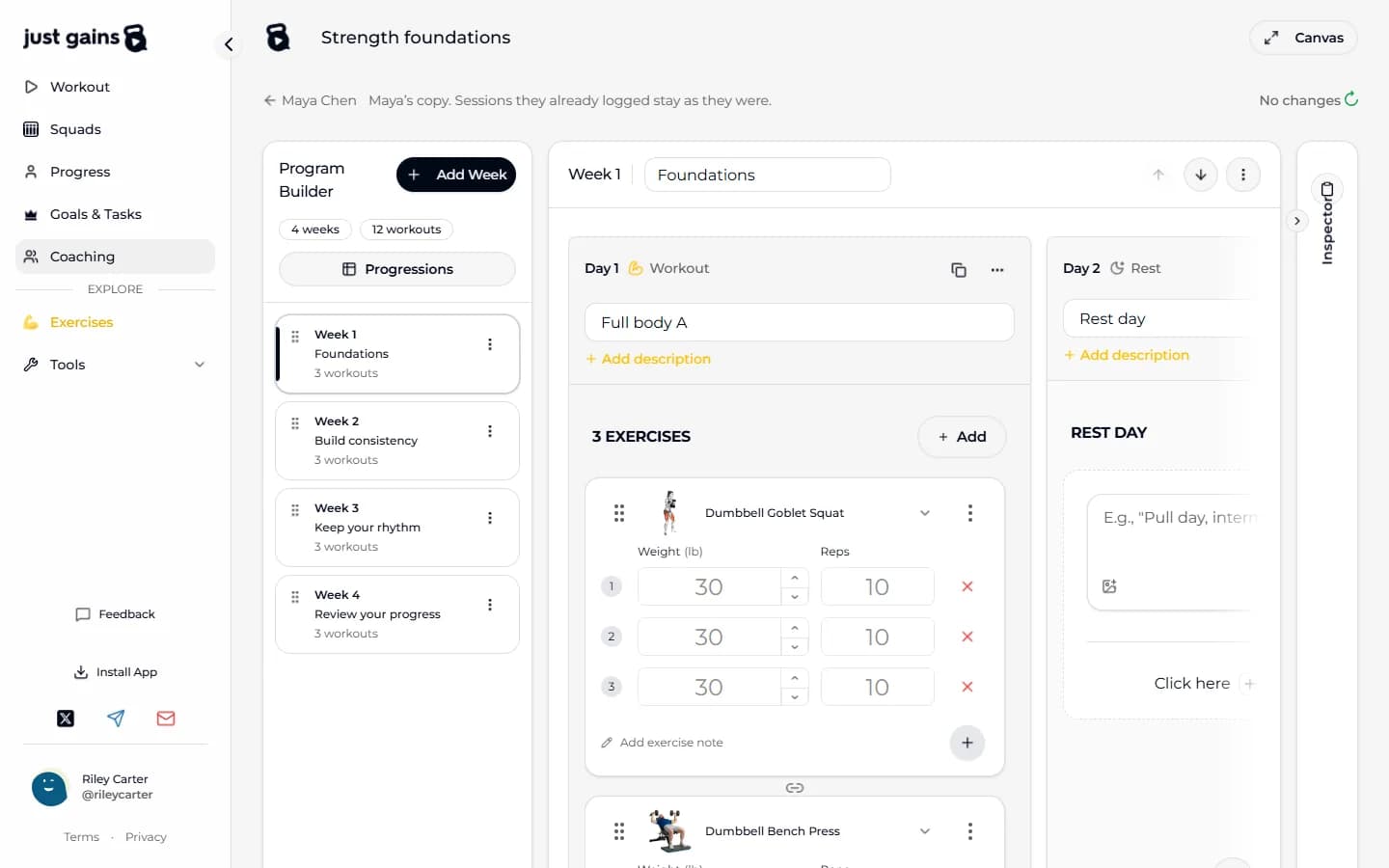
On the web, Edit their program opens the program builder on the client’s copy. A line under the header says whose it is (“Maya’s copy.”), and changes save as you make them.
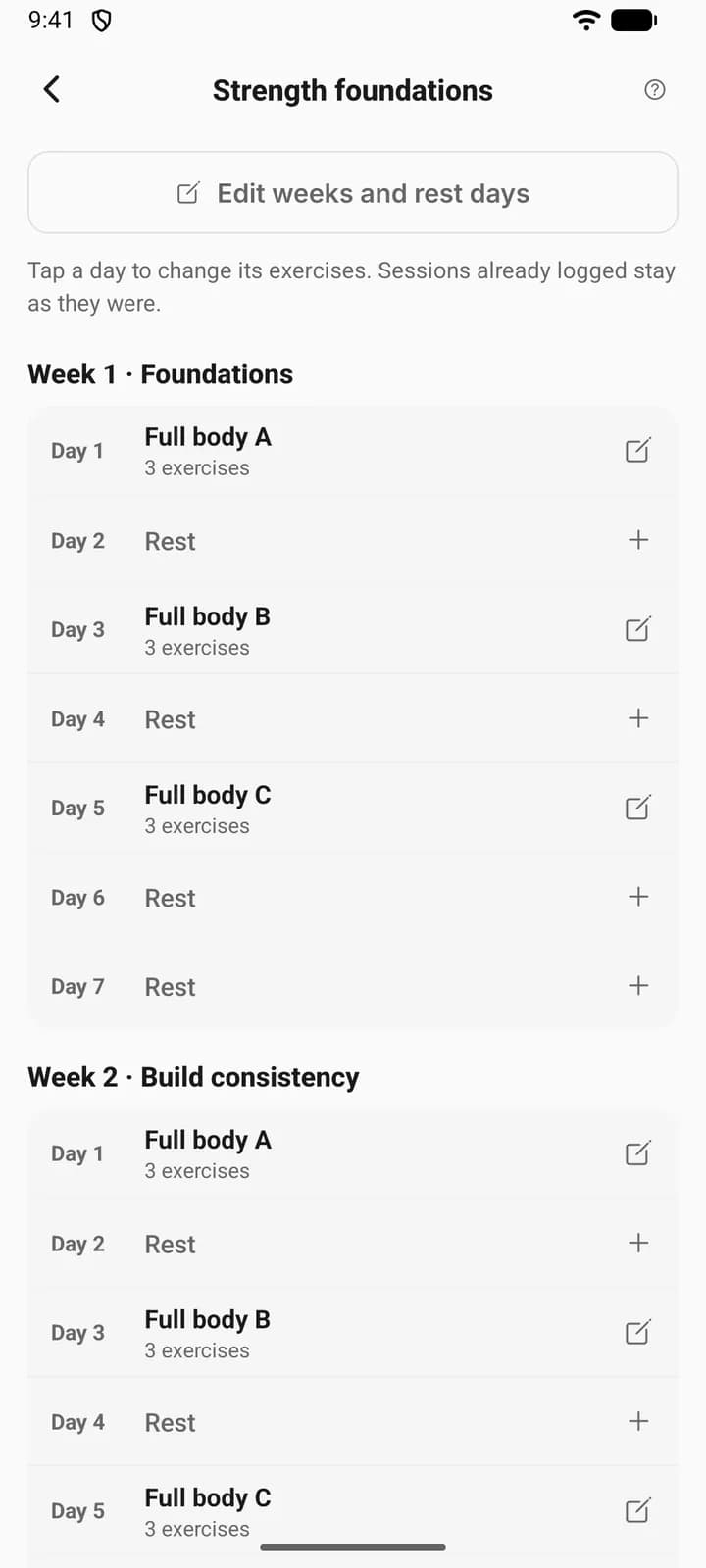
On the phone you get the program week by week. Tap a training day to change its exercises, or press Edit weeks and rest days for the name, the weeks and the rest days, then Save.
The client trains the new version the next time their app syncs. Edits and time off send no notification, so tell them what changed.
What you can change
| Part | What you can do |
|---|---|
| Program | Rename it and rewrite its description. |
| Weeks | Add one, give it a one-word label such as Base or Deload, move it up or down, duplicate it, remove it. |
| Days | Every week has seven. Turn a rest day into a training day or back, and rename a workout. |
| Exercises | Add, remove and reorder them. Set the sets, reps, loads, times and rest. |
Progressions
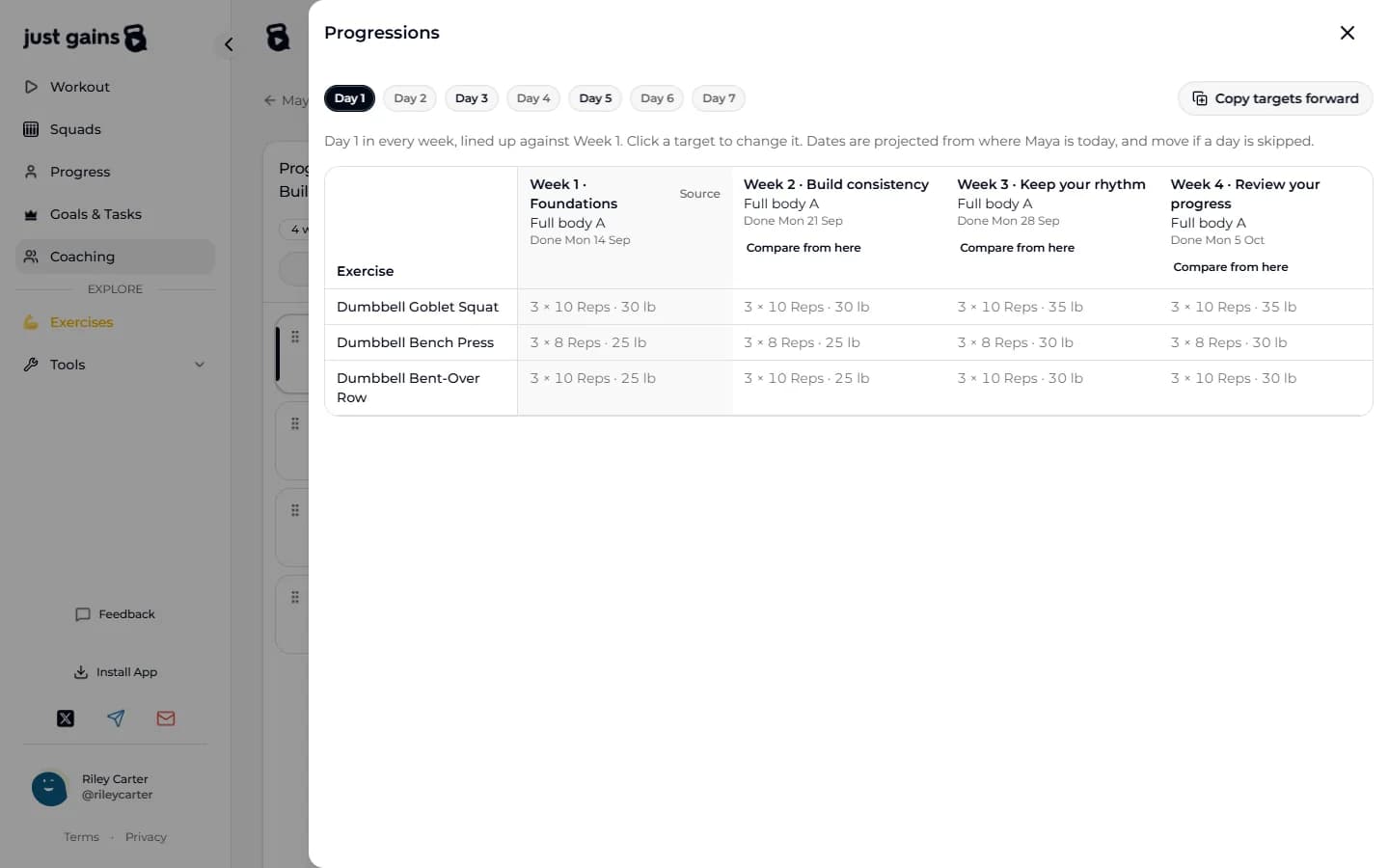
Progressions, a button in the builder (on the phone, inside Edit weeks and rest days), lines one day up across every week, so you can read how Day 1 moves from week 1 to week 8. Choose the day and the week to compare from.
- To change a target, press it. You can edit weight, reps, time and rest, and add or remove the last set. Apply to Week 5 writes it to that week. Anything else, such as swapping an exercise, is done in the full workout editor.
- Copy targets forward copies the sets, weights, reps, times and rest from the week you are comparing from onto the same exercises in later weeks. Tick the weeks, check the list, then confirm. Each week keeps its own workout, exercise order and notes.
A week is refused, with the reason beside it, if the client has trained that session or moved past it, if the week rests or has no workout that day, or if its workout does not line up: a missing or extra exercise, a different order, different supersets, an exercise tracked another way. Every ticked week is checked before any is changed.
Each week’s header says where the client stands: Done and a date for a session they trained, Up next, or Projected and a date for the weeks still ahead. Projected dates start from where the client is today and move when a day is skipped or time off is added. On the web, a week that is done has no Edit workout button. On the phone, press Save in the editor to keep these changes.
Time off
Time off, in the program’s menu, pauses the program without losing the client’s place.
| Action | What it does |
|---|---|
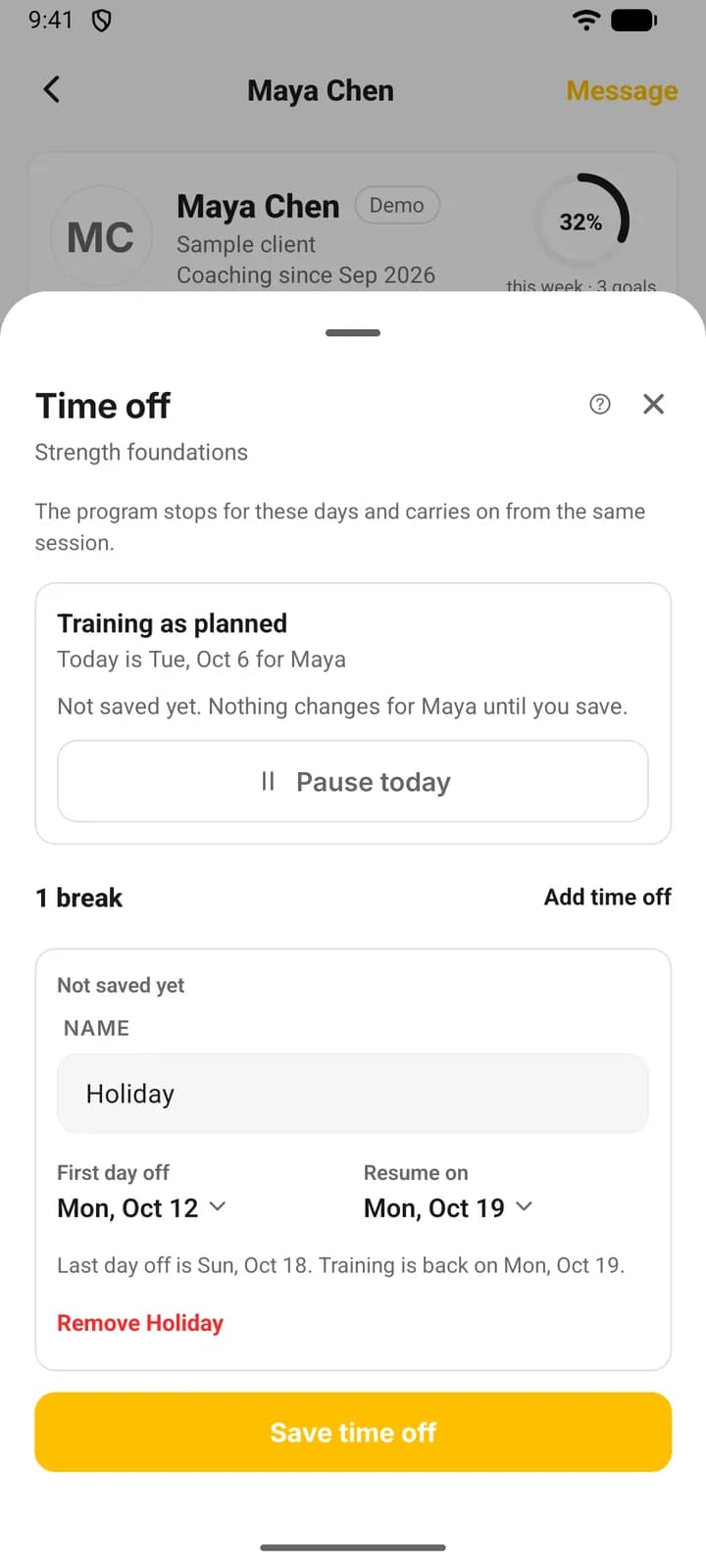
| Pause today | Starts a break today with no resume date. The program waits until you set one. |
| Add time off | A dated break with a Name, a First day off and Resume on, the first day back in training. |
| Open-ended break | Leave Resume on empty (on the phone, Leave the resume date open). Give it a date before you add a later break. |
| Resume today | Ends the current break today. |
Nothing changes for the client until you press Save time off. Until then the editor marks a break Not saved yet.
During a break the client’s program shows “Time off”, the name you gave it and the day training resumes (or that you will set a date). Their Today tab stops offering the next session. Their progress and logged workouts are untouched, the program carries on from the same session, and all dates follow the client’s time zone.
FAQ
Keep learning
Assign and schedule plans for your clients
Give a client a program, workout, meal plan or run plan, choose the start date, and know what a future date really does.
Build your coaching library
Keep the programs, workouts, meal plans and run plans you reuse in one place, and see which clients are on each one.
Preview your client’s app
Open a read-only copy of a client’s JustGains to see how an assigned plan looks on their side, or to read their week before a call.
Message a client and comment on their workouts
Message one client from the roster or their page, send photos, voice and video, and reply to a finished workout with a comment they are notified about.