Move your client list to JustGains
Export your client list as a CSV, import it under Contacts, check the five columns, and invite each person when you are ready.
If you coach somewhere else today, you do not have to retype your client list. Export it as a CSV, import it under Contacts, and every person becomes a private contact you can invite when you are ready.
Importing saves details and nothing else. No accounts are created and nobody is emailed until you invite them.
Where to find it
| On | Go to |
|---|---|
| Web | Coaching, then Contacts in the header |
| Phone | You, then Coaching, then the contacts button on Clients |
Get your list out
Export your clients as a CSV file from the app you use now. Contacts reads five details: first name, last name, email, phone and assigned trainer. Only the email is required, and every column in the file comes along as it is.
| Limit | Allowed |
|---|---|
| File | CSV text. Excel and PDF files cannot be read, so export or save as CSV first. |
| Size | Up to 5 MB |
| Contacts | Up to 1,000 in one file |
| Columns | Up to 50, each with its own name |
| One valid address on every row, used once in the file | |
| Length | First and last name 100 characters each, email 320, phone 80, assigned trainer 160. A value in any other column, 2,048. |
Import and check the columns
- Open Contacts and press Import.
- Press Choose a CSV file. Or press Paste CSV, paste the text with the column names on the first line, and press Review pasted CSV.
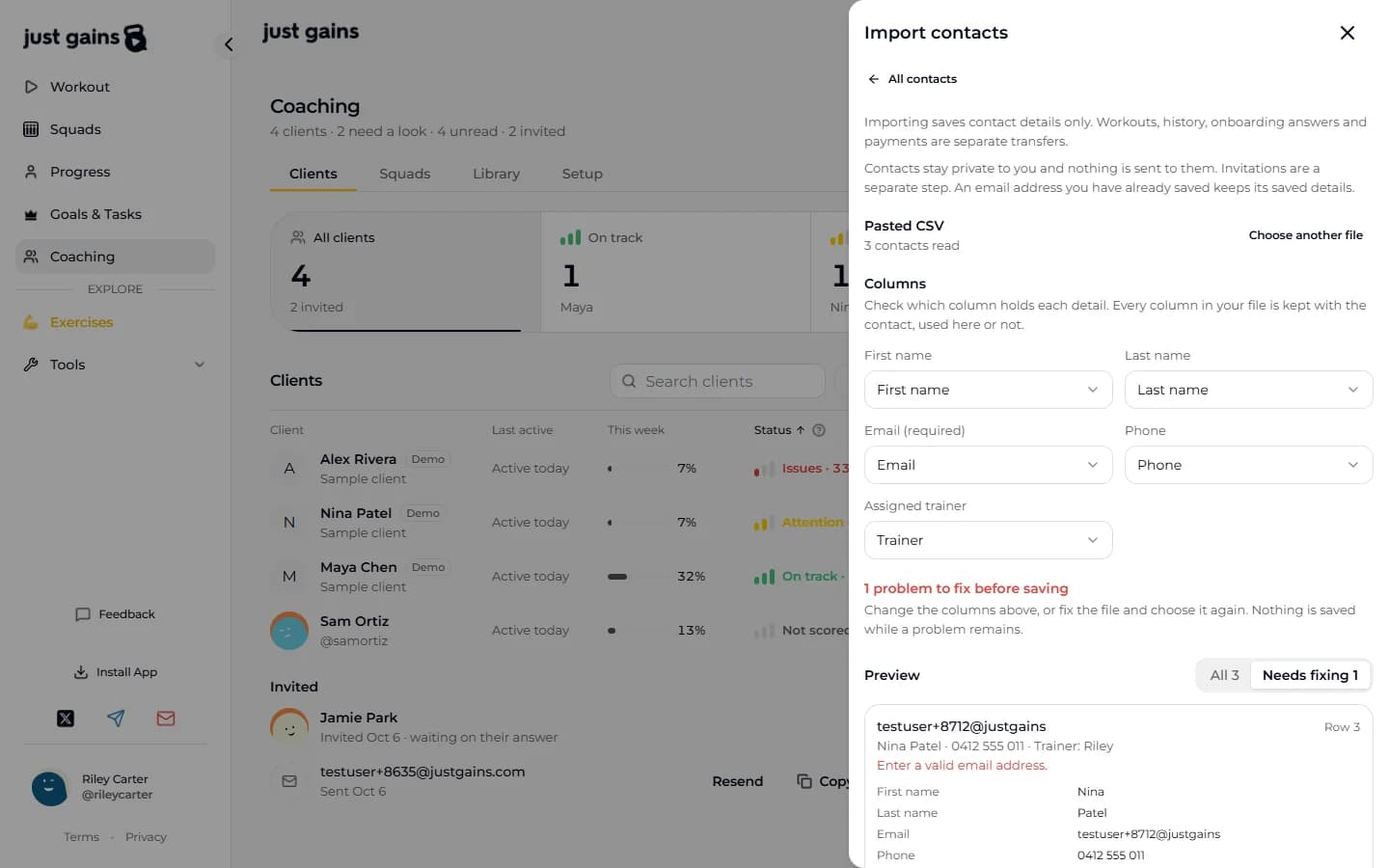
- Under Columns, check which column feeds each of the five fields. Columns with the usual names (Email, First name, Surname, Mobile, Trainer) are matched for you. Set the others yourself, or choose Not in this file.
- Read the Preview. Each contact shows its row number and every original column, and a row with a problem says what is wrong. Needs fixing narrows the list to those rows.
- Press the save button, which carries the count: Save 3 contacts.
One problem anywhere holds back the whole file. Nothing is saved until every row passes, so fix the file or the column choices and try again. A file is stopped by an email that is missing or not valid, the same email on two rows, a row with more or fewer values than there are columns, and columns that share a name or have none. The phone follows the same steps, starting from Import contacts.
What is saved, and what is not
Each contact keeps the five fields. Under Original import it also keeps every column from your file exactly as it was, those five included, and that copy cannot be edited. Phone numbers stay text, so leading zeros survive. Afterwards you can correct the details and add private Notes of up to 10,000 characters. Only you can see your contacts and notes.
Nothing else happens. No accounts are created, no invitations go out, and nobody on the list is contacted. Workout history, onboarding answers and payments stay where they were. The assigned trainer is kept as text for your reference and gives nobody access.
Importing the same list twice is safe. Addresses you already have keep their saved details, and the result says how many contacts were new.
Invite from a contact
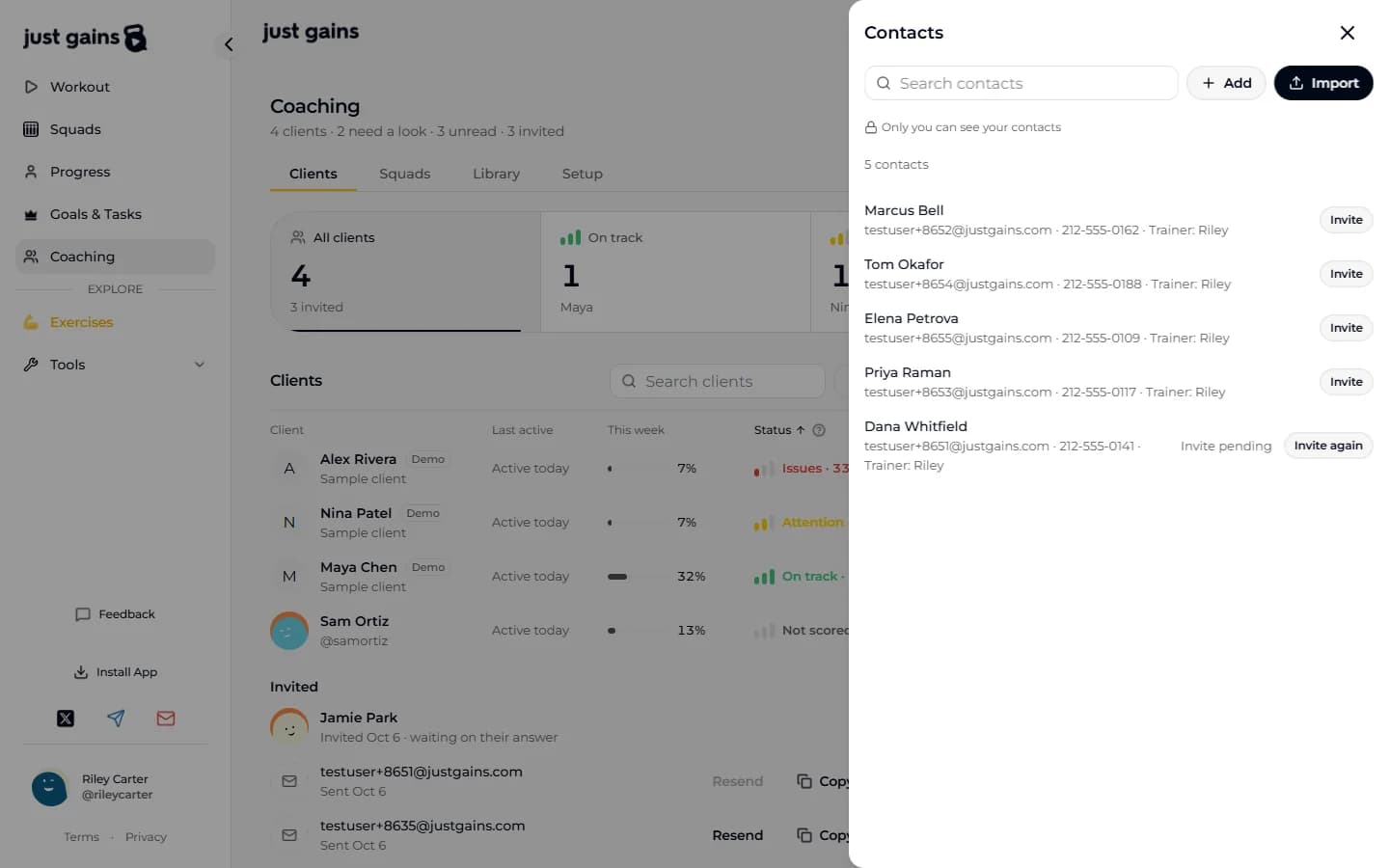
Each contact has an Invite button. It opens the invitation with their address filled in, and you press Send invitation. They receive the invitation email, and their contact reads Invite pending, with an Invite again button, until they answer. Then it reads Accepted or Declined. Invite clients covers what they see and how to resend.
Bring your programs across
The contact file carries no training plans. There are three ways to get them into JustGains:
- Rebuild them in your Library. A plan there can be assigned to any client, and each client gets their own copy.
- Import a document. Import in the web sidebar takes a PDF, a spreadsheet (.xlsx) or pasted text, and lets you review the weeks and the exercise matches before anything is created. The result opens in the program editor.
- Generate with Claude from a client’s page once they have joined. The draft is saved to your library.
FAQ
Keep learning
Invite clients by email, link, code or username
Three ways to invite a client, what each person receives, what you see while you wait, and how to resend, cancel or withdraw an invitation.
Build your coaching library
Keep the programs, workouts, meal plans and run plans you reuse in one place, and see which clients are on each one.
Generate with Claude: draft a plan from what a client told you
Draft a program or a single workout from a client’s own answers. You read and edit the exact request before it is sent.
Set up your coaching in 10 minutes
Four steps for a new coach: practise on three demo clients, write your welcome, add a first plan and invite your first client.