
Log food and plan workouts in ChatGPT
Connect JustGains to ChatGPT to log food, track calories and macros, build workouts, and review your real training data.
Connect the JustGains plugin to log meals from ChatGPT, build workouts you can open on your phone, and compare your last two weeks of logged lifts. The diary and saved workouts live in your JustGains account.
Under the hood this uses the Model Context Protocol (MCP), an open standard that lets AI assistants talk to apps securely. You do not need to know anything about it. From your side it is a one-time connection, and after that you just chat.
Log food with ChatGPT
Ask "Log two eggs, toast and a latte for breakfast in JustGains." ChatGPT can save the meal to your food diary with calories and macros, show your daily totals and existing targets, and correct or remove entries when you ask. Read the nutrition logging guide for AI agents and MCP for portion examples and how estimates are marked.
What you can do once connected
- Generate workouts. "Make me a 45-minute upper body workout with dumbbells only." ChatGPT builds it with real JustGains exercises and shows it as an interactive workout card right in the chat.
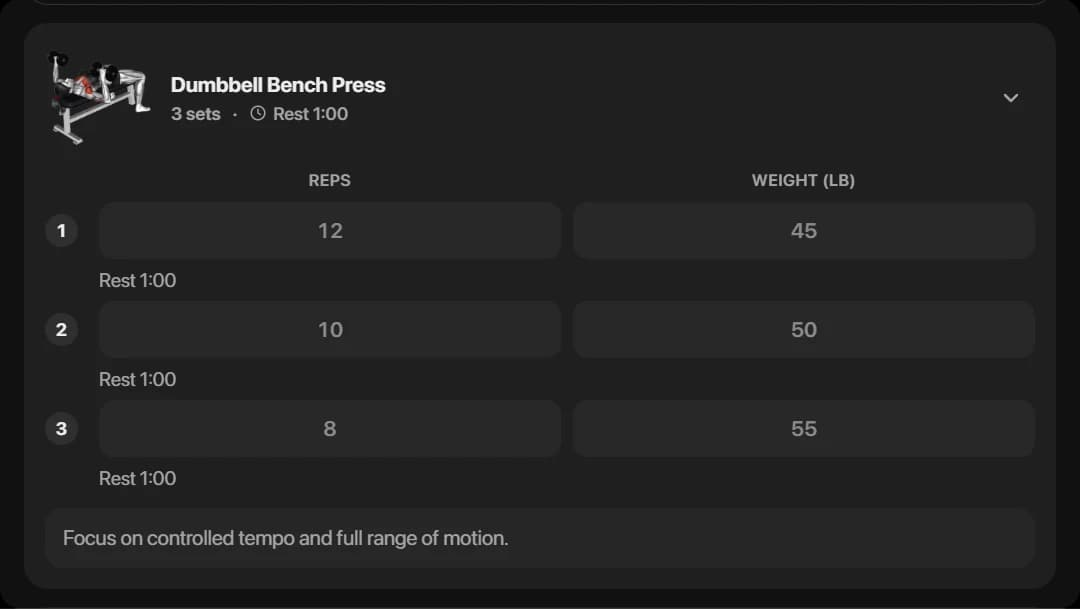
- Save workouts to your account. Ask it to save a generated workout, then open it in JustGains when you are ready to train. The saved workout is a template. Log your completed sets in the workout tracker.
- Review your training. Ask for your recent workout history, a summary of your week, or an analysis of how consistent you have been.
- Dig into specific lifts. "What are my top exercises?" or "show my bench press history" pulls your real logged sets.
- Track your weight. Check your weight trend, or tell ChatGPT "log 82 kg for today" and it writes the entry for you.
- Plan runs. Ask for a 5 km running route near you and it saves a real route to your Routes tab.
- Browse programs. Search JustGains workout programs and start one directly from the conversation.
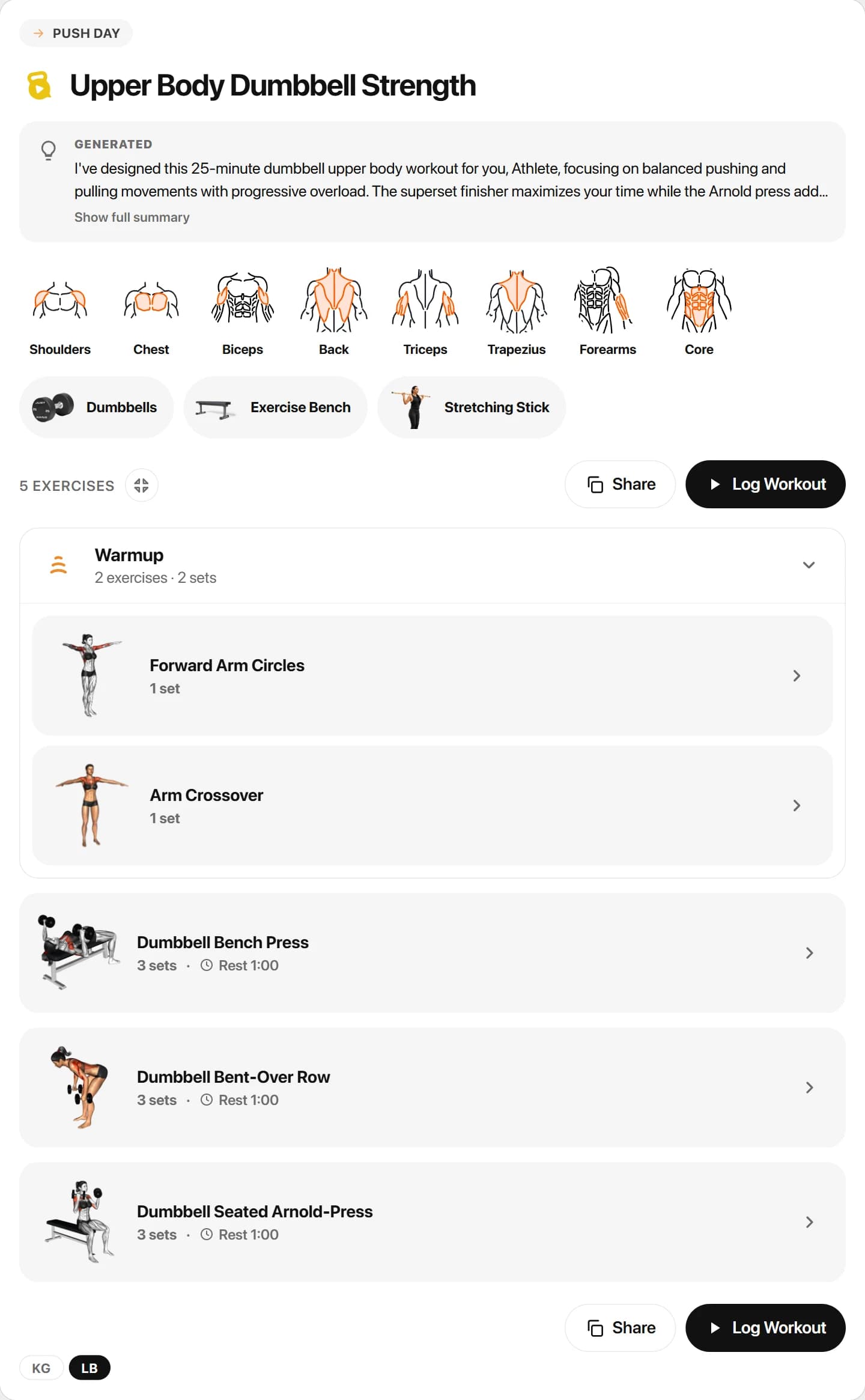
How to connect JustGains to ChatGPT
JustGains is in the ChatGPT Plugins directory, so you add it there. This takes about a minute and you only do it once.
- Open JustGains in ChatGPT Plugins, or open Plugins in ChatGPT and search for JustGains.
- Add it and connect your account. You will be sent to JustGains to sign in (or approve, if you are already signed in), then bounced straight back to ChatGPT.
- That is it. Start a new chat, and when a question involves your training, ChatGPT can use JustGains to answer it.
If your ChatGPT does not show Plugins yet, you can still add JustGains by hand: in Settings, under Connectors, create a connector with the server URL https://www.justgains.com/mcp and OAuth sign-in. Creating one needs Developer mode, in the advanced settings on that page.
Things to try first
- "Build me a 3-day dumbbell program for building muscle and save the first workout to my JustGains."
- "Summarize my last week of training. What should I focus on next week?"
- "How is my squat progressing? Compare this month to last month."
- "Log my weight: 82 kg this morning."
- "Plan me an easy 5 km running loop from my usual starting point and save it as a route."
Privacy and control
When you connect, ChatGPT acts as you, using a secure sign-in (OAuth) rather than your password. ChatGPT never sees your JustGains password, and it can only reach your data while the connector is connected. Everything it saves (workouts, weight entries, routes) lands in your own account, exactly as if you had entered it in the app.
You stay in control at both ends: disconnect or remove the plugin in ChatGPT settings at any time, and the access it was granted stops working. Nothing about your JustGains account changes when you disconnect; your data stays yours, in the app, as always.
Common questions
Do I need a paid ChatGPT plan?
The JustGains side is free: the plugin works with any JustGains account. Which ChatGPT plans include plugins is OpenAI’s call, so check the Plugins page in your ChatGPT.
What data can ChatGPT access?
The connector exposes your food diary and nutrition targets, workout history and progress, exercise history, weight history, routes, programs, and basic profile info. It can log and correct meals, remove food entries you ask it to delete, and save workouts, weight entries and routes to your account.
Can ChatGPT see my JustGains password?
No. The connection uses OAuth: you sign in on the JustGains website, and ChatGPT only receives a revocable access token. Your password never leaves JustGains.
How do I disconnect?
Open ChatGPT settings, go to Plugins, and disconnect or remove JustGains. Access stops immediately and nothing in your JustGains account is changed or removed.
Does this work with assistants other than ChatGPT?
Yes. The connector uses the open Model Context Protocol, so any MCP-capable assistant, such as Claude, can connect to https://www.justgains.com/mcp with the same sign-in flow.
Keep reading
The natural next steps from this guide.
Log nutrition with an AI agent or MCP
Log food, calories and macros with an AI agent through the JustGains MCP server. Connect your assistant, describe a meal, and save it to your food diary.

Use JustGains inside Claude
Connect JustGains to Claude to log meals, track calories and macros, build workouts, and review your real training data.
How workout suggestions work
JustGains workout suggestions are deterministic, rule-based prompts from your recent training.
Sets, reps, and training volume
Training volume is how much work you actually do, usually counted in hard sets.
What is an estimated 1RM?
An estimated 1RM predicts your max from a completed set without requiring a true max attempt.