Run a squad for your clients
A coach squad is a private group chat for some or all of your clients. Create one, decide who can post, and let finished workouts post themselves.
A coach squad is a private group chat for some or all of your clients. Only people you actively coach can be in it, and you are the one who puts them there.
Run one for a group that trains together, or put every client in one and use it for announcements.
Where to find it
| On | Go to |
|---|---|
| Web | Coaching, then Squads |
| Phone | You, then Coaching, then Squads |
Create a squad
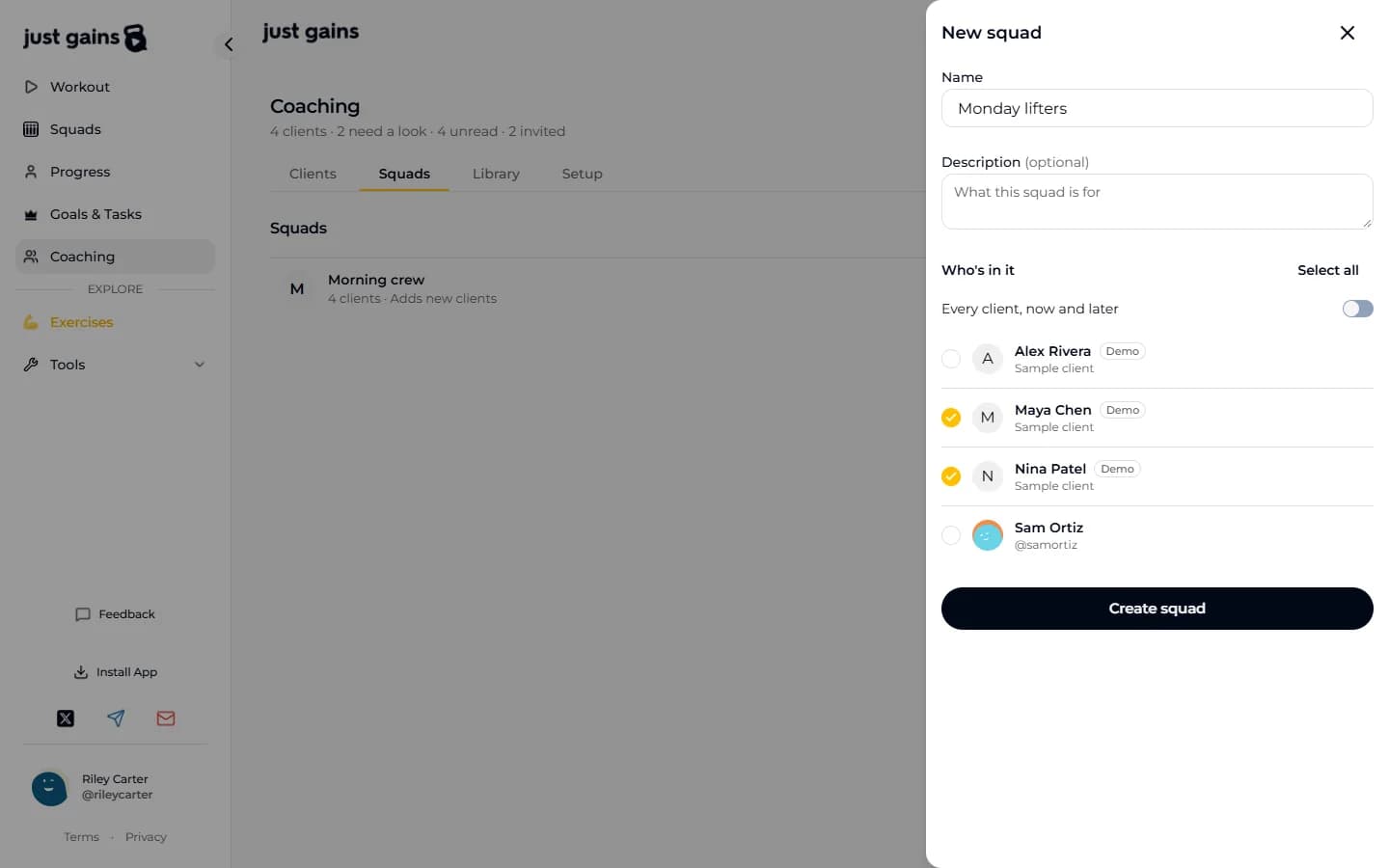
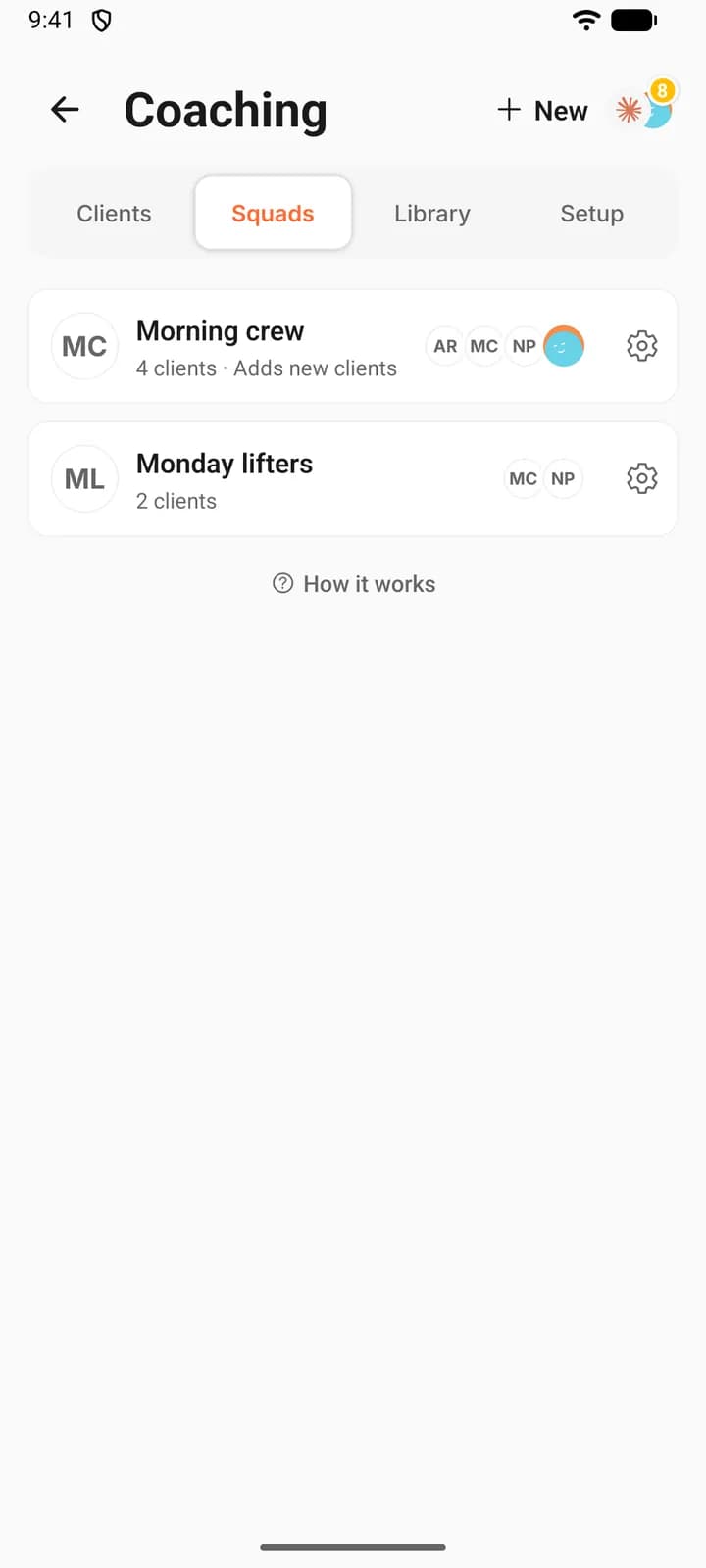
- Open Squads and press New squad. On the phone, once you have a squad, that header button reads New.
- Give it a Name. A Description is optional.
- Under Who's in it, tick the clients you want. To take your whole roster, switch on Every client, now and later: anyone you coach afterwards joins when they accept.
- Press Create squad. Its chat opens straight away.
The list shows your active clients, demo clients included, so you can try a squad on Maya, Nina and Alex first. Each person you add gets a notification and finds the squad, with its chat, in their Squads tab.
Who can be in it
Membership follows your roster. When coaching with someone ends, they leave your coach squads. A squad that reads “Adds new clients” in your list picks up each new client by itself.
A coach squad has no invite link, and members cannot add anyone. You choose the members when you create it. The coaching panel does not edit that list afterwards.
Settings
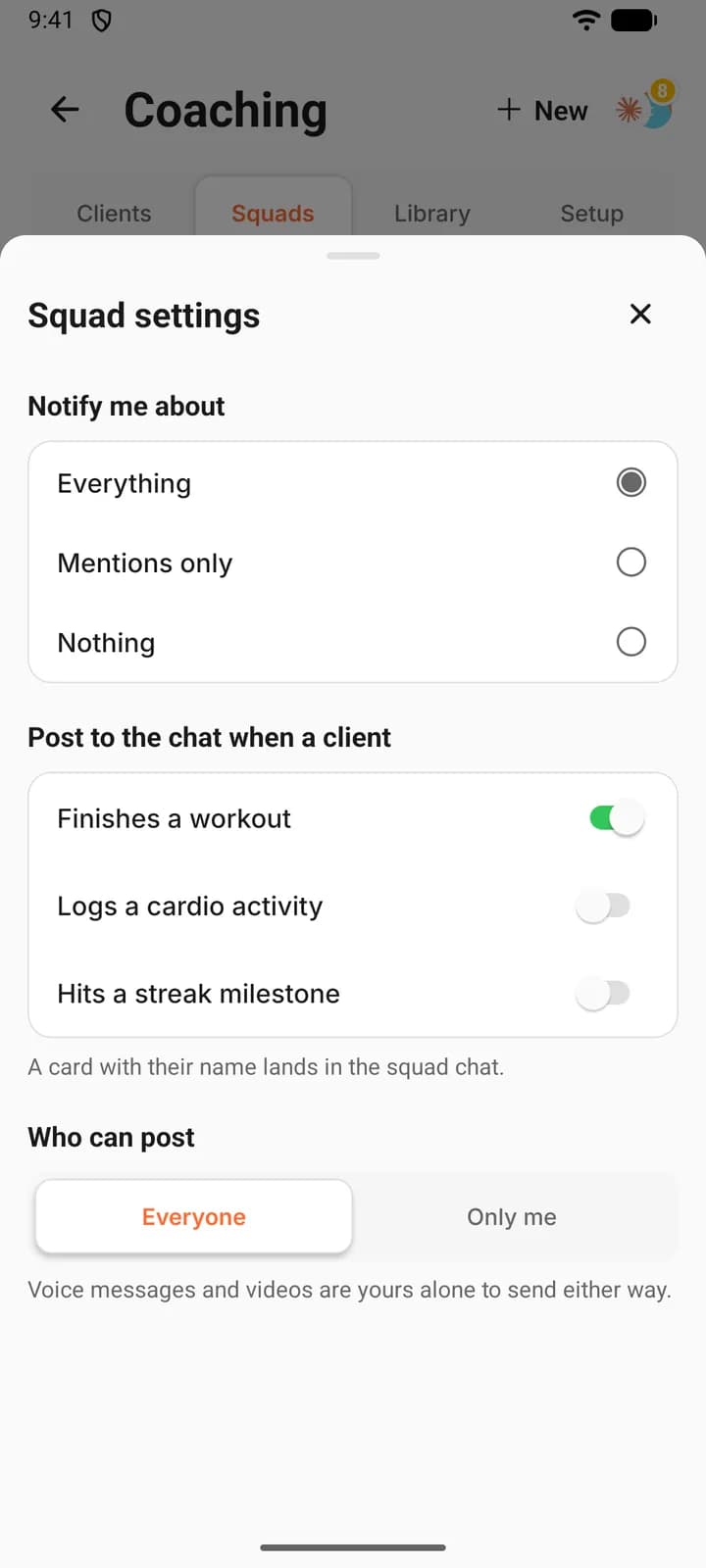
Open a squad’s settings from the settings icon on its row. Each change saves as you make it.
| Setting | Choices | What it does |
|---|---|---|
| Who can post | Everyone or Only you (Only me on the phone) | With Only you, nobody else can post to the chat or the squad’s feed. Members can still read and react. On the phone, where the message box was, they see “Only the coach posts here”. |
| Post to the chat when a client | Finishes a workout, Logs a cardio activity, Hits a streak milestone | Drops a card with their name into the chat. All three start off. |
| Notify me about | Everything, Mentions only or Nothing | Each member chooses their own. Mentions only still alerts them when a message names them with @. |
A workout or activity posts only if the member shares it to their feed. One they keep private stays out of the squad. Streak cards post at 3, 7, 14, 21, 30, 50 and 75 days, at 365, and at every 50 days from 100. The cards keep posting in a squad where only you can post.
On the web, a workout card opens that client’s log, where you can leave a comment.
Voice and video messages
In your own coach squad you can send text, photos, voice messages and videos. Members can send text and photos. Voice and video stay yours even when Who can post is set to Everyone. A voice message can run up to 5 minutes.
How it differs from an ordinary squad
A coach squad is an ordinary squad with one rule added: only your active clients can be in it. It appears in the main Squads tab for you and for its members, next to the squads you share with friends or your gym. The Squads section inside Coaching lists only the ones you run for clients.
Ordinary squads grow by invitation, usually a shared link. A coach squad never has one.
FAQ
Keep learning
Message a client and comment on their workouts
Message one client from the roster or their page, send photos, voice and video, and reply to a finished workout with a comment they are notified about.
Invite clients by email, link, code or username
Three ways to invite a client, what each person receives, what you see while you wait, and how to resend, cancel or withdraw an invitation.
Coach from your phone: what works where
Nearly every coaching job works on both web and phone. This table lists them all, the few that need a browser, and what the phone does best.